

Trace in Flow Builder
The trace shows everything your bot did to answer a message, step by step: what the visitor sent, the steps the flow ran, the values of your variables, and the answer that was sent. Use it to debug a flow while you build it, or to understand why your bot answered the way it did in a real conversation.
Open a trace
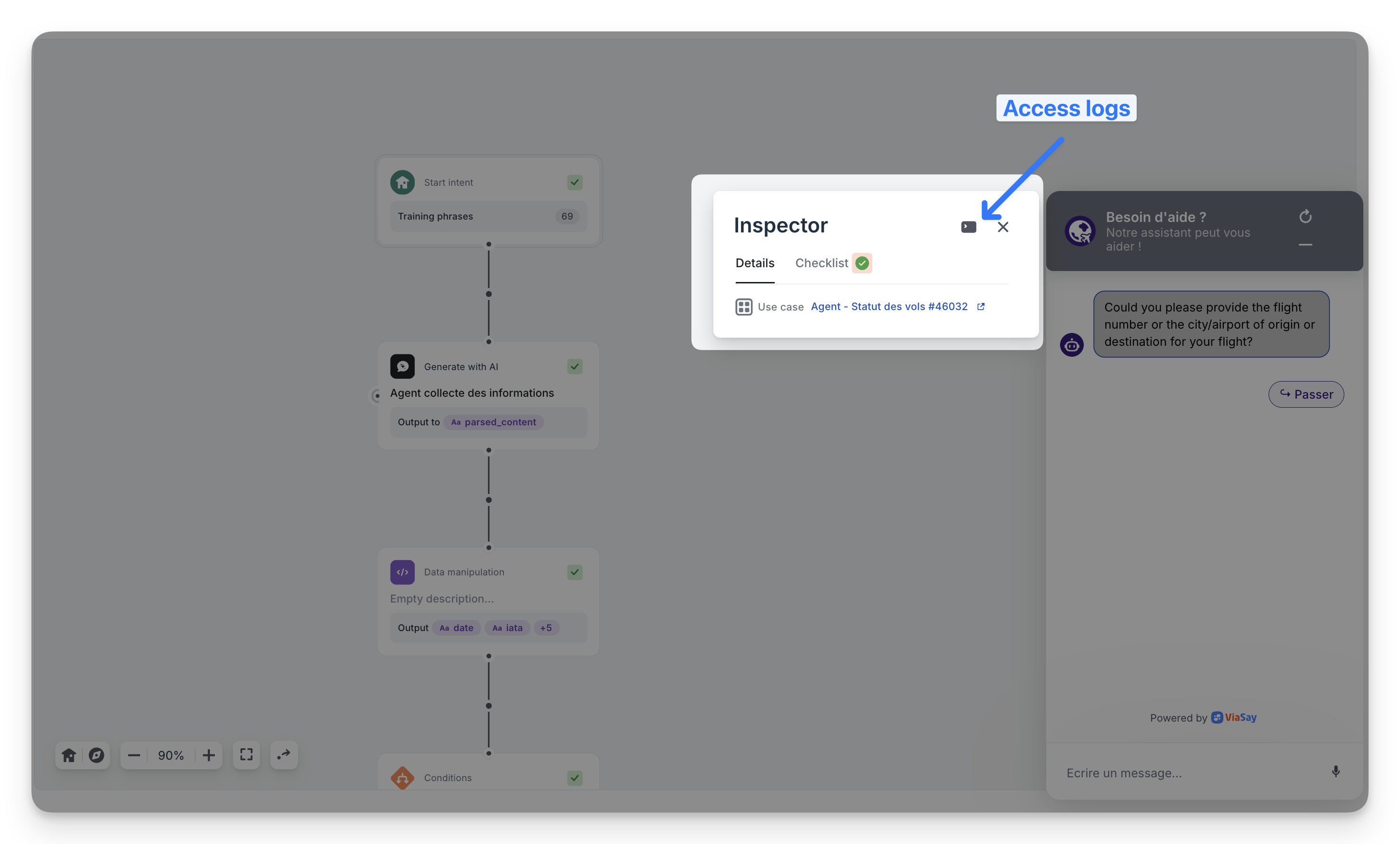
- In the Flow Builder, click Test, open the Inspector and click Access logs
- In Conversations, click Trace on a message to understand why the bot answered that way
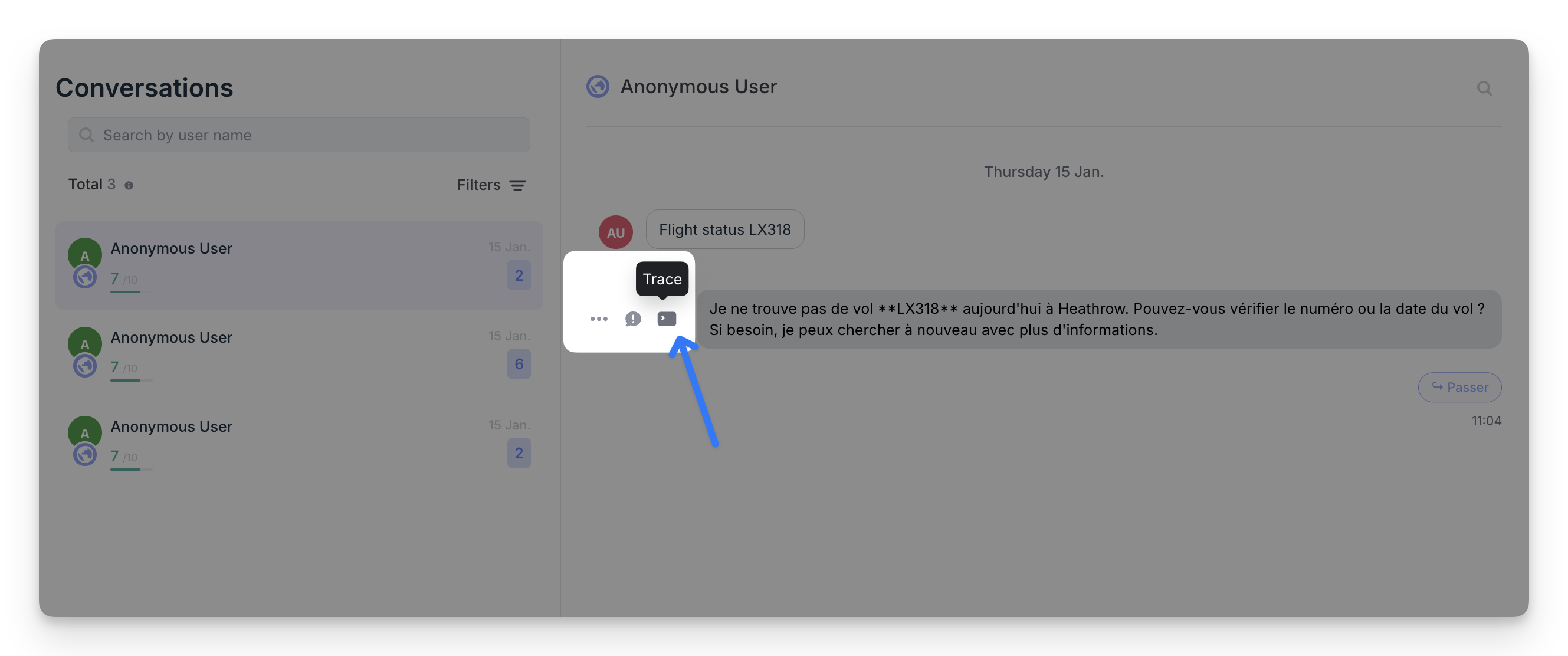
The trace opens on the message you selected. Use the arrows on each side to move to the previous or next message of the conversation.
Read a trace
The trace has two tabs:
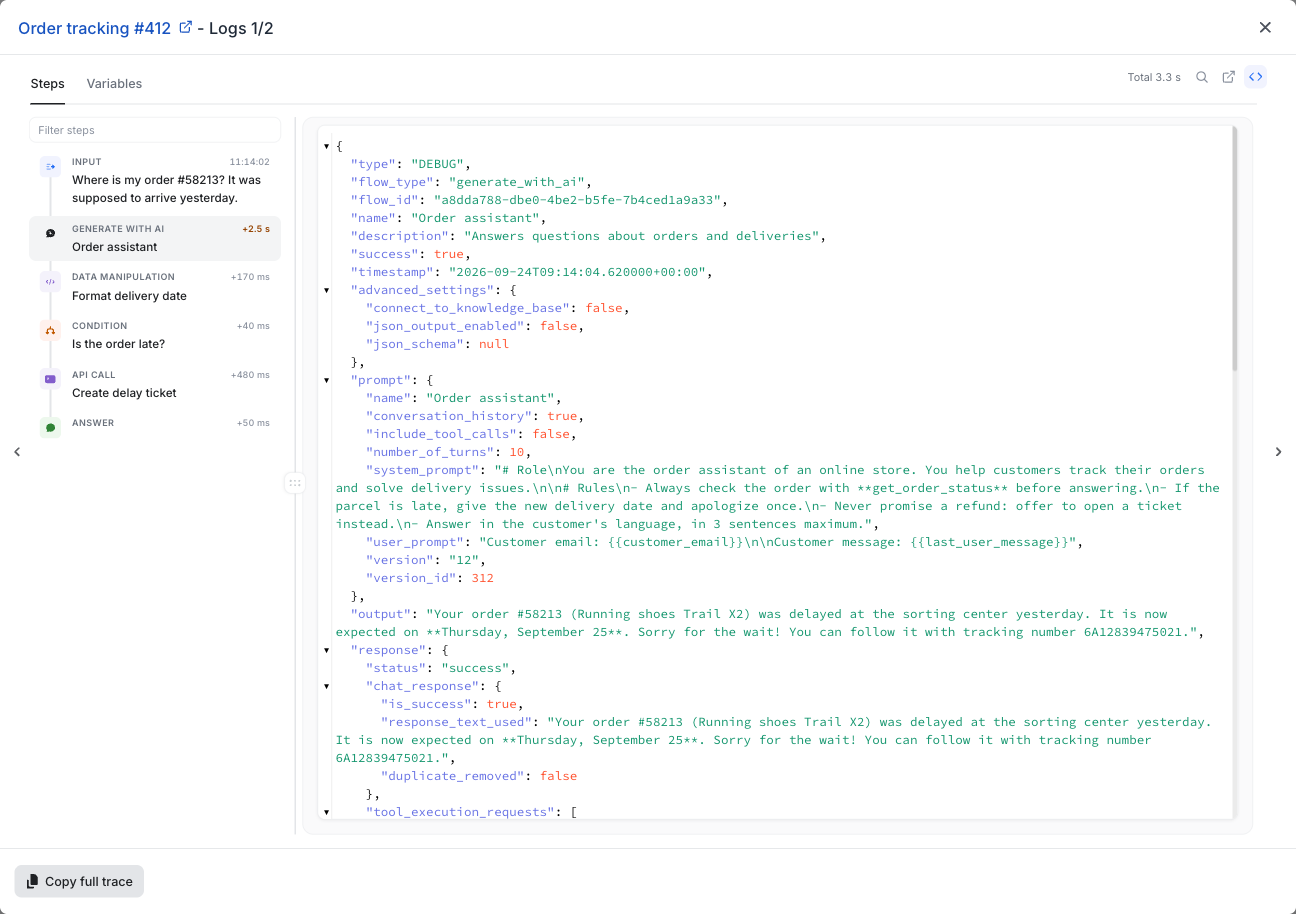
- Steps: the list of steps the bot ran, in order, and the details of the selected step
- Variables: the Input Variables, available before the run, and the Output Variables, updated or created by the run
The steps list
Each step of the list shows its type, its name and the same icon as in the Bot Builder.
- Durations: each step shows how long it took. The total time of the run is shown at the top. The slowest steps are highlighted.
- Filter steps: type a word to only show the matching steps
- Errors: click Errors to only show the steps that failed
- Keyboard: use the up and down arrow keys to move from one step to the next
The step details
When you select a step, its details open on the right, in a formatted view built for that type of step. Each section can be folded, and the toolbar at the top gives you these actions:
- Search in this step (Ctrl+F): find a word or a sentence in the step. Long texts, such as a prompt or an API response, also have their own search.
- Open this step in the Bot Builder: opens the step in a new tab
- Expand all sections / Collapse all sections
- View raw JSON: shows the complete data of the step, as the platform recorded it. Click the button again to go back to the formatted view.
Each section, and most fields, have a copy button.
What each step shows
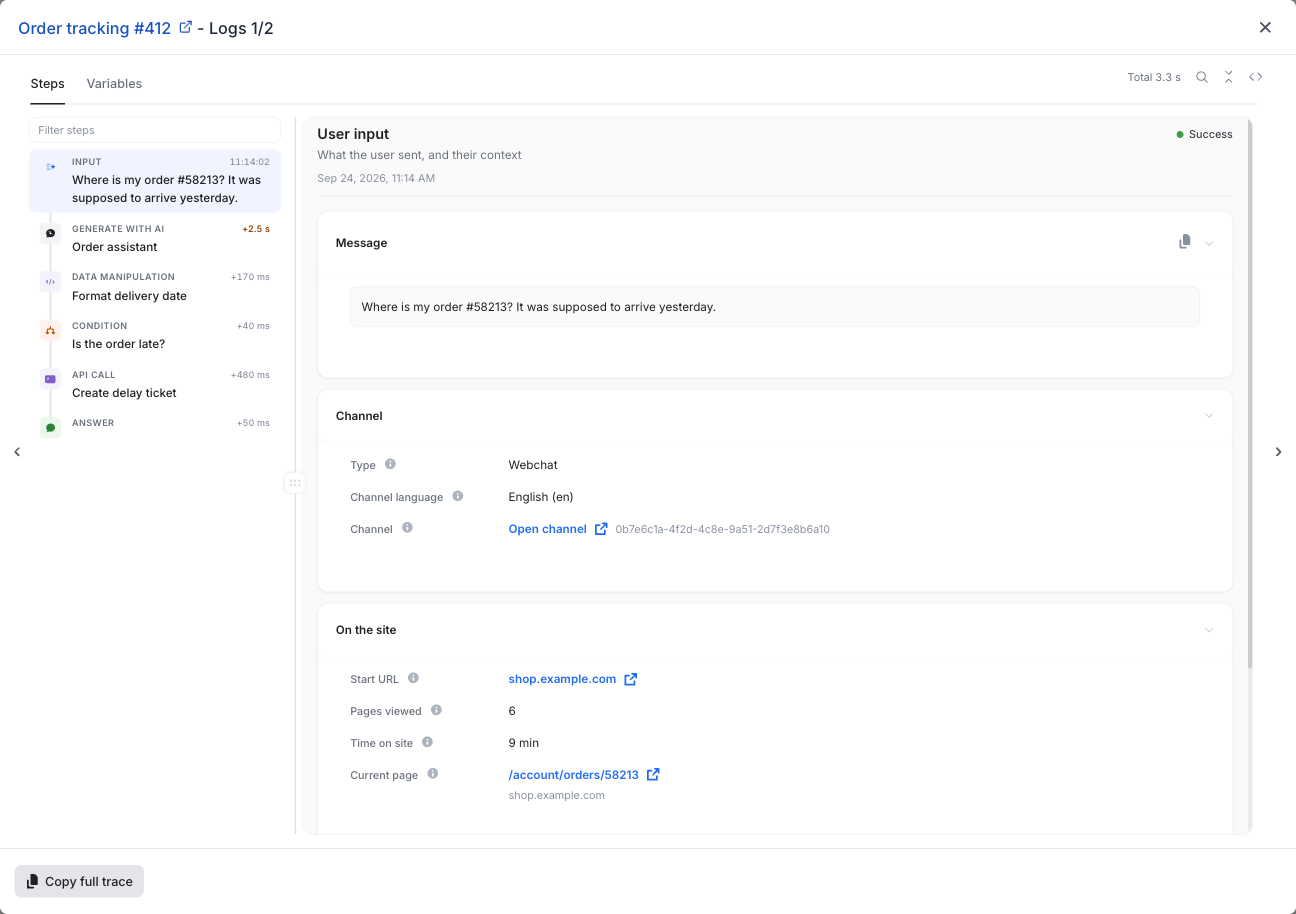
User input
The message the visitor sent, and their context when they sent it:
- Message: what the visitor typed
- Channel: the type of channel, its language, and a link to open its settings
- On the site: the current page, the start URL, the number of pages viewed and the time on site
- Device: the browser, the operating system, the browser language and the local time
Hover the (i) icon next to a field to see what it means. Empty fields are hidden.
Intent detection
The analyzed message, the detected intent, the intents evaluated, and the detected entities.
Generate with AI
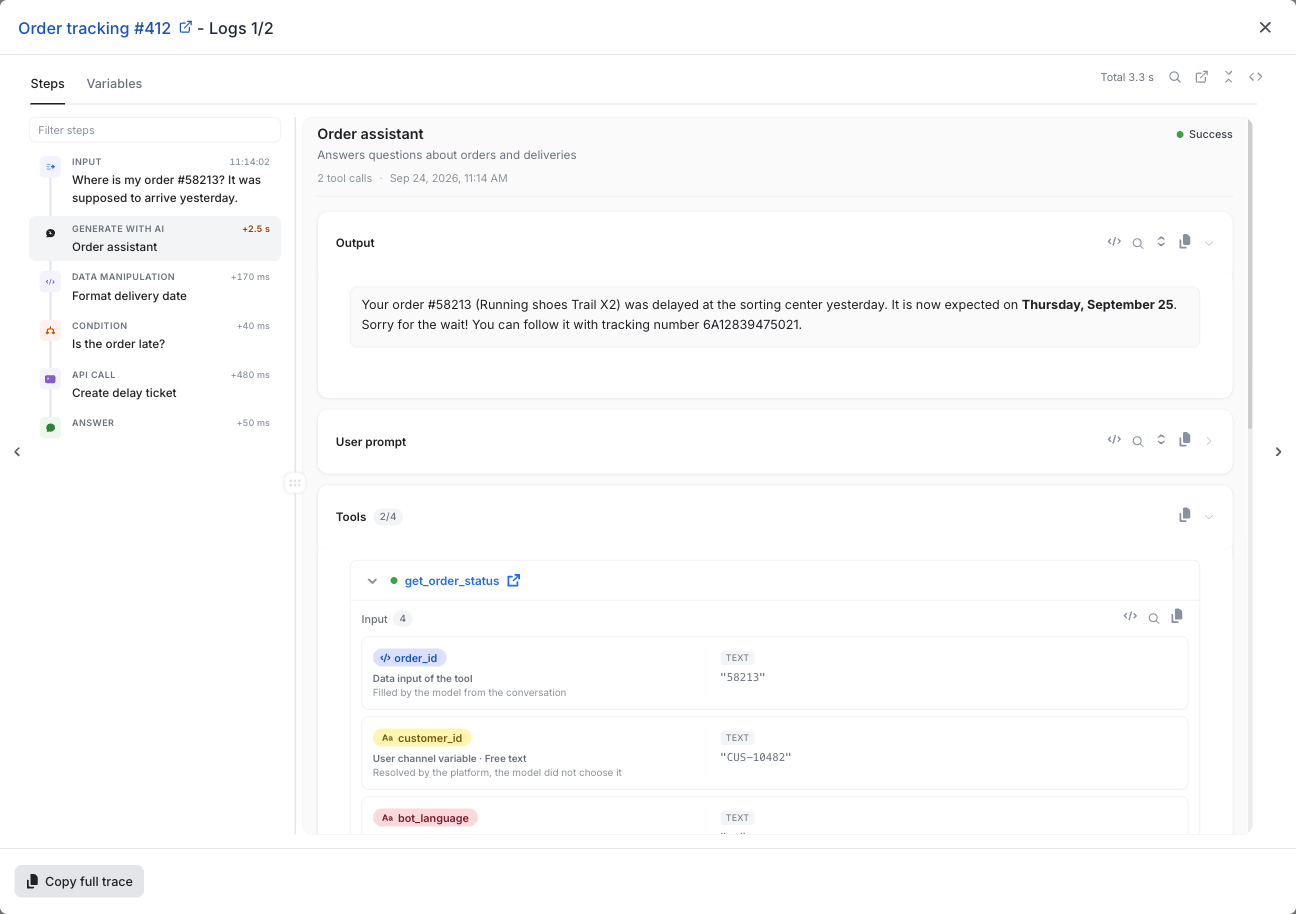
- Output: the answer generated by the model. A JSON answer is shown field by field.
- User prompt and System prompt: the prompts sent to the model
- Tools: the tools available to the step, with the number of tools called (for example 2/4). For each tool called, you can see its Input and its Output. The input lists the values the model filled from the conversation and the platform variables the platform resolved. Click the tool name to open its configuration. The tools that were not called are marked Not called.
- Context sent to the model: the conversation history the model received
- Output schema: the expected structure of a JSON answer, when the step uses one
- Configuration: the prompt version and the settings of the step
Louis AI
- Answer: the answer of Louis, and the documents Louis cited to answer (Cited by Louis). Click a document title to open it in the knowledge base.
- Reasoning: how Louis built its answer
- Question: the question of the visitor, and the question as Louis rewrote it to search the knowledge base
- Knowledge given to Louis to answer: the extracts of documents Louis received, grouped by document
- Guidelines: the guidelines that were active for this answer
- Risk level: Low, Medium or High. Hover the badge to see what each level means.
Condition
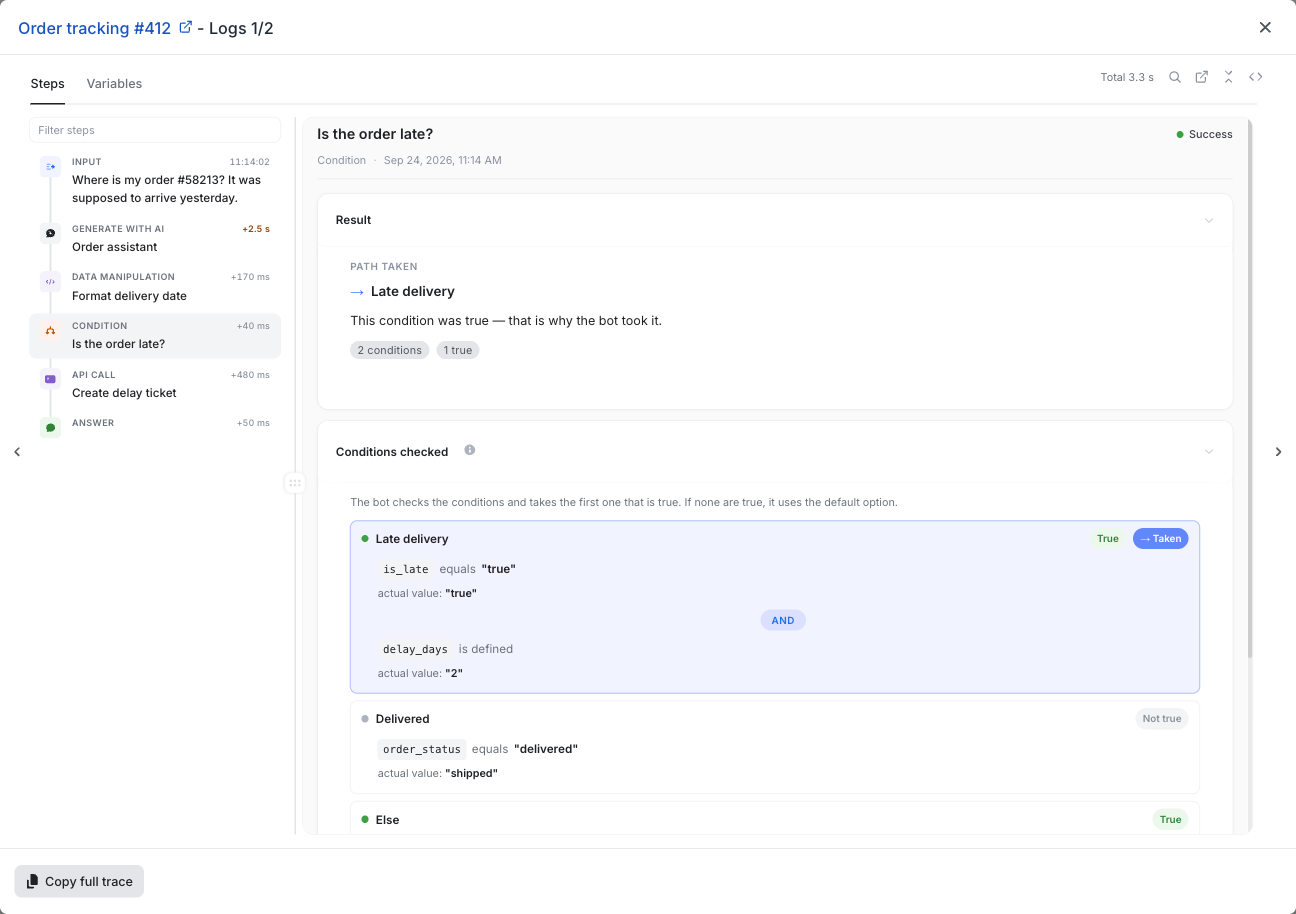
- Result: the path the bot took, and why
- Conditions checked: each path, with its conditions written in plain language and the actual value of each variable during the conversation. Each path is marked True or Not true, and the path the bot took is marked Taken. The bot takes the first path that is true. If none is true, it uses the default option.
API call
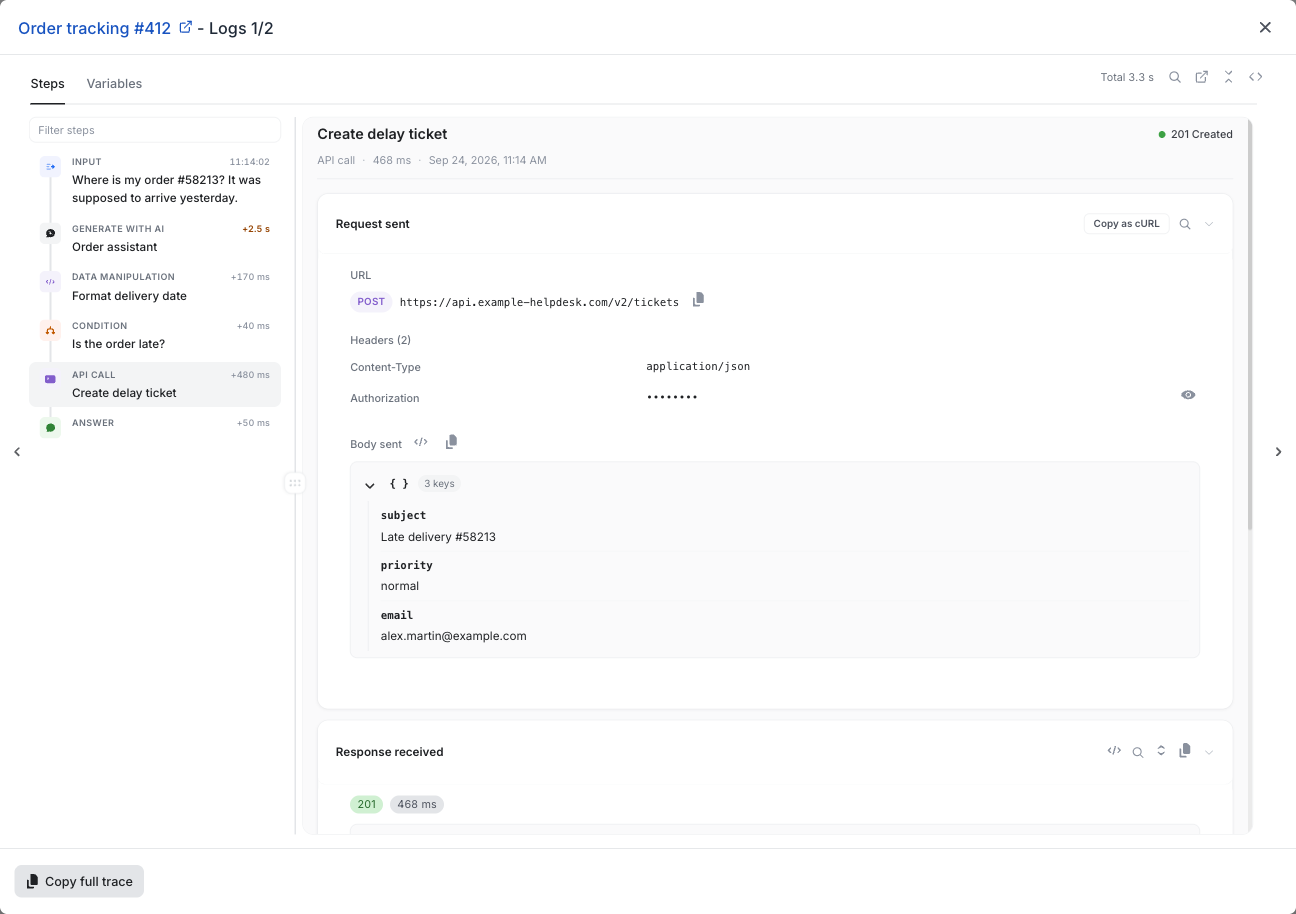
- Request sent: the method, the URL, the headers and the body. Authentication headers are masked: click the eye icon to show them. Click Copy as cURL to replay the request from a terminal.
- Response received: the status, the duration and the body of the response
- Saved to variables: the variables extracted from the response. A variable marked nothing found means the response did not contain the expected field.
When the call fails, the step says so at the top and reminds you that nothing was saved to variables.
Data manipulation
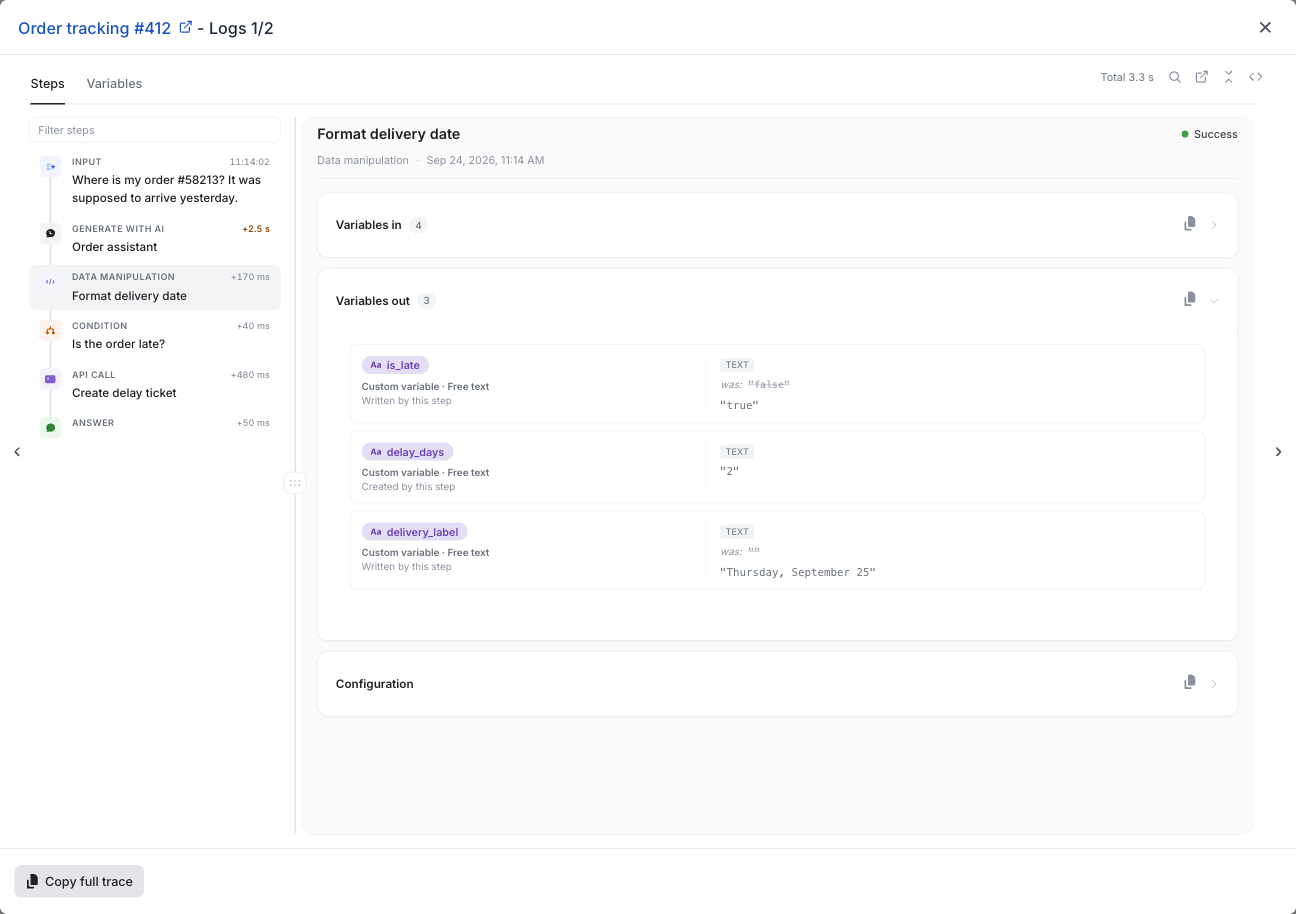
- Variables in: the variables the step read, with their value when the step started
- Variables out: the variables the step wrote. When a value changed, the previous value is shown next to the new one. A variable that was declared but not set is flagged, because the steps that read it later will get nothing.
Other steps
- Go to use case: the use case the conversation was redirected to
- User input (question asked by the bot): what the visitor answered, and the variables written from the answer
- Answer: the answer sent to the visitor
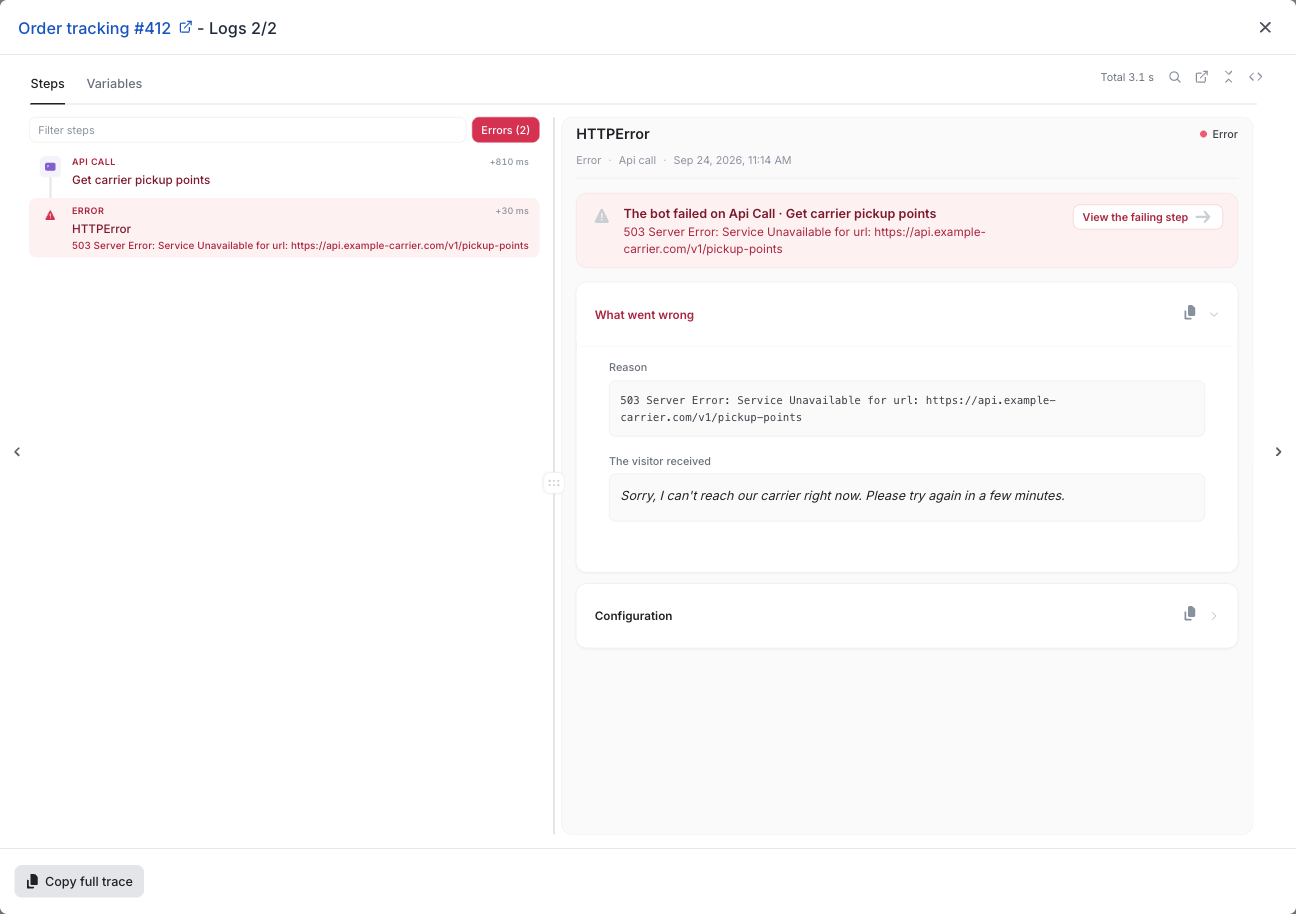
Errors
When a step fails, the trace adds an Error step. It shows What went wrong: the reason, when the platform recorded one, and The visitor received: the message sent to the visitor. A banner names the step that failed. Click View the failing step to go to it.
Variables
Wherever the trace shows a variable, it shows its value, its type and where the value came from:
- Filled by the model from the conversation
- Resolved by the platform, the model did not choose it
- Extracted from the API response
- Written from the visitor's answer
- Created by this step or Written by this step
The Variables tab shows the Input Variables, available before the run, and the Output Variables, updated or created by the run.
Copy the full trace
Click Copy full trace, at the bottom of the trace, to copy the complete trace. Each section and each step is commented, so you can paste it into an AI assistant and ask it to explain an answer or find a bug, or attach it to a support request.
The copied trace contains the raw data
The copied trace includes every value recorded during the run, including authentication headers and personal data. Only paste it into tools you trust.
Updated 9 days ago