

Error messages
Write what your customers read when the bot can't answer, in each language of your bot, instead of an English technical message or silence.
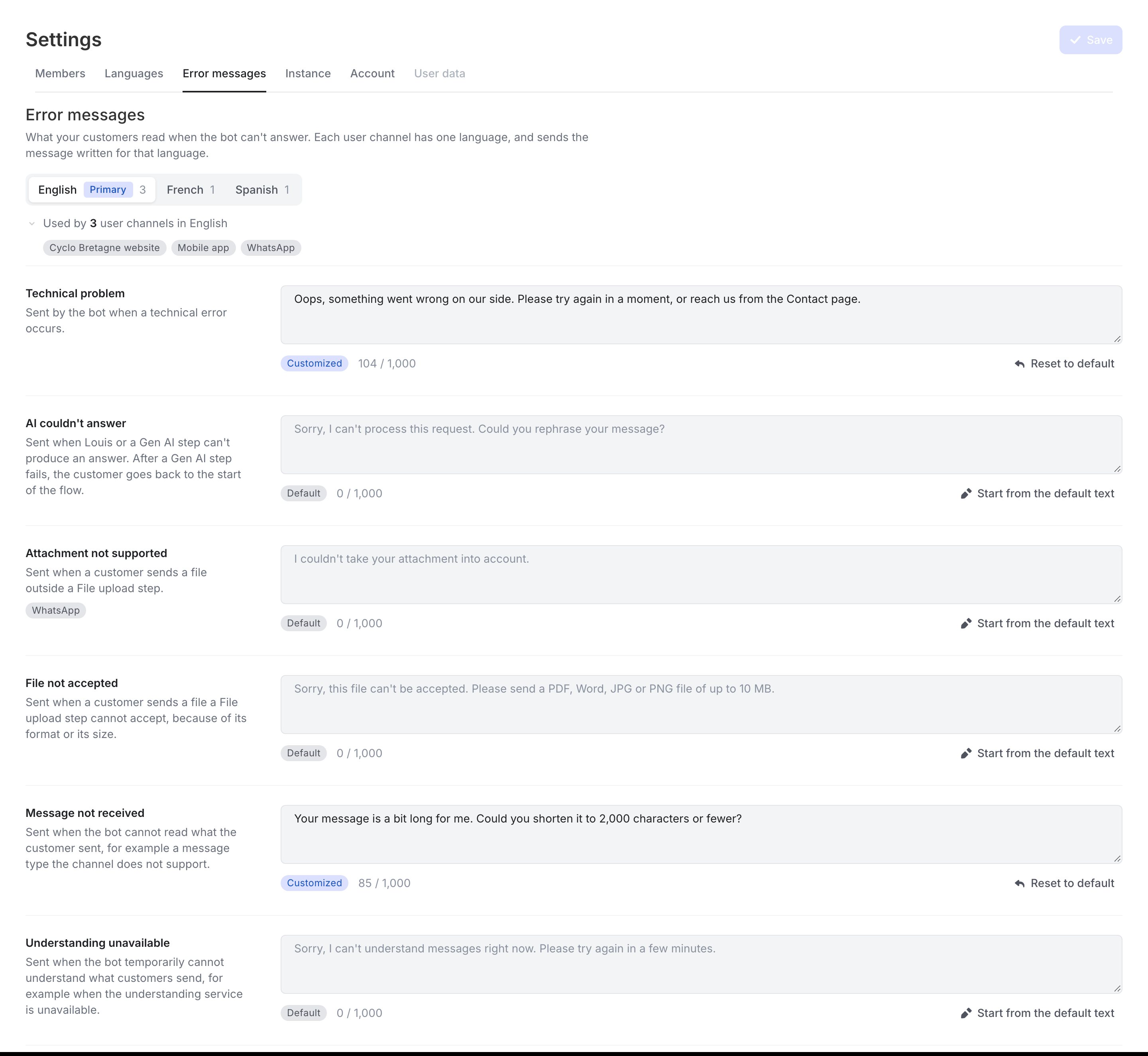
Where to find the error messages
Go to Settings > Error messages. The tab is visible to users with the Manager or Platform Administrator role.
The messages and what triggers them
Each message matches one situation. Until you write your own, the customer receives the default text.
| Message | Sent when | Default text |
|---|---|---|
| Technical problem | A technical error prevents the message from being processed: a Generate with AI step or Louis fails (error from the AI provider, timeout), Louis has no answer to give, a flow loops, a step is misconfigured. | "Sorry, a technical problem occurred on our side. Please try again or rephrase your message." |
| AI couldn't answer | The AI's safety filters block the customer's message or stop the answer midway. | "Sorry, I can't process this request. Could you rephrase your message?" |
| Message not received | The customer sends a message of more than 2,000 characters. | "Sorry, I couldn't process your message. Please send a text of up to 2,000 characters." |
| Understanding unavailable | The service that understands messages is unavailable. | "Sorry, I can't understand messages right now. Please try again in a few minutes." |
| Attachment not supported | Not sent yet (see "Good to know"). | "I couldn't take your attachment into account." |
| File not accepted | Not sent yet (see "Good to know"). | "Sorry, this file can't be accepted. Please send a PDF, Word, JPG or PNG file of up to 10 MB." |
Write a message
- Go to Settings > Error messages.
- Choose a language of your bot. The line below, for example Used by 3 user channels in English, tells you how many channels send this text; click it to see them.
- Click the message field and write your text, 1,000 characters at most. To start from the default text, click Start from the default text.
- Click Save.
The tag under the field changes from Default to Customized as soon as you type. A single Save stores every message in every language.
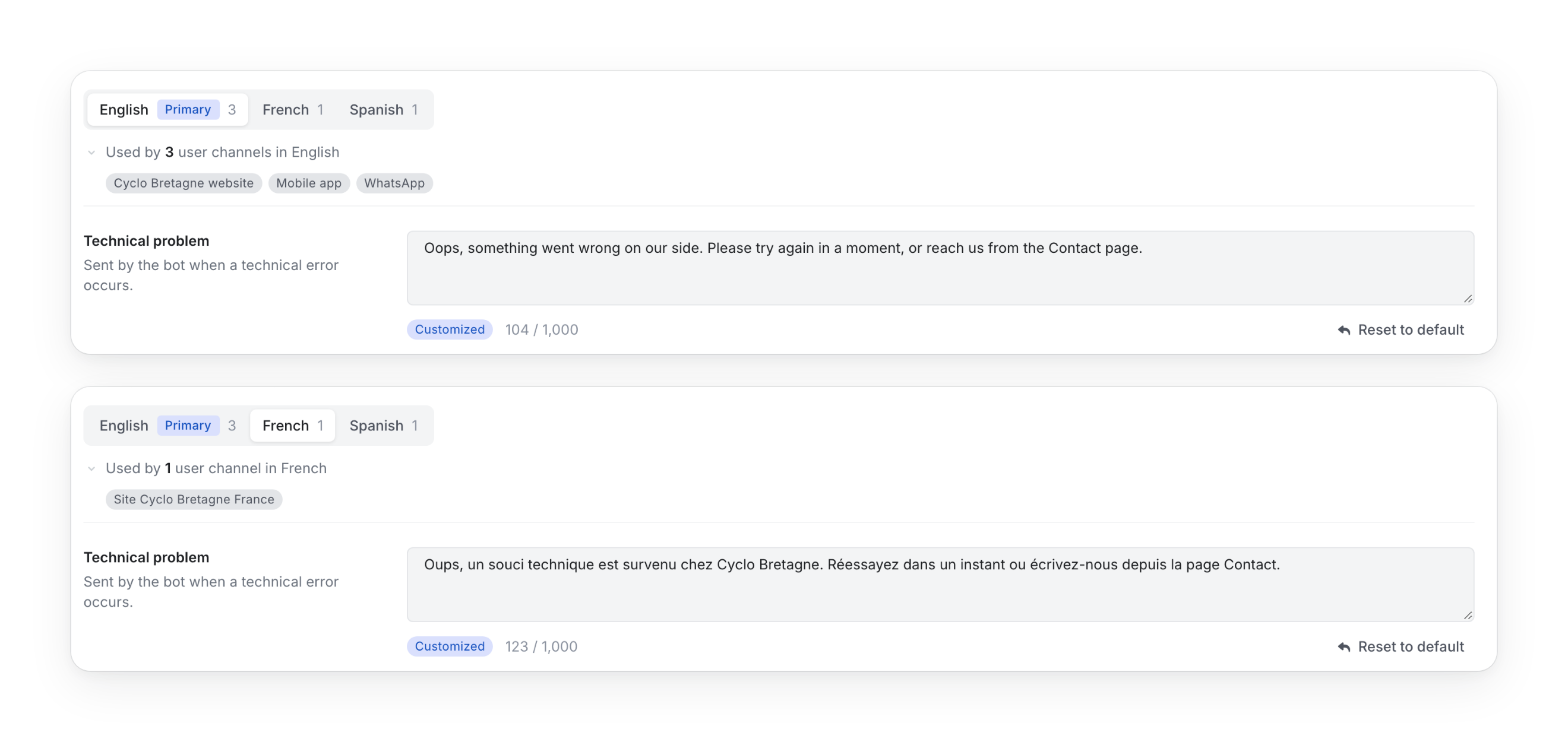
To go back to the default text, click Reset to default under the message, then Save.
Note
if you leave the page with unsaved changes, a warning (Leave without saving?) lets you stay or discard them.
Which text the customer receives
Each user channel has a single language and sends the message written for that language. If you haven't written one, it sends the default text for that language: French, English, German, Spanish, Italian, Dutch or Portuguese. For any other language, it is the English text.
Check that it works
- Open the widget of a channel in that language, with no human agent in the conversation, and paste a text of more than 2,000 characters.
- Check that the bot answers with your Message not received message, or with the default text.
Good to know
- After a Generate with AI step fails, the customer goes back to the start of the flow.
- After the safety filters refuse a message, the customer can keep talking to the bot: the refused message is removed from what the AI remembers.
- When a human agent is in the conversation, a message of more than 2,000 characters is ignored, as before.
- Attachment not supported and File not accepted can already be written, but the bot does not send them yet. They start working with an upcoming update on files.
- The Fallback text field of the Instance tab is now the Technical problem message, with the text you wrote.
Next steps
- Languages: add the languages of your bot.
- Instances: the other settings of your instance.
- Generate with AI: the step whose failures send these messages.
Updated 1 day ago