

Exit conditions in the Gen AI step
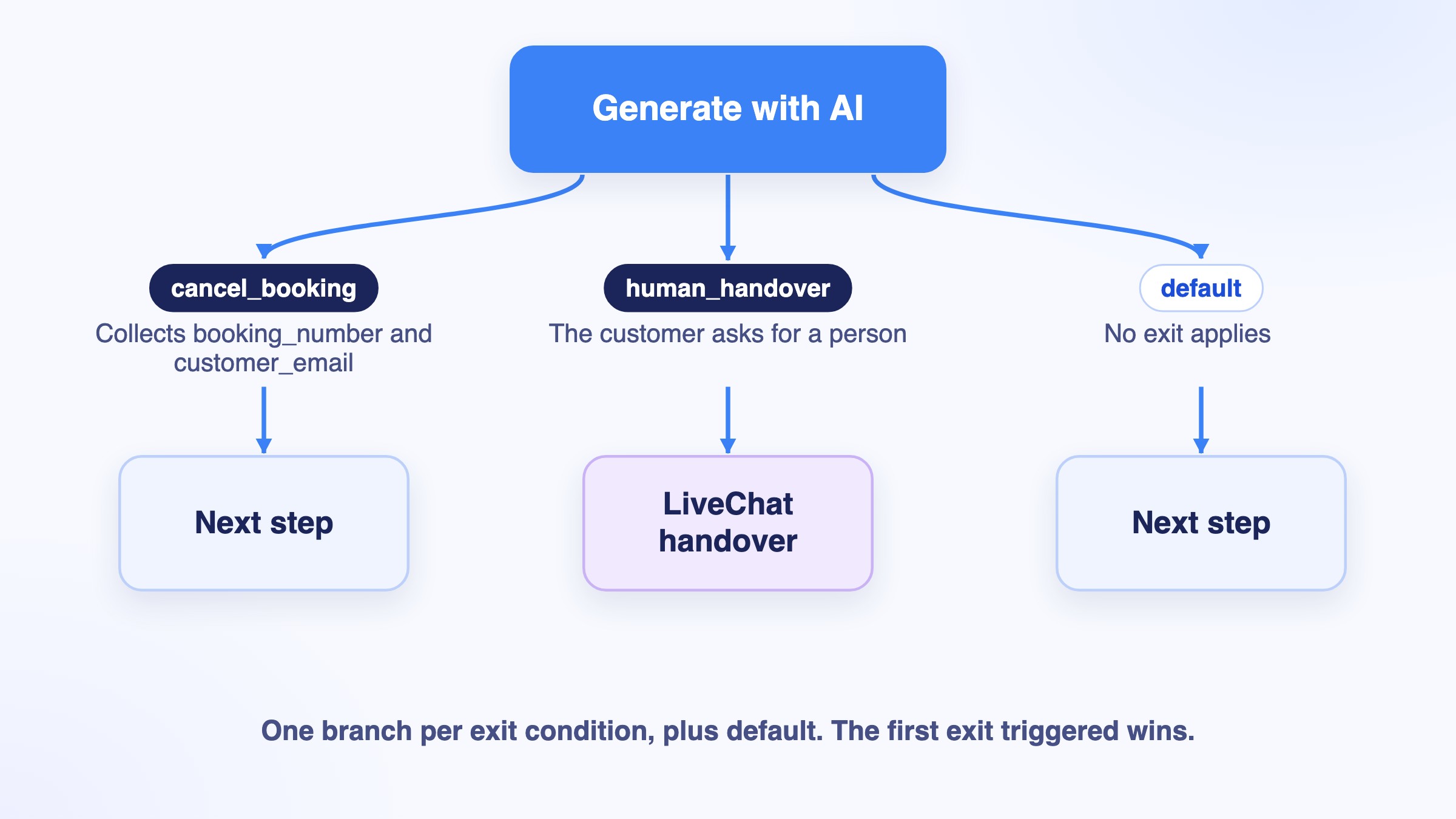
Exit conditions let the AI decide when the step is over and which way the conversation goes next. Each exit condition becomes its own branch on the canvas, so the whole journey reads at a glance. Open Advanced Parameters in the prompt editor, then Exit conditions.
When are your changes saved?
Changes to Tools, Knowledge Base search and Exit conditions are saved when you close their panel; JSON output and Conversation history are saved with the prompt, when you close the prompt editor. If a field has an error, a message lets you choose Keep editing or Discard changes. Everything is saved on the draft version and reaches production when you publish your flow. A production version is read-only: create a draft to change it.
Exit conditions let the AI decide when the step is over and which way the conversation goes next. Each exit condition creates a branch under the step on the canvas, taken when the condition is met. When no exit condition applies, the conversation follows the default branch. A step without exit condition keeps a single outgoing link, as before: when you add the first exit condition, that link becomes the default branch, so your flow keeps working, and deleting the last exit condition turns it back into a single link.
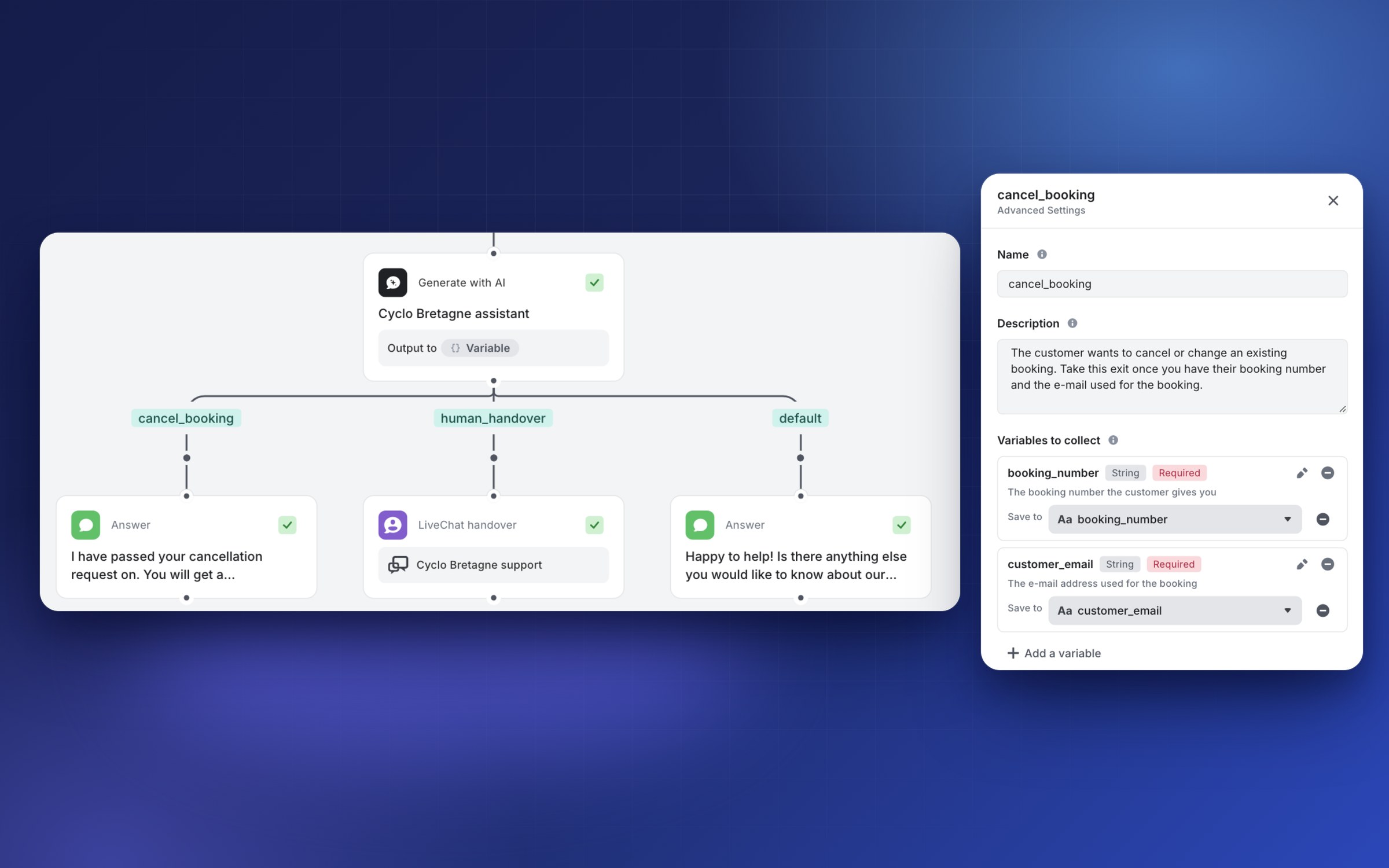
- In Exit conditions, click + (Add an exit condition).
- Fill in the Name: letters, digits,
_and-only, 64 characters at most. It must be unique on your bot, anddefaultis reserved. - Write the Description: it is what the AI reads to decide when to take this exit. Describe a distinct case, not a nuance of another exit.
- Under Variables to collect, click Add a variable for each piece of information the AI must gather before leaving. Give it a name (lowercase letters, digits and
_), a type, Required or Optional, and a description, then, if you want to keep the value, click Save to variable to store it in a variable of your flow. A variable that is not saved is collected for the AI but kept nowhere. - Back on the canvas, connect the branch to the next step.
Connect every branch before publishing
You cannot publish while an exit condition has no connected branch (Connect the "name" branch, or remove the exit condition.) or while the default branch is not connected. Deleting an exit condition removes its branch and everything connected below it, after confirmation.
If the AI triggers several exits in the same turn, the first one is taken.
Good practices
- Write exit conditions that do not overlap: one clear case per exit.
- Name a variable after what it holds (
booking_number) and describe it with an example.- Test the step with real conversations: the AI is asked to collect Required variables, but check that the values your flow receives are filled in.
See also
Tools in the Gen AI step · Knowledge Base search in the Gen AI step · Generate with AI
Updated about 2 hours ago