

Document lifecycle
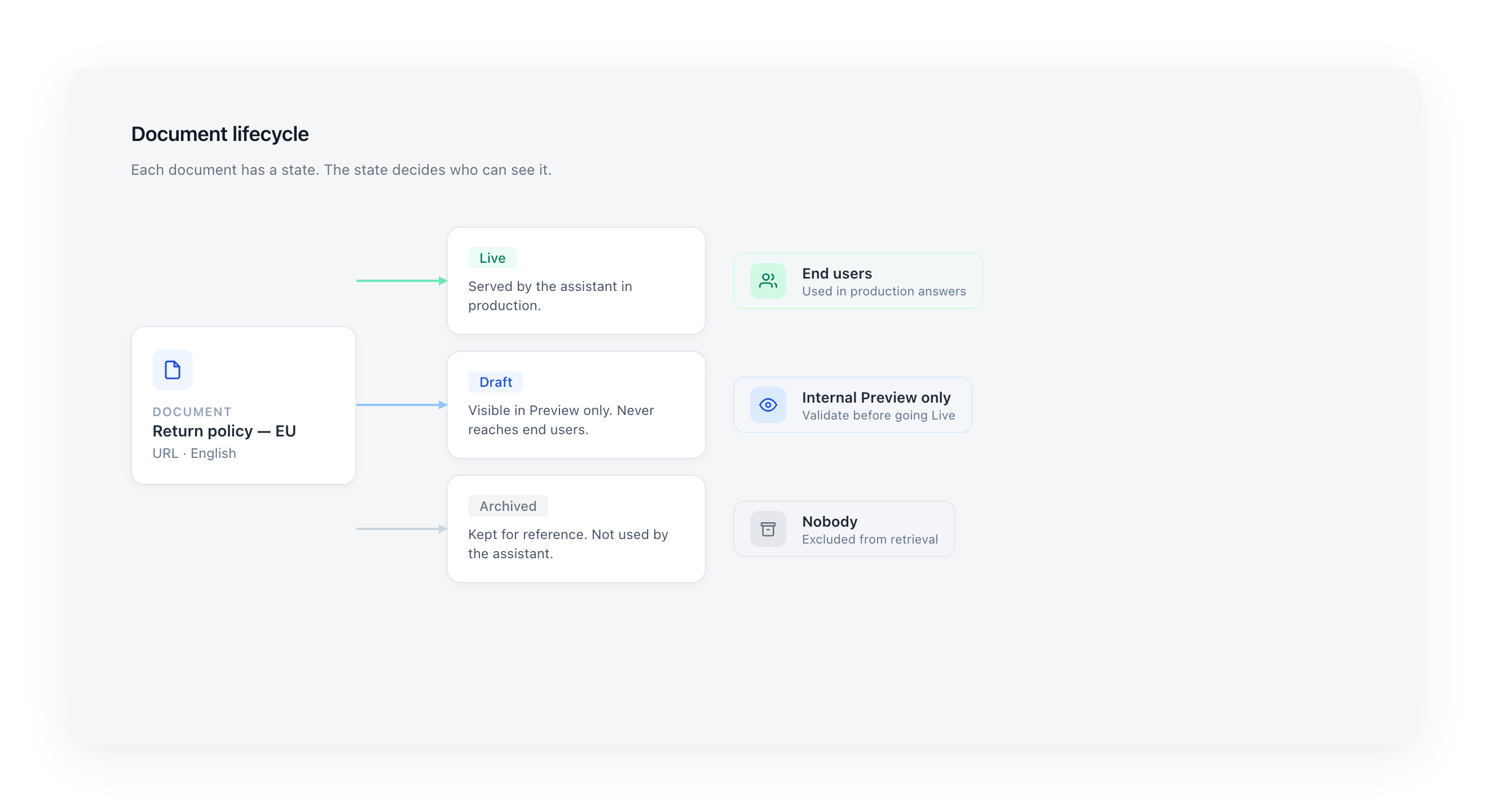
Every document in the Knowledge Hub has an explicit state that decides whether Louis uses it. This page covers the three states and how to move documents between them.
The three states
| State | Used by Louis in production? | Visible in Preview? | When to use |
|---|---|---|---|
| Live | ✓ Yes | ✓ Yes | Validated content ready for end users. |
| Draft | ✗ No | ✓ Yes | Content being prepared or A/B-tested internally. |
| Archived | ✗ No | ✗ No | Obsolete content you want to keep for reference. |
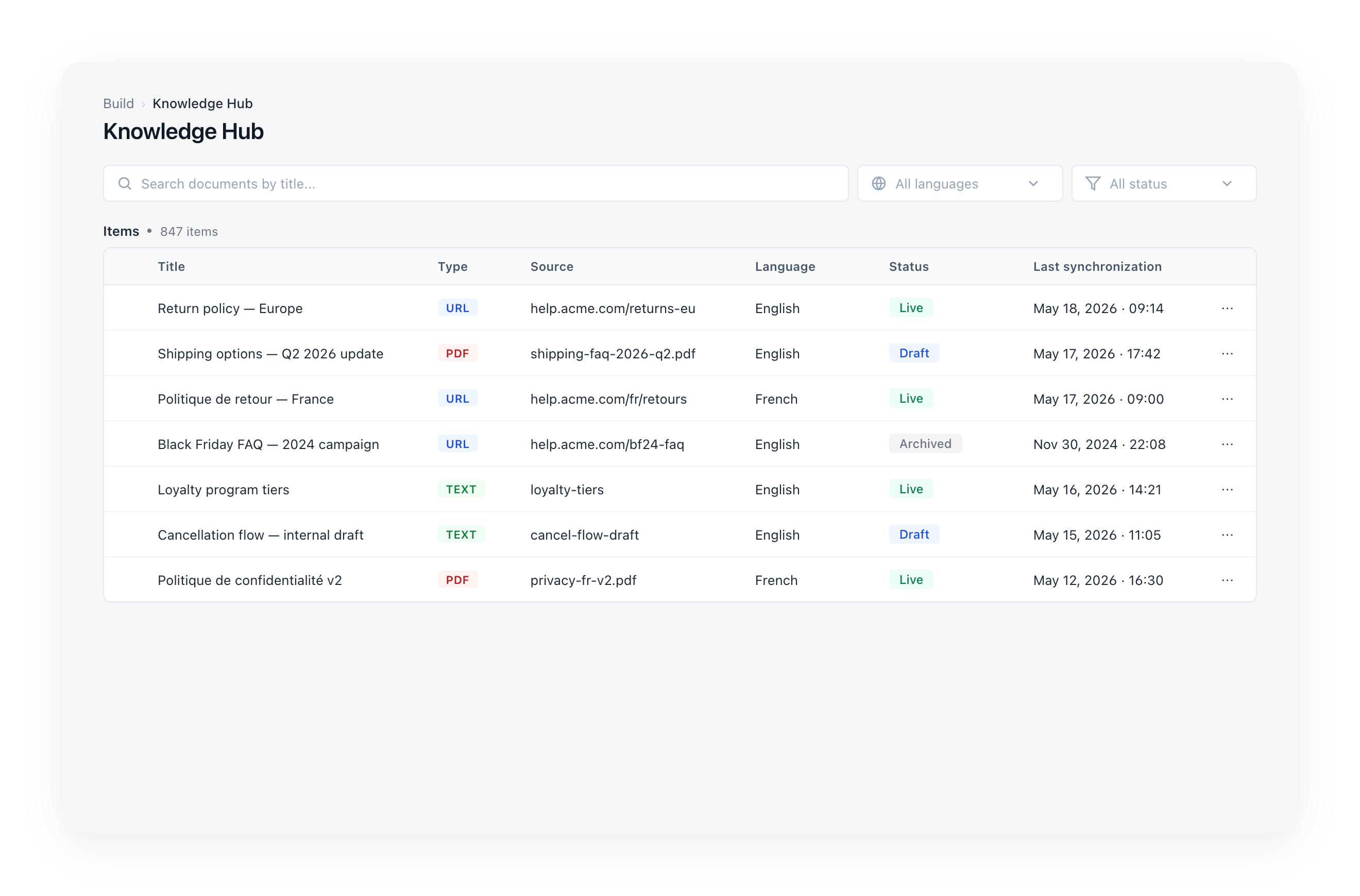
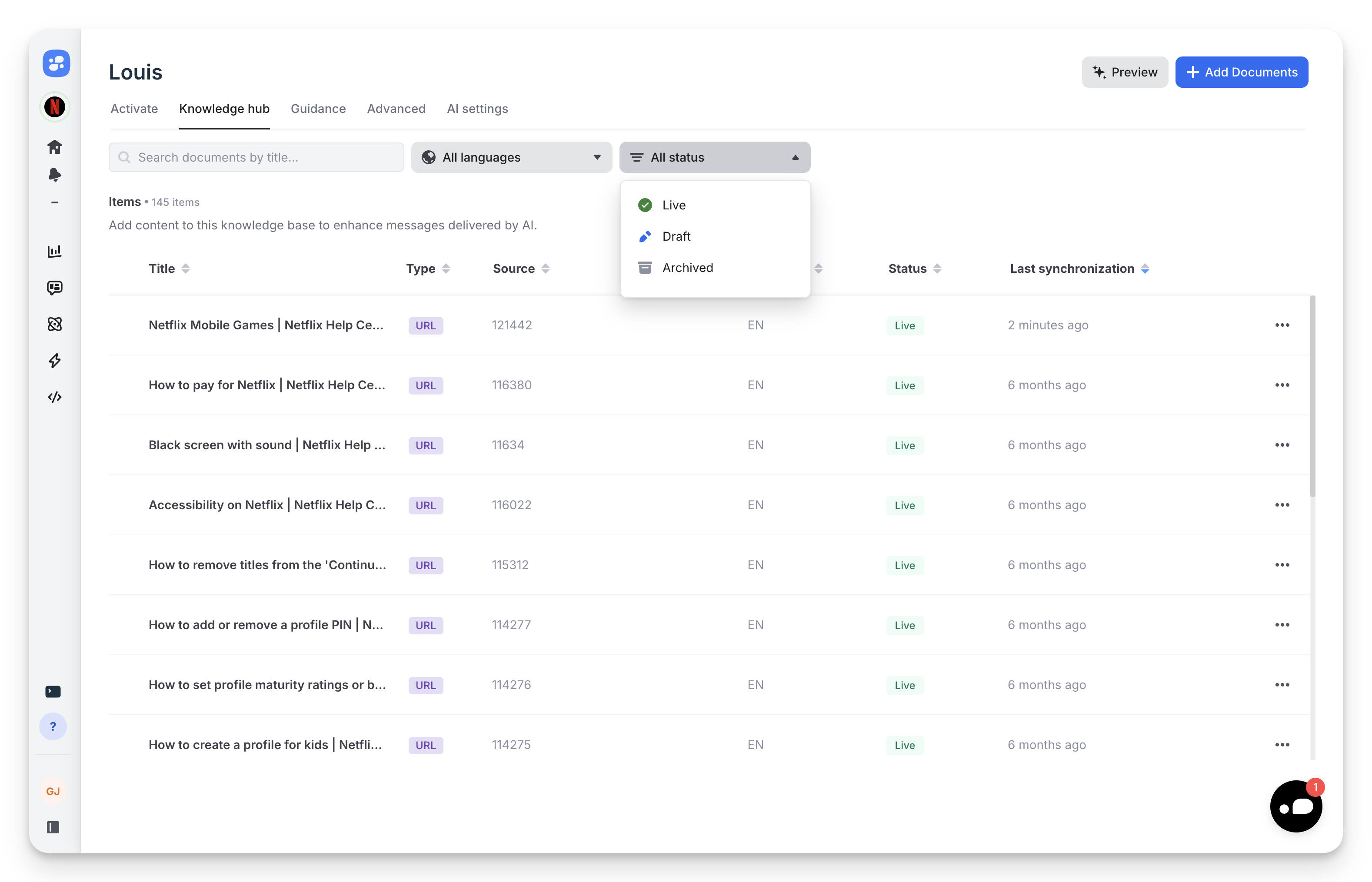
States are shown as color-coded pills in the Status column of the documents list.
Why "Draft" instead of disabling a document?
A Draft document is fully indexed and searchable inside the Preview panel — you can ask questions and see exactly how Louis would respond with that content available. It just never reaches end users. Disabling a document, by contrast, would skip indexing and make testing impossible.
Changing the state of one document
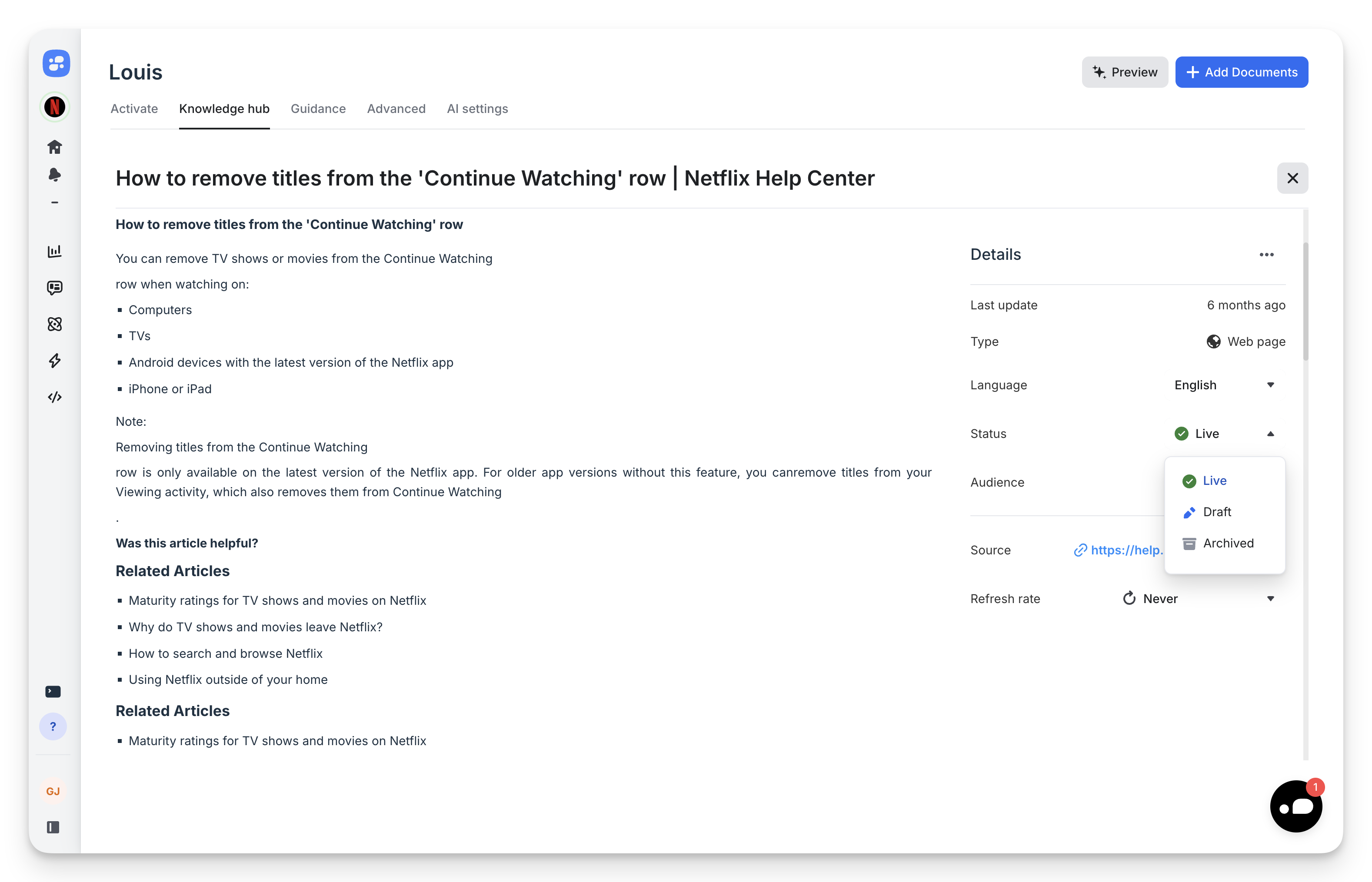
- Open the document by clicking its row in the Knowledge Hub.
- In the detail drawer, change the Status field.
- The change applies immediately — no need to save.
Changing the state of many documents at once
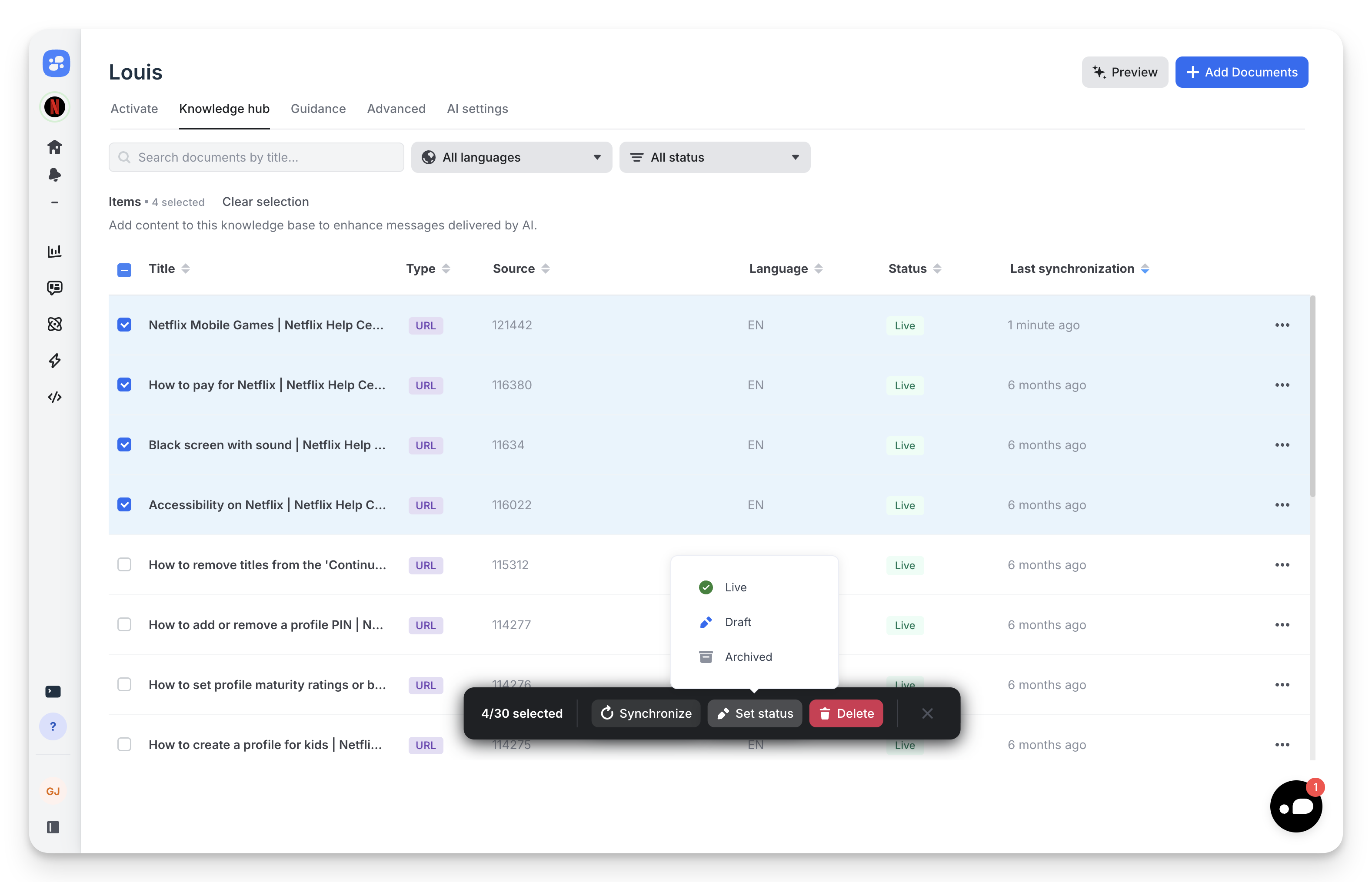
Use the floating action bar to update up to 30 documents in a single batch. See Bulk operations.
Filtering the list by state
The All status filter at the top of the documents list scopes the view to a single state. Combine it with the Language filter to focus on a specific subset (e.g. "all French Drafts").
Recommended workflow
A common workflow for any new content:
- Add the document as Draft if you want to stage it. Otherwise it defaults to Live.
- Validate in Preview. Open the Preview panel and ask questions the document is supposed to answer. Confirm Louis uses it correctly.
- Promote to Live once validated.
- Archive when the content becomes obsolete (e.g. a seasonal campaign ends). The document is excluded from retrieval but stays in the Hub for reference.
Updated 5 months ago