

Tools in the Gen AI step
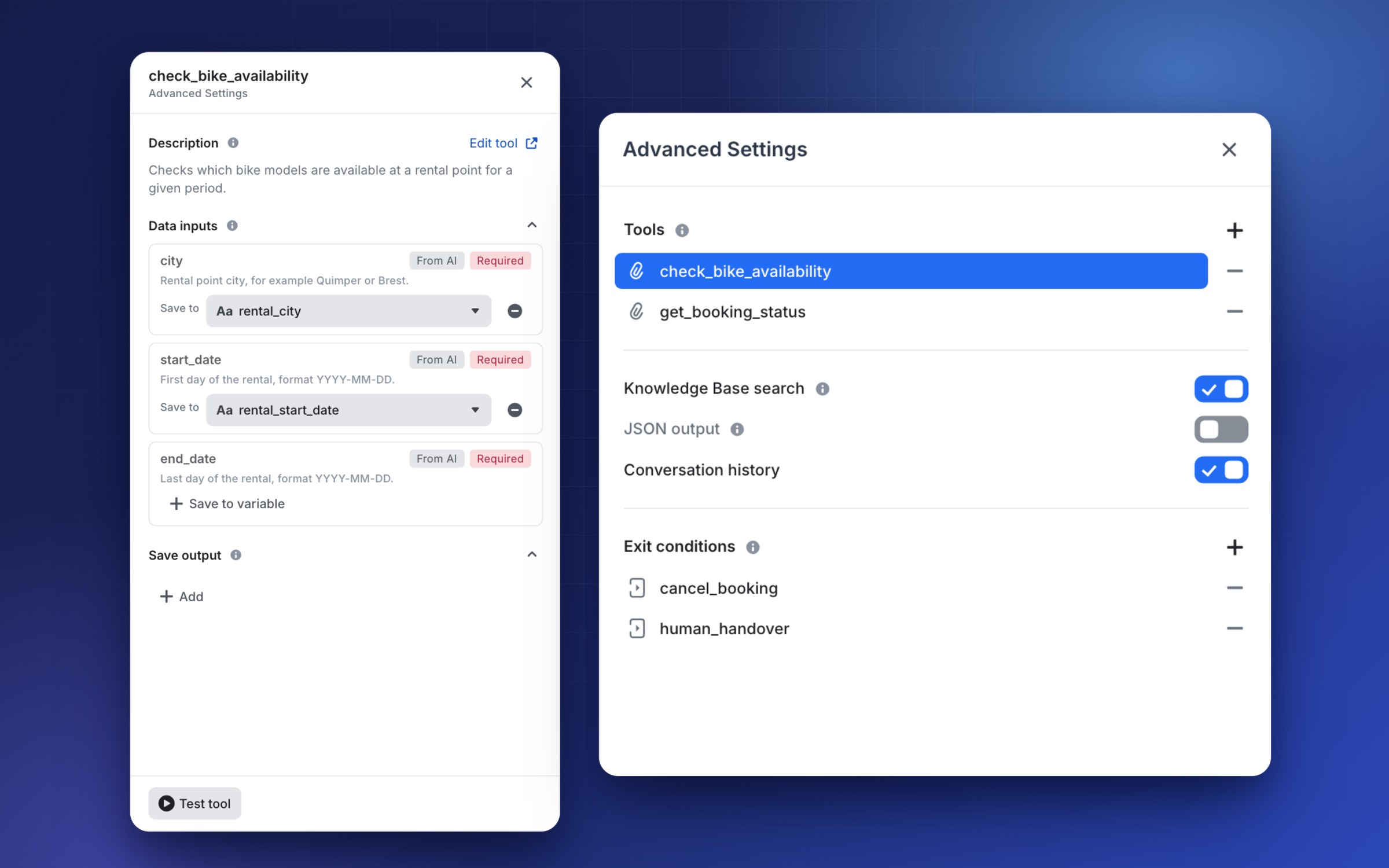
Tools let your AI act, not just answer: check a booking, look up availability, call one of your APIs. In the Generate with AI step you choose which tools the AI can use, and which of the values it works out you keep for the rest of your flow. Open Advanced Parameters in the prompt editor, then Tools.
When are your changes saved?
Changes to Tools, Knowledge Base search and Exit conditions are saved when you close their panel; JSON output and Conversation history are saved with the prompt, when you close the prompt editor. If a field has an error, a message lets you choose Keep editing or Discard changes. Everything is saved on the draft version and reaches production when you publish your flow. A production version is read-only: create a draft to change it.
Tools are the actions the AI can trigger on its own, such as an API call to check a booking. They come from your AI tools library.
- In Tools, click + (Add a tool), search a tool with Search a tool... and pick it. Use Manage tools to create one.
- Click the tool to open its settings: its Description (with an Edit tool link), its Data inputs and Save output.
- Use Test tool to run it with sample values. The tool really runs, so use safe values if it creates or changes something (a ticket, a booking).
Save the values the AI fills in
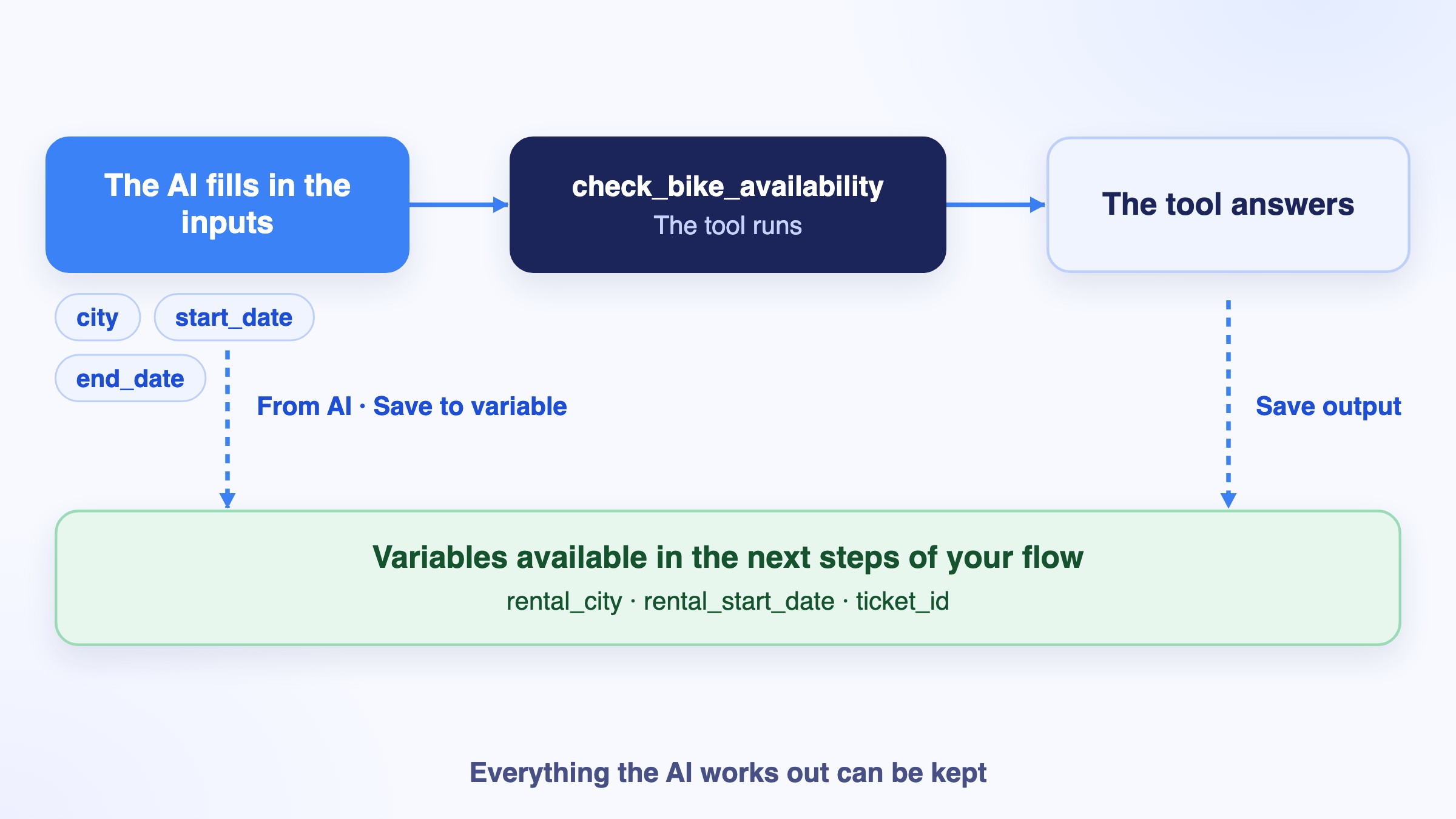
Each data input tagged From AI is a value the AI works out from the conversation, such as a city or a date. Under it, click Save to variable and choose a variable: the value is then available in the next steps of your flow. Click the minus icon to stop saving it. Inputs tagged Auto-filled come from the platform.
- A variable can be saved only once per step, across all its tools and exit conditions. Otherwise the step shows an error (Each variable can only be saved once. "name" is used more than once.) and you cannot publish.
- A Save to field without a variable shows Select a variable, or remove this "Save to" field.
- Save output works the other way round: it saves a part of the tool's response in a variable.
See also
Knowledge Base search in the Gen AI step · Exit conditions in the Gen AI step · Generate with AI
Updated about 2 hours ago