

Knowledge Base search in the Gen AI step
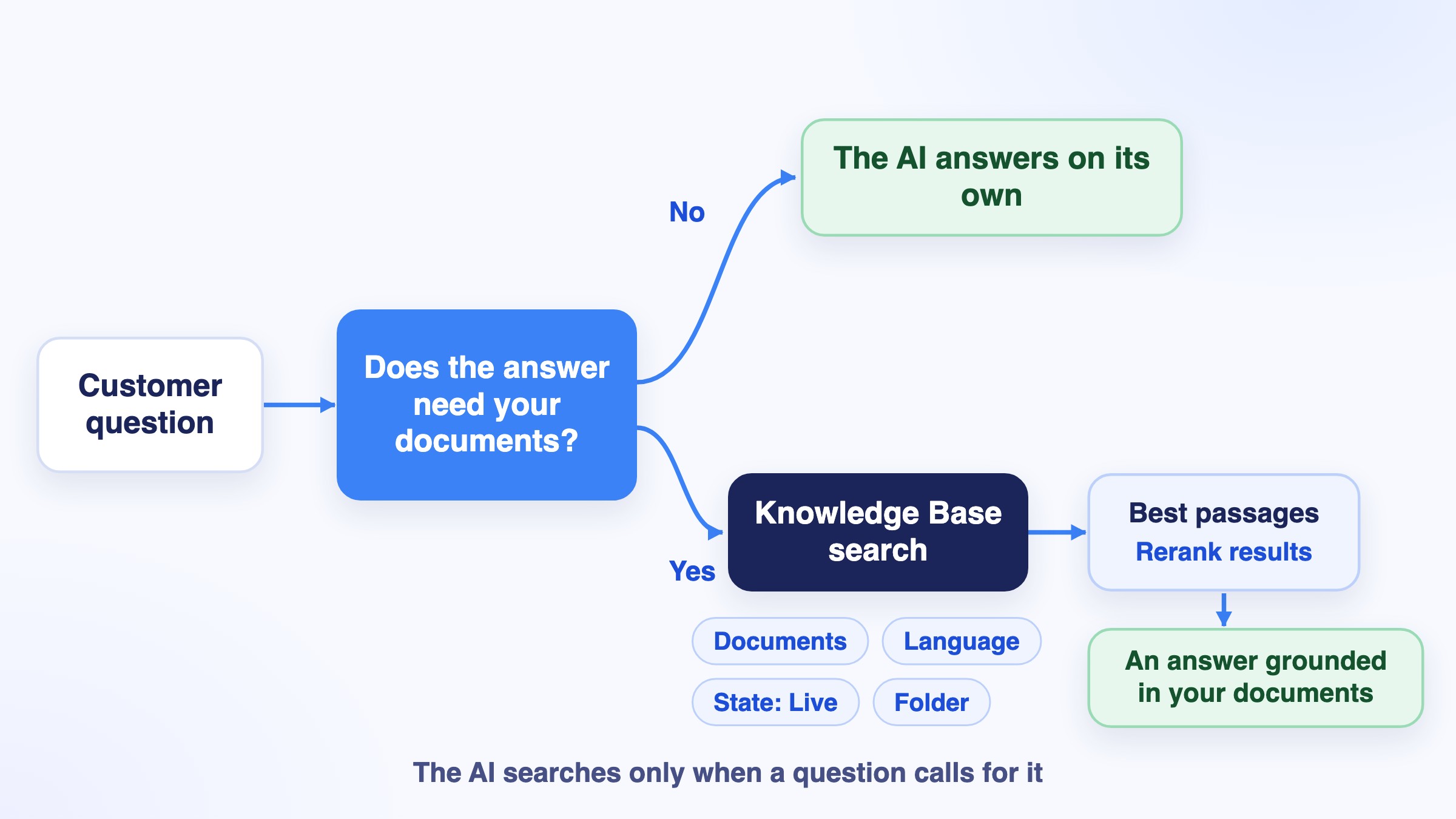
With Knowledge Base search, the AI looks into your documents only when a question needs it, and you decide exactly what it is allowed to read. The Documents filter is the key: it restricts the AI to the documents you choose. Open Advanced Parameters in the prompt editor, turn on Knowledge Base search, then click it to configure the search.
When are your changes saved?
Changes to Tools, Knowledge Base search and Exit conditions are saved when you close their panel; JSON output and Conversation history are saved with the prompt, when you close the prompt editor. If a field has an error, a message lets you choose Keep editing or Discard changes. Everything is saved on the draft version and reaches production when you publish your flow. A production version is read-only: create a draft to change it.
Existing steps keep working as before
A step that already had its knowledge base connected keeps searching it automatically on every message until you configure and save Knowledge Base search. Turning the switch off asks for confirmation and deletes the configuration from the draft: the knowledge base is then no longer searched.
Filters: decide exactly what the AI can read
Filters are your safety rail. They limit which documents the search can return, so the AI answers only from sources you trust, and never from the wrong product, the wrong language or an unpublished draft. A document must match all your filters to be returned. Each filter is Off, Fixed or Let AI decide, except Documents, which is Off or Fixed.
Documents: restrict the AI to the right sources
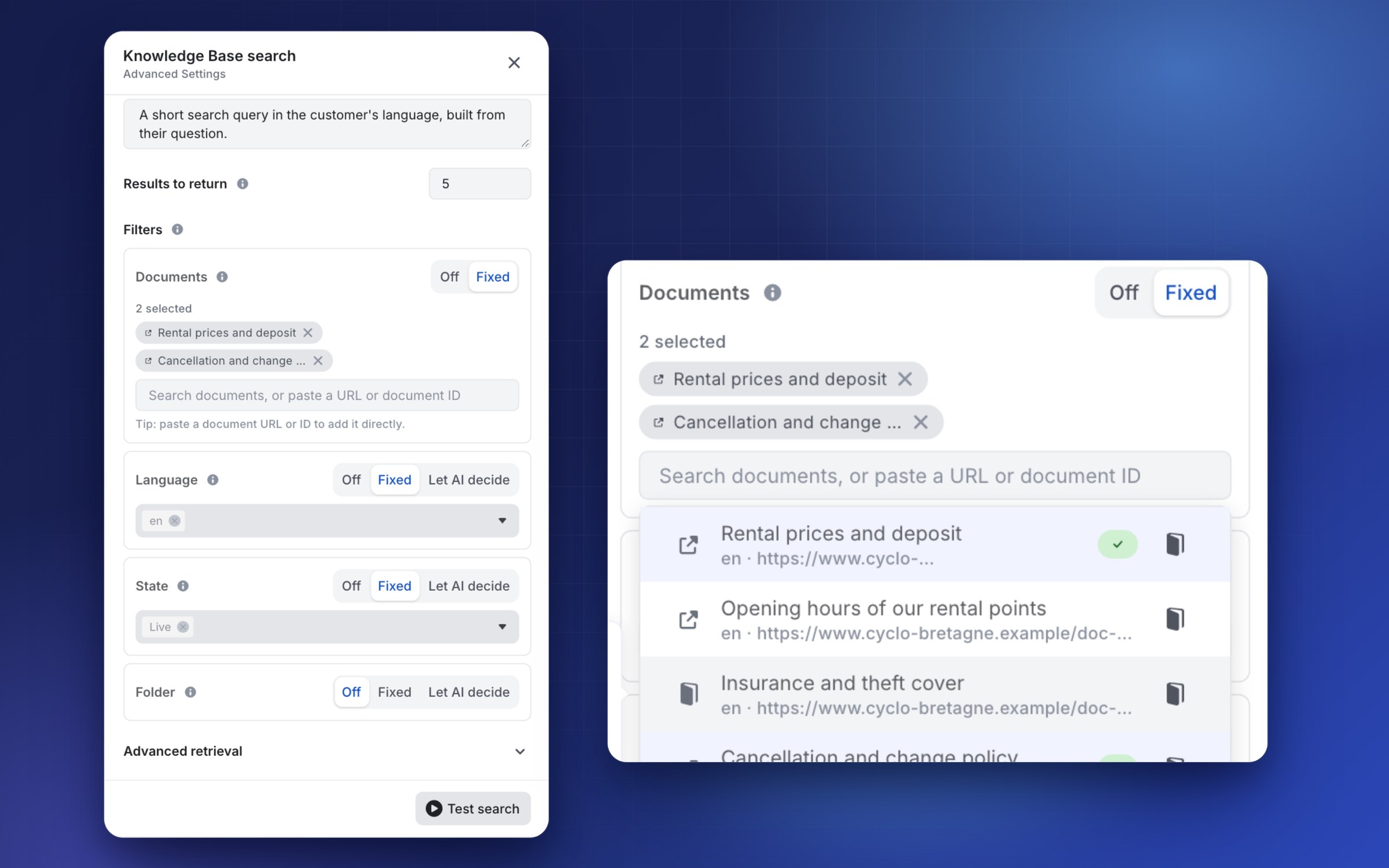
Documents is the strongest filter. Set it to Fixed and pick exactly which documents the AI may read: it will only draw from those, whatever the customer asks. Use it to keep an assistant on its own subject (an offer, a brand, a product line), or to tie sensitive answers such as prices, legal terms or conditions to the official document.
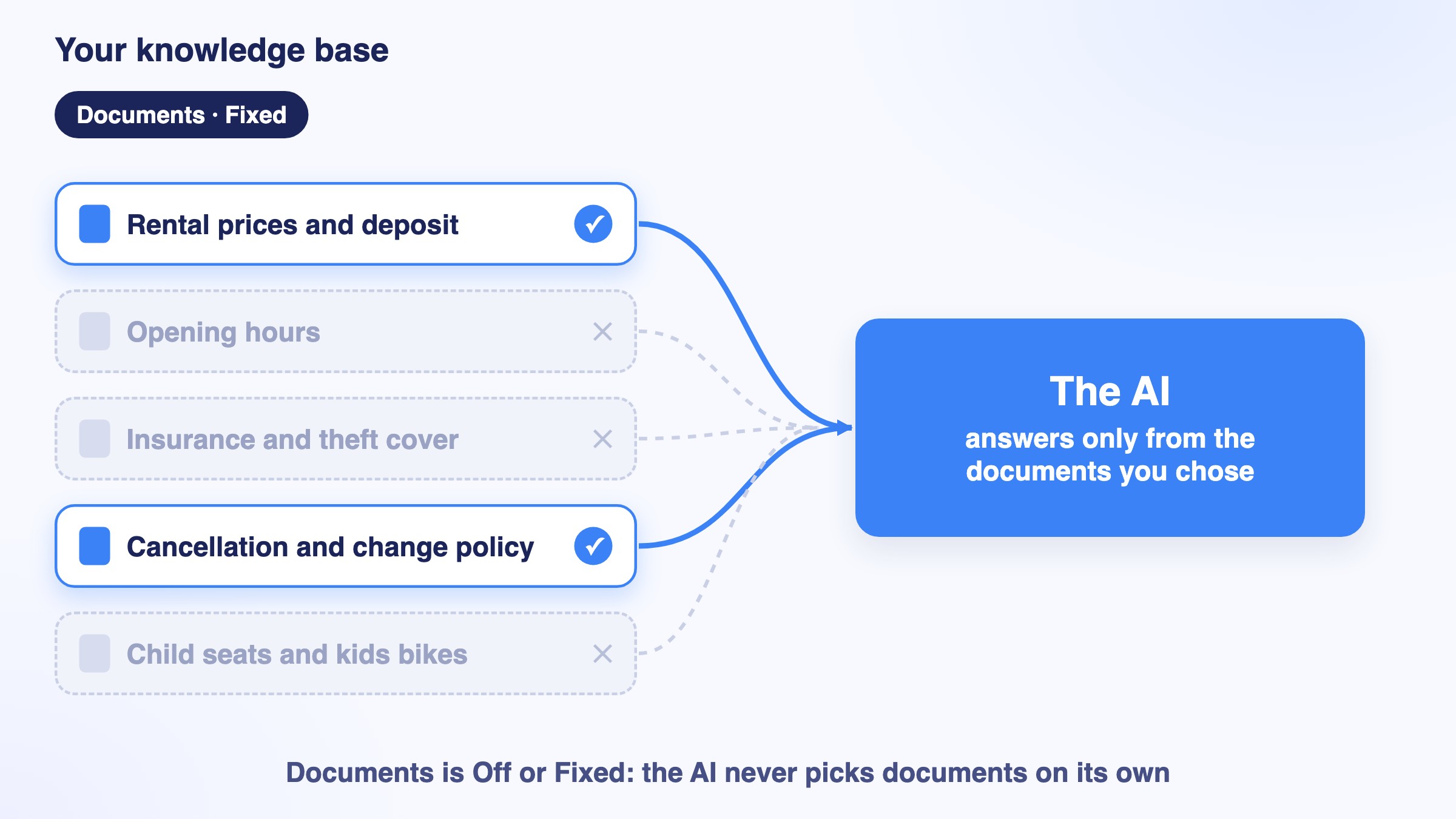
- Set Documents to Fixed.
- Click the search field, search a document by its title and pick it, or paste a document URL or ID to add it directly. Select as many documents as you need.
- The documents you picked appear under N selected. Hover one to preview its content, click it to open it, and use × to remove it.
- Off leaves your whole knowledge base within reach. The AI never picks documents on its own: this filter is Off or Fixed only.
- A document that is not synchronized yet is flagged (Syncing, Sync failed) and may not be found. A document that no longer exists is flagged No longer available.
- If a selected document can never be returned because of another filter, for example a draft while State is Live, a warning names it ("N selected document(s) can never be returned with the current state or language filter"). Adjust the filters or the selection.
Language, State and Folder
- Language: only documents written in this language.
- State: Live by default. As long as it stays Fixed on Live, drafts and archived documents never reach your users; you can also choose Draft or Archived.
- Folder: only documents of the knowledge base folders whose identifier you type.
With Let AI decide, the AI fills in the value following the Description you write for that filter.
Combine filters to frame your assistant
- One assistant per offer: pin Documents to the documents of that offer.
- Official wording only: pin Documents and keep State on Live.
- No drafts, ever: keep State Fixed on Live.
Configure the search
- Tool description: tells the AI when to search.
- Search query: with Let AI decide, the AI writes the query following your Description. With Fixed, use the Last user message, or a Custom text or a single variable. If the query is empty, the search is skipped.
- Results to return: the number of passages sent to the AI (10 by default, 100 at most). Several passages can come from the same document.
Advanced retrieval
- Search method: Hybrid (recommended, combines exact keywords and meaning), Keyword or Semantic. In Hybrid, the Keyword / semantic balance slider goes from exact keywords (0) to meaning (1).
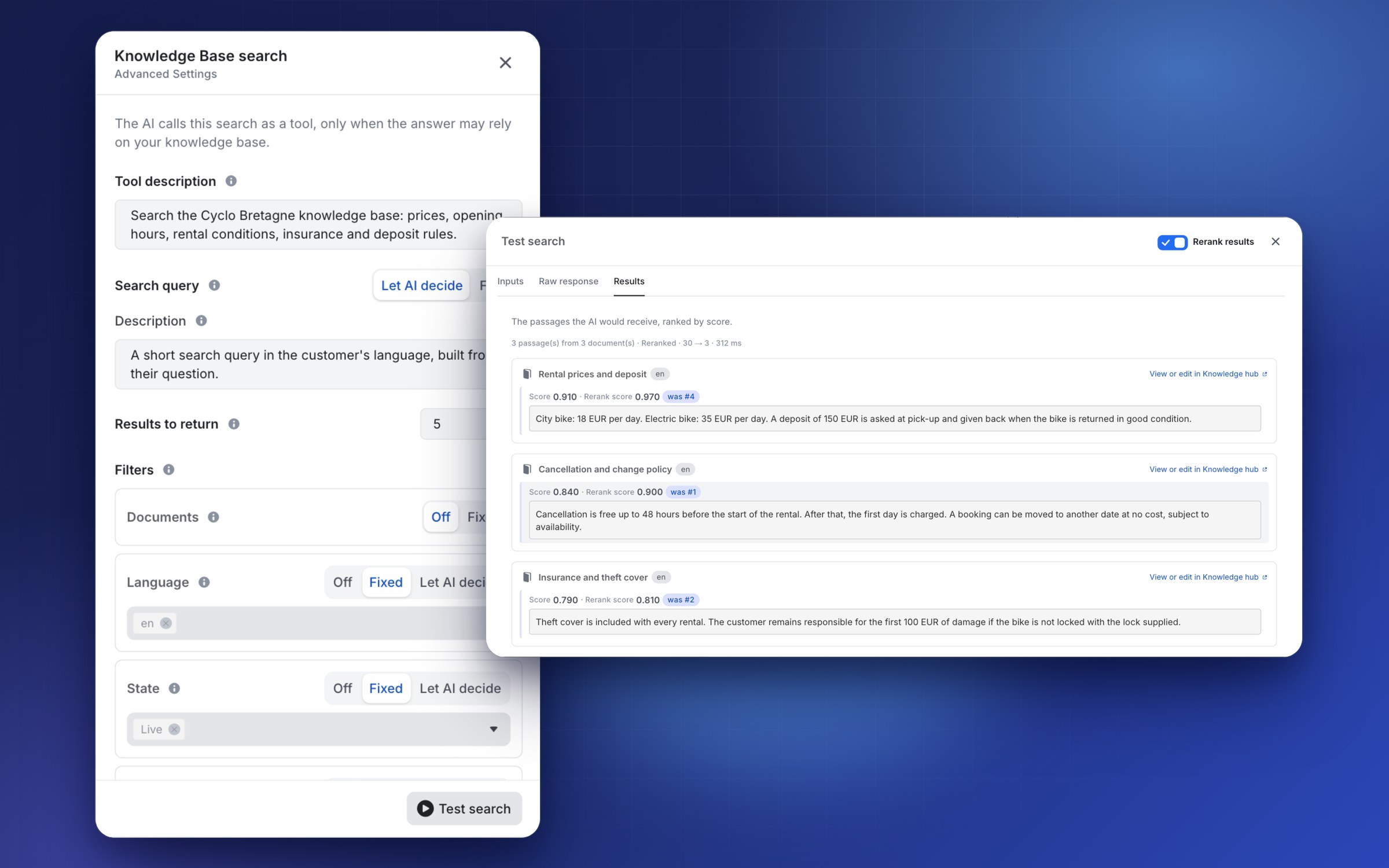
- Rerank results: re-sorts the passages by relevance with a dedicated ranking model, for more accurate results. It adds about 0.3 s per search. With Passages to rerank (50 by default, between the number of results and 100), you choose how many passages are fetched before the AI receives the best ones.
Test your search
Click Test search, fill in the sample values and click Run search. Results shows the passages the AI would receive, ranked by score, with the rerank score and the previous rank when reranking is on. Raw response shows the JSON returned by the search, and View or edit in Knowledge hub opens the document.
See also
Tools in the Gen AI step · Exit conditions in the Gen AI step · Generate with AI
Updated about 2 hours ago