

Ask Louis in the Gen AI step
With Ask Louis, the AI of a Gen AI step can call Louis whenever a question may be answered from your knowledge base. Louis rewrites the question, searches your knowledge base and writes the answer with its sources, following the tone of voice and guidelines set in your Louis settings. The AI receives this answer and writes its reply to the customer.
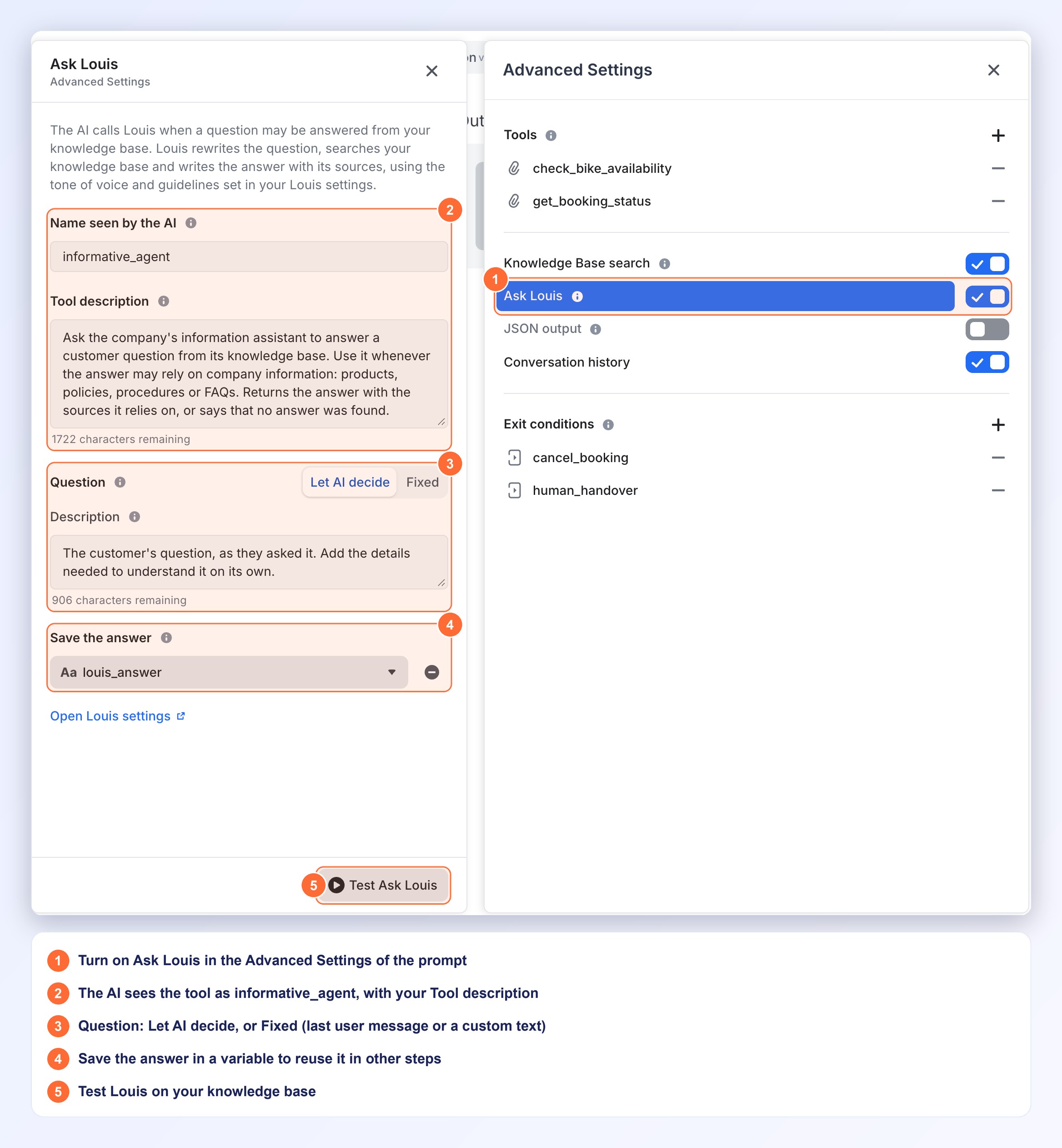
Before you start: Ask Louis needs a Louis AI agent with a knowledge base. Without them, the Ask Louis switch is disabled and its tooltip asks you to set them up in your Louis settings. If your knowledge base has no document yet, a warning says that Louis cannot answer until you add one.
When to use Ask Louis
Use Ask Louis when your Gen AI step leads a conversation (a booking, a claim, an order follow-up) and the customer asks a question that your knowledge base answers. Instead of writing an answer from raw passages, the AI gets a ready answer from Louis, with its sources, your tone of voice and your guidelines.
- Ask Louis: the AI receives an answer written by Louis, and its sources.
- Knowledge Base search: the AI receives the passages found and writes the answer itself, within the filters you set. See Knowledge Base search in the Gen AI step.
Both can be on in the same step.
Turn on Ask Louis
- In the Flow Builder, select the Generate with AI step and open your prompt with Edit & Test prompt.
- Open Advanced Settings and turn on Ask Louis. The Ask Louis panel opens.
- Check the settings below, then close the panel.
Ask Louis is saved with the prompt, on its draft version, and reaches production when you publish your flow. When a draft already exists, the production version is read-only: switch to the Draft tab to edit it.
Name seen by the AI
The AI never sees the name "Louis". It sees the tool under the name shown here, informative_agent, with your Tool description. This field is read-only. Use this name if you refer to the tool in your prompt, for example: "For any question about our prices or rental conditions, call informative_agent."
Tool description
It tells the AI when to call Louis, and the AI reads it with every request. A default text is provided: keep it, or adapt it to your business, for example by listing the topics your knowledge base covers. It is required, up to 2,000 characters.
Question
The question sent to Louis.
- Let AI decide: the AI writes the question itself, following your Description (required, up to 1,000 characters). By default, it sends the customer's question as they asked it, with the details needed to understand it on its own.
- Fixed, then Last user message: Louis gets the customer's last message.
- Fixed, then Custom text: Louis gets the text you type (up to 2,000 characters), or a single variable inserted with the variable button.
Save the answer
Pick a text variable (a custom Free text variable): it receives the answer each time Louis finds one, so you can use it in other steps. With No answer found or an error, the variable keeps its previous value. This is optional. To stop saving the answer, click the remove button next to the variable.
The Open Louis settings link opens your Louis settings in a new tab: this is where you set the tone of voice and the guidelines that Louis follows.
Test Ask Louis
Click Test Ask Louis at the bottom of the panel, type a customer question, then click Run test. Louis runs on your knowledge base, as it does when the AI calls it. The button is disabled as long as a required field is empty.
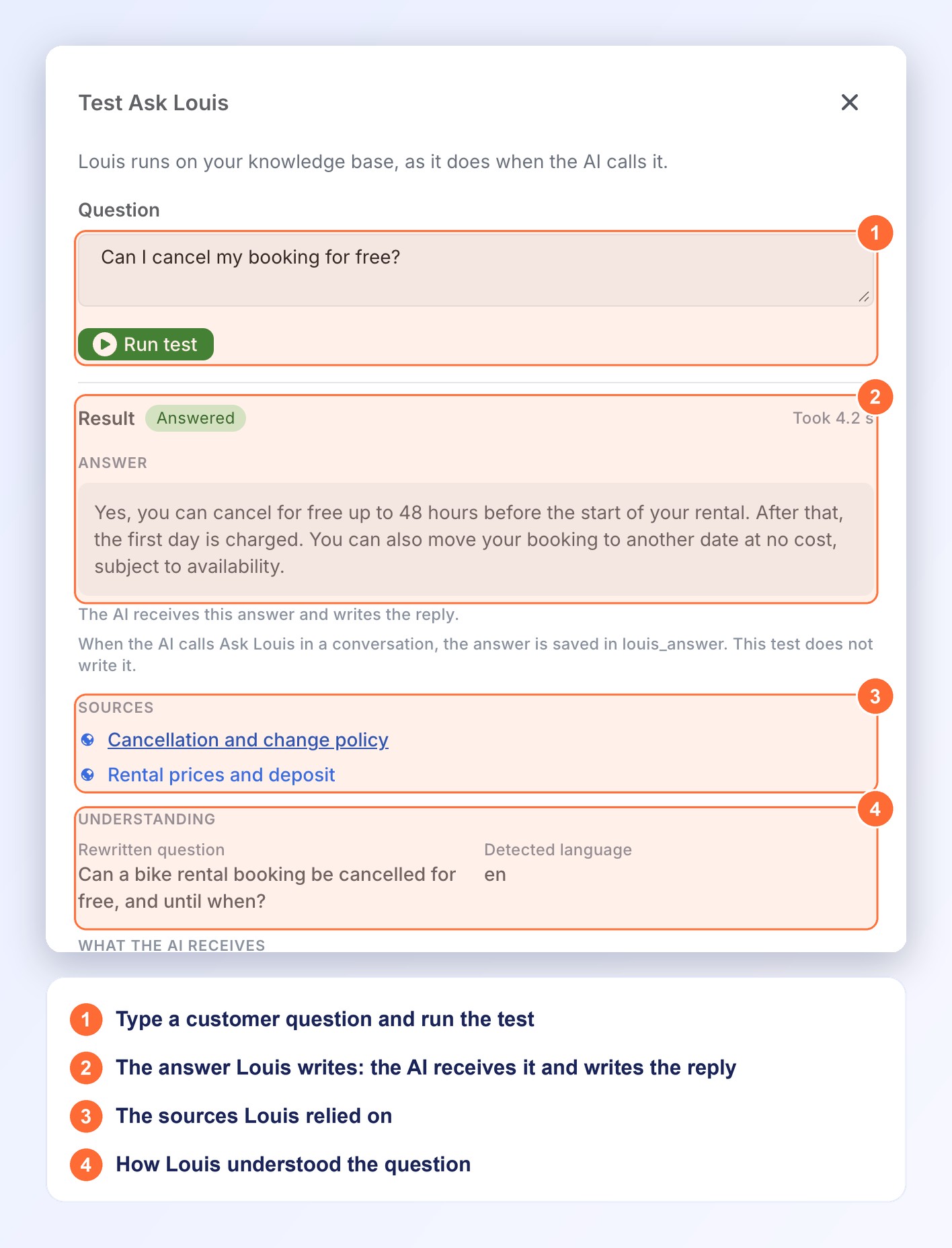
- Result: Answered or No answer found, and the time it took. With No answer found, the AI receives this result and decides what to do next.
- Answer and Sources: the answer the AI receives, and the documents Louis relied on.
- Understanding: the Rewritten question and the Detected language.
- What the AI receives: the exact data sent to the AI.
The test runs without conversation history, and does not write the variable of Save the answer: it is only written in a conversation. If the test fails, it says Louis could not answer. Your question was not lost. and shows a Retry button.
In a conversation
- The AI decides when to call Ask Louis, from the Tool description and your prompt.
- If Louis fails or does not answer in time, the AI is asked to tell the customer that it cannot answer right now, and the conversation goes on.
- In the trace of the conversation, the Generate with AI step shows an Ask Louis card: the result (Answered, No answer found or an error) and its duration, the question sent to Louis, the rewritten question, the detected language, the name the AI saw, the answer with its sources and, when Louis answered, the variable where it was saved. See Trace in Flow Builder.
None of your own Tools can be named
informative_agent(whatever the case, spaces,_or-): this name is reserved for Ask Louis. The prompt cannot be saved while both are there: rename the tool, or turn Ask Louis off.
Updated about 14 hours ago