

Connect Mindsay and ViaFlow to your knowledge base
Connect your assistant to the knowledge you already maintain: Mindsay articles come in read only and stay in sync, and a ViaFlow knowledge base can replace the ViaSay-hosted one. Both connections live in the same place, so you can set them up in a few minutes.
Where to find it
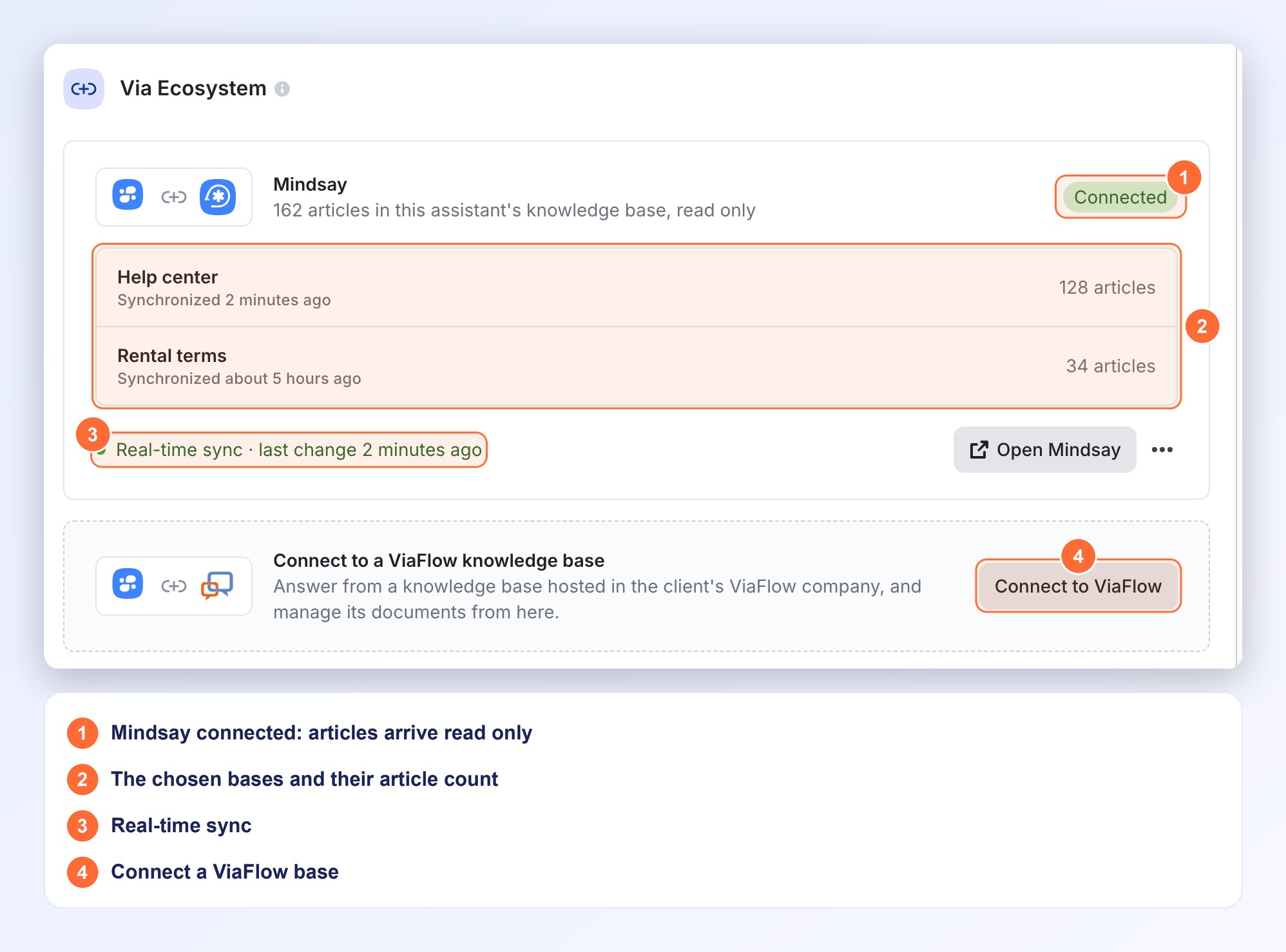
Open your assistant, then the Advanced tab and the Knowledge Base section. At the bottom, Via Ecosystem shows one card per product, with a Connect to Mindsay button and a Connect to ViaFlow button.
Who can do it
To manage the Mindsay connection, you need to be an administrator of the bot. Otherwise ViaSay asks you to contact an administrator of the bot.
Connect Mindsay
Write once in Mindsay, answer everywhere. The articles you publish to the Bots channel in Mindsay are added to the assistant's knowledge base. You keep writing them in Mindsay.
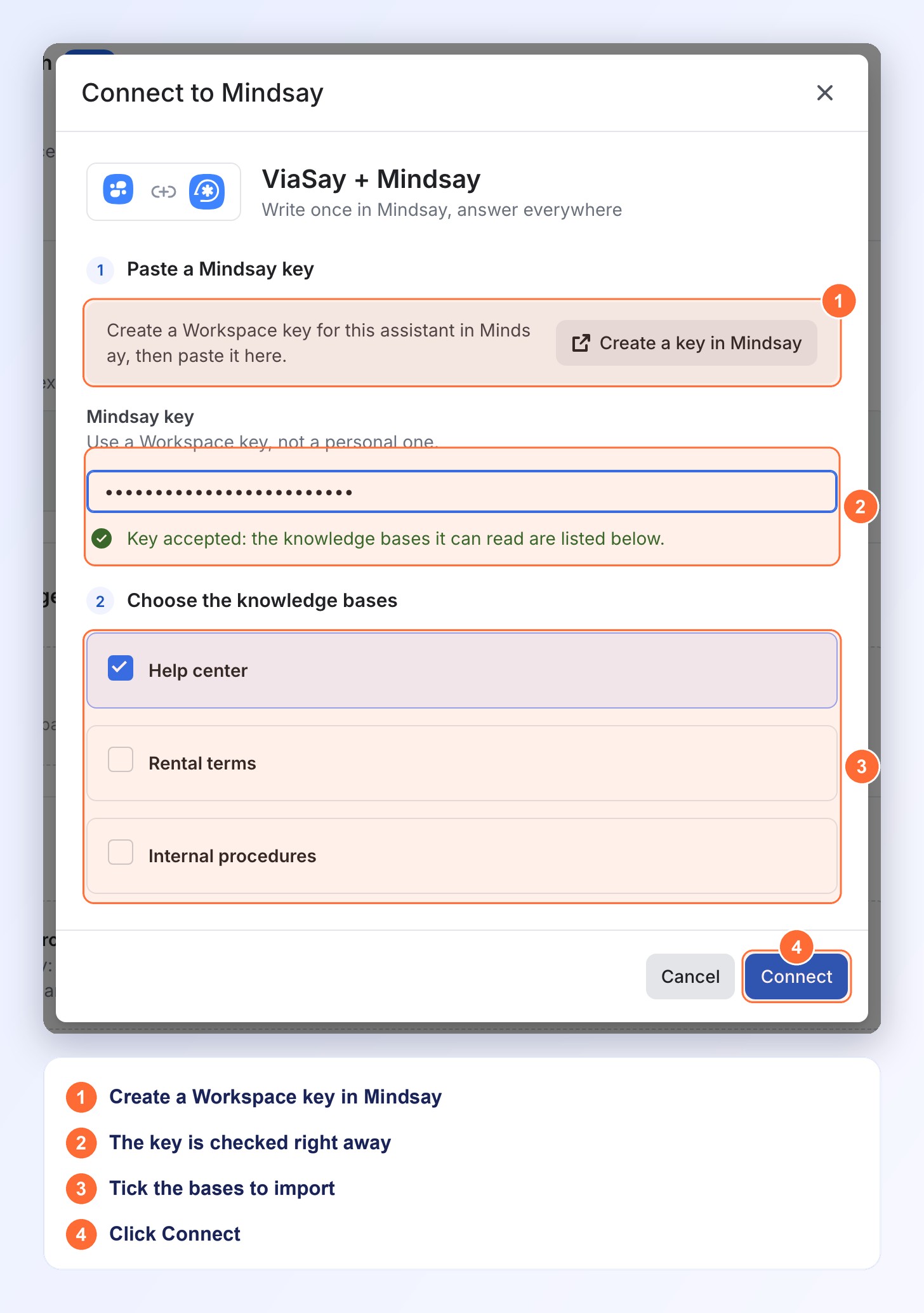
- Click Connect to Mindsay.
- In Mindsay, create a Workspace key for this assistant (the Create a key in Mindsay button opens Mindsay). Use a Workspace key, not a personal one.
- Paste it into Mindsay key. The key is checked right away: Key accepted appears and the knowledge bases it can read are listed.
- Tick the knowledge bases to import. The first one is already ticked.
- Click Connect. The articles are imported in the background.
The card then shows Connected, each knowledge base with its number of articles and its last synchronization, and a line about the synchronization mode.
Articles in the Knowledge hub
Mindsay articles appear in the Knowledge hub with the type Mindsay article. They are read only here:
- Open one to see a banner and the Edit in Mindsay button. Edit it in Mindsay and, with real-time sync active (see below), the change reaches the assistant within a minute.
- Its Language and its status follow the article in Mindsay: it stays live as long as it is published to the Bots channel.
- It cannot be deleted from ViaSay. To remove it, unpublish it in Mindsay or untick its Bots channel.
- The bulk actions Set status and Delete skip Mindsay articles and tell you how many were skipped.
Keep Mindsay in sync
The line at the bottom of the card tells you how the articles arrive:
- Real-time sync · last change …: changes published in Mindsay reach the assistant within a minute.
- Real-time sync pending: real-time updates are being set up. Until then, articles are imported by synchronization.
- Synchronized by schedule: articles are imported by synchronization.
- Real-time sync unavailable: changes are not delivered in real time. Use Resync all articles to import the latest ones.
Edit, resync or disconnect Mindsay
Open the ··· menu of the Mindsay card:
- Edit knowledge bases: choose other knowledge bases, then click Save.
- Resync all articles: compares every knowledge base with Mindsay.
- Disconnect: removes the Mindsay articles from the assistant's knowledge base. Nothing changes in Mindsay, and your other documents are kept.
Open Mindsay opens Mindsay in a new tab.
Connect a ViaFlow knowledge base
Share one knowledge base with ViaFlow. The assistant answers from a knowledge base hosted in your client's ViaFlow company, and you manage its documents from ViaSay.
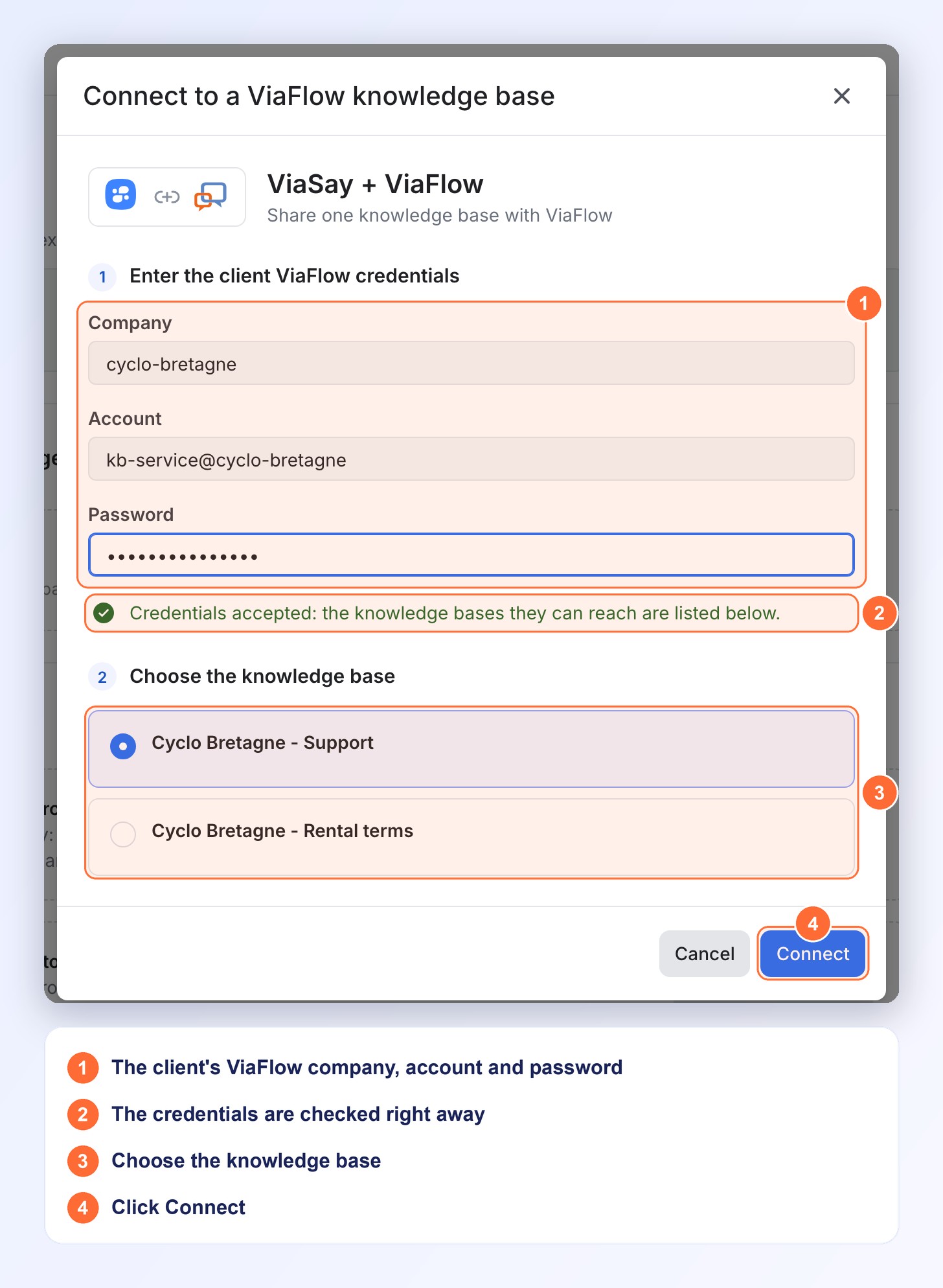
- Click Connect to ViaFlow.
- Enter the Company, the Account and the Password of the ViaFlow account.
- The credentials are checked right away, then the knowledge bases the account can reach are listed. Choose one.
- Click Connect.
It works both ways: documents added or edited in ViaSay are written to ViaFlow, and changes made in ViaFlow appear in ViaSay. It is also useful for ViaFlow clients who run a mailbot, a callbot or agent assist.
While ViaFlow is connected
The MayDay and Mindsay connections are hidden, because they are tied to the ViaSay-hosted knowledge base. They come back when you disconnect.
If the password changes or the account is disabled, the card shows Connection error. Click Disconnect, then Connect to ViaFlow again with valid credentials.
To go back, click Disconnect on the card. The assistant uses its ViaSay-hosted knowledge base again, and nothing is deleted in ViaFlow.
Troubleshooting
- Mindsay does not recognise this key: copy the key again from Mindsay, or create a new one.
- This key cannot read any knowledge base: in Mindsay, give the key's group access to at least one knowledge base, then try again.
- Mindsay is already connected to this assistant: one Mindsay connection per assistant. Edit it from the card.
- ViaFlow does not accept these credentials: check the company, the account and the password.
- This account cannot reach any knowledge base: give the account access to at least one base in ViaFlow, then try again.
- This action is not available while connected to a ViaFlow base: disconnect from ViaFlow first.
- Mindsay or ViaFlow is unavailable: try again in a few minutes.
Updated about 1 hour ago