

Prompt Versioning
Prompt Versioning lets you iterate on AI Specialist prompts safely by maintaining a separation between the version currently running in production and the draft you are working on.
Each AI Specialist prompt is scoped to its use case, and supports multiple versions: one Draft, one Production, and any number of Archived versions kept for history.
Where to find it
Open any Generate with AI step in the Flow Builder. The version controls appear in the prompt management modal.
Production vs Draft
A prompt has up to two active versions at any time:
- Production: the prompt currently used by the live workflow. It is read-only while a draft exists.
- Draft: the prompt you are editing. It is used when testing your workflow, but does not affect end users until the use case is published.
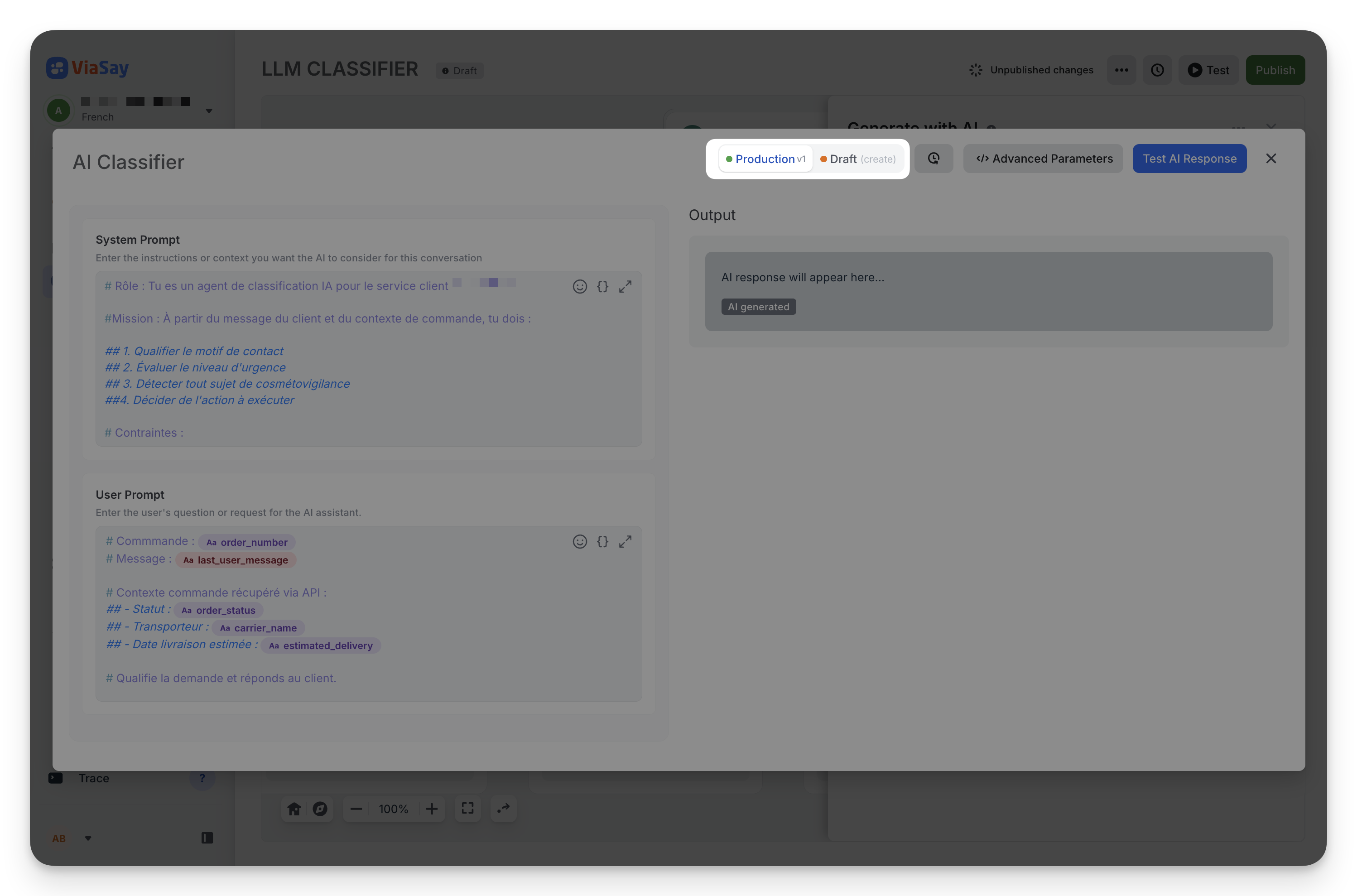
The Production / Draft segment at the top of the prompt header lets you switch between the two:
- A green dot indicates the Production version
- A yellow dot indicates the Draft
When the Production tab shows a version label (e.g. v3), it means the prompt has already been published at least once.
Drafts only go live on use case publish
Saving a draft does not push it to production. The draft becomes the new production version only when you publish the use case from the Flow Builder.
Create a draft
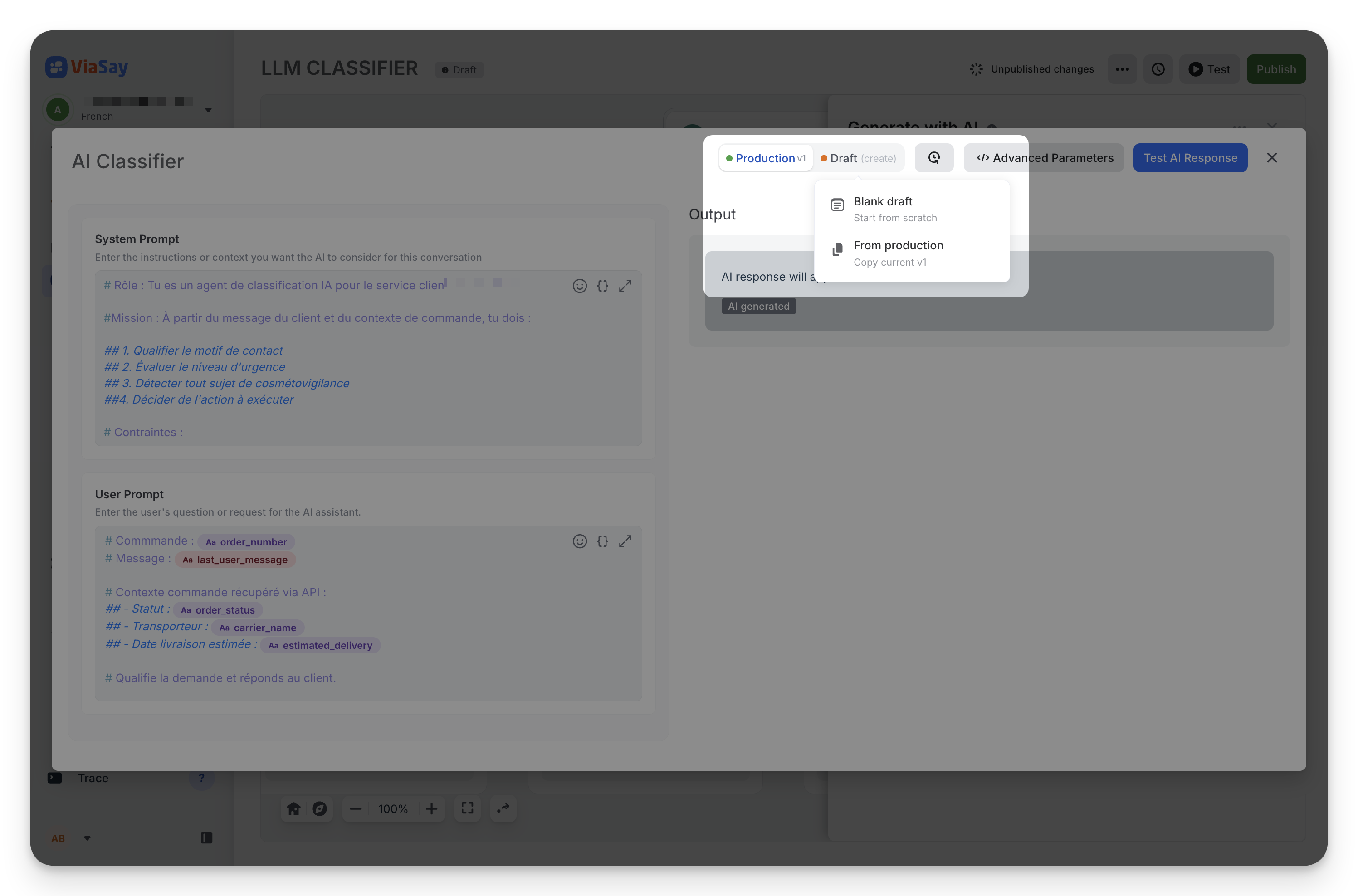
When a prompt has no draft, the Draft tab shows (create). Click it to open a chooser:
- Blank draft: start from scratch
- From production: copy the current production prompt to iterate on it
You can also create a draft from the Versioning panel via the New Draft button.
Versioning panel
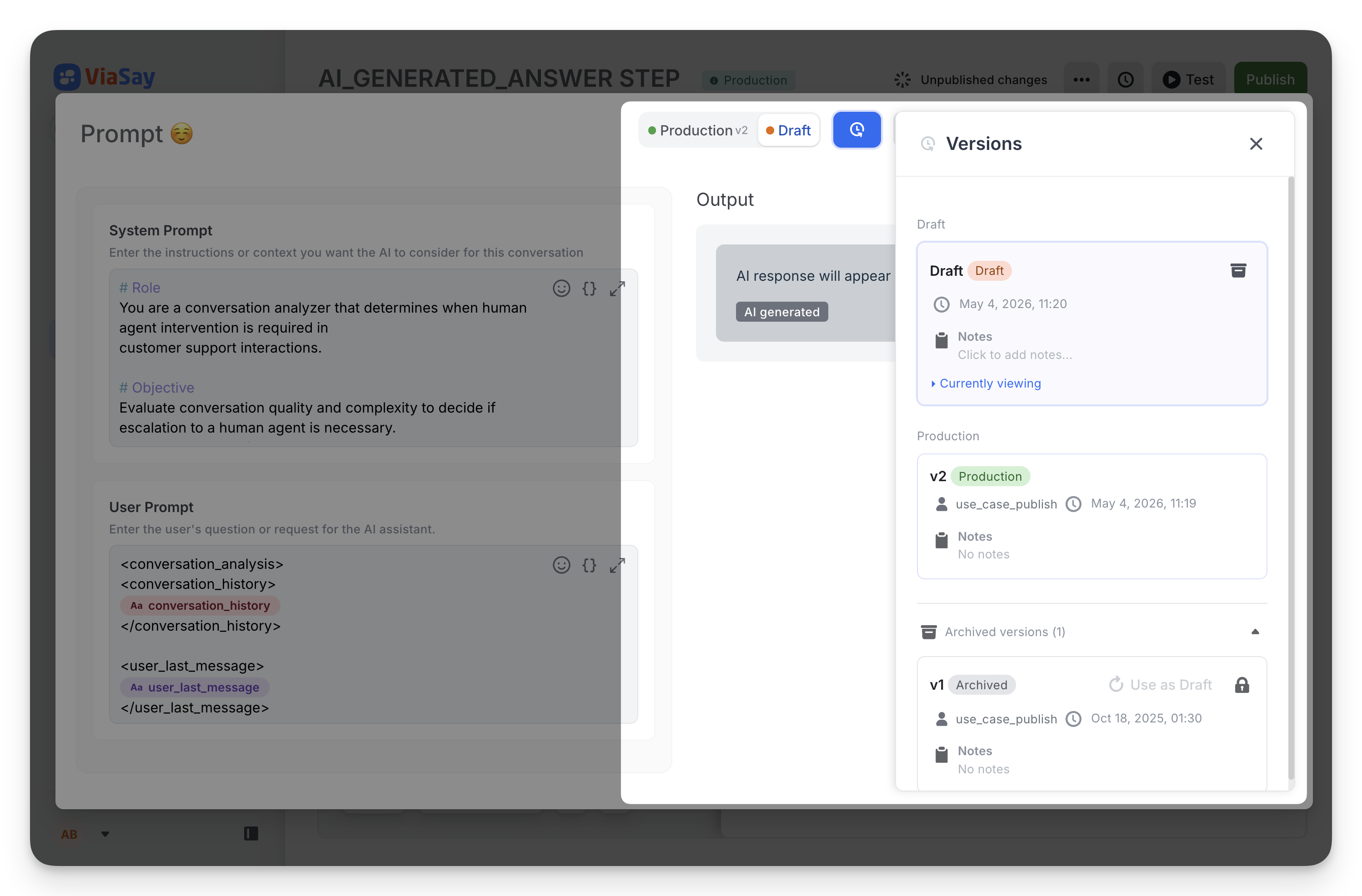
Click the Versioning button (recurring icon) in the prompt header to open the side panel. It lists all versions for this prompt, grouped into:
- Draft section — the active draft (if any)
- Production section — the current production version
- Archived versions — collapsible section with all previous versions
Each version card shows:
- The version label (e.g.
v3) and a tag (Draft / Production / Archived) - The author and creation date
- Available actions depending on the version's state
Restore an archived version
To bring back a previous version as your active draft, open the Versioning panel and click Use as Draft on any archived version.
Three confirmation flows are possible depending on the version's history:
- Use as Draft: archived draft that was never published — moved back to active draft
- Copy as Draft: previously published version — a copy becomes the new draft, the original stays in archives
- Restore: previously archived draft — moved back to active draft, removed from archives
One draft at a time
If a draft already exists, you must archive it first before restoring another version. The button shows: "Archive the current draft before restoring this version."
Archive and delete
Archive the current draft
From the Versioning panel, click Archive on the Draft card. A confirmation dialog appears: "This version will be archived. You can restore it to Draft status later."
Archiving the draft lets you test the production prompt without losing your work-in-progress.
Cannot archive without production
If no production version exists yet, archiving is blocked. Publish the use case at least once before archiving.
Delete an archived version
Archived versions that were never published can be deleted permanently with the Delete action.
Published versions are locked to preserve history — they show a lock icon and cannot be deleted.
Updated 5 months ago