

Generate with AI step — on-demand search, exit conditions and saved data
Your Generate with AI step just got a lot smarter. It looks things up in your knowledge base only when a question calls for it, decides for itself where the conversation goes next, and hands every detail it picks up to the rest of your flow.
Answers rooted in your knowledge base, only when they should be
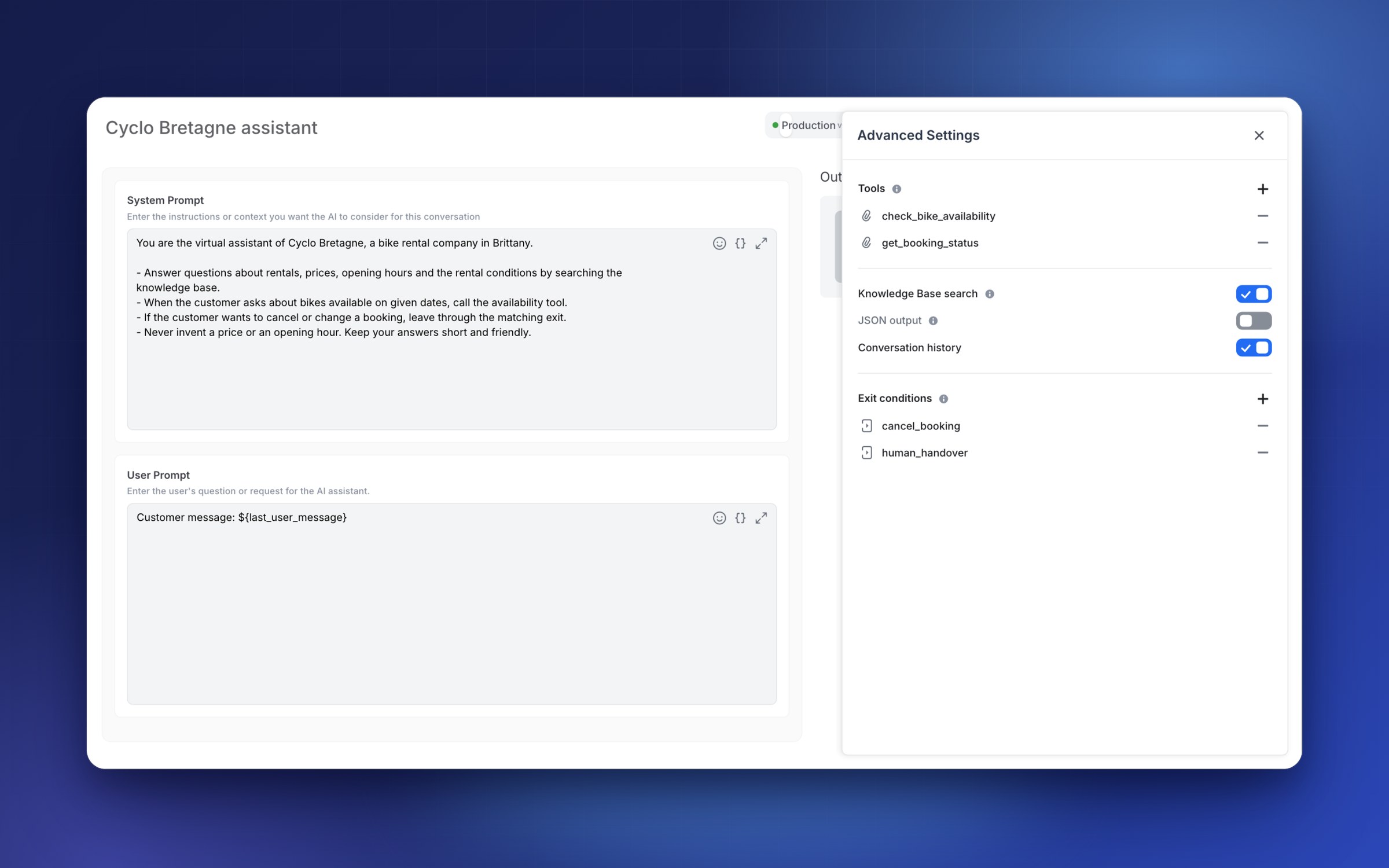
No more searching on every message, and no more answers from the wrong source. Knowledge Base search is now a tool the AI calls on demand: it decides when an answer may rely on your documents, and you decide exactly what it is allowed to read.
- You choose the sources: with the Documents filter, pick exactly which documents the AI may read, and it answers only from those. Add Language, State and Folder filters to frame it further; only Live documents by default, so drafts never reach your users
- You write the rules: let the AI phrase the query from the conversation, or fix it to the last user message, a custom text or a variable
- Sharper results: pick a Hybrid, Keyword or Semantic search, and turn on Rerank results to put the most relevant passages first
- See before you ship: Test search shows the passages the AI would receive, with their scores, without leaving the editor
Let the AI choose where the conversation goes
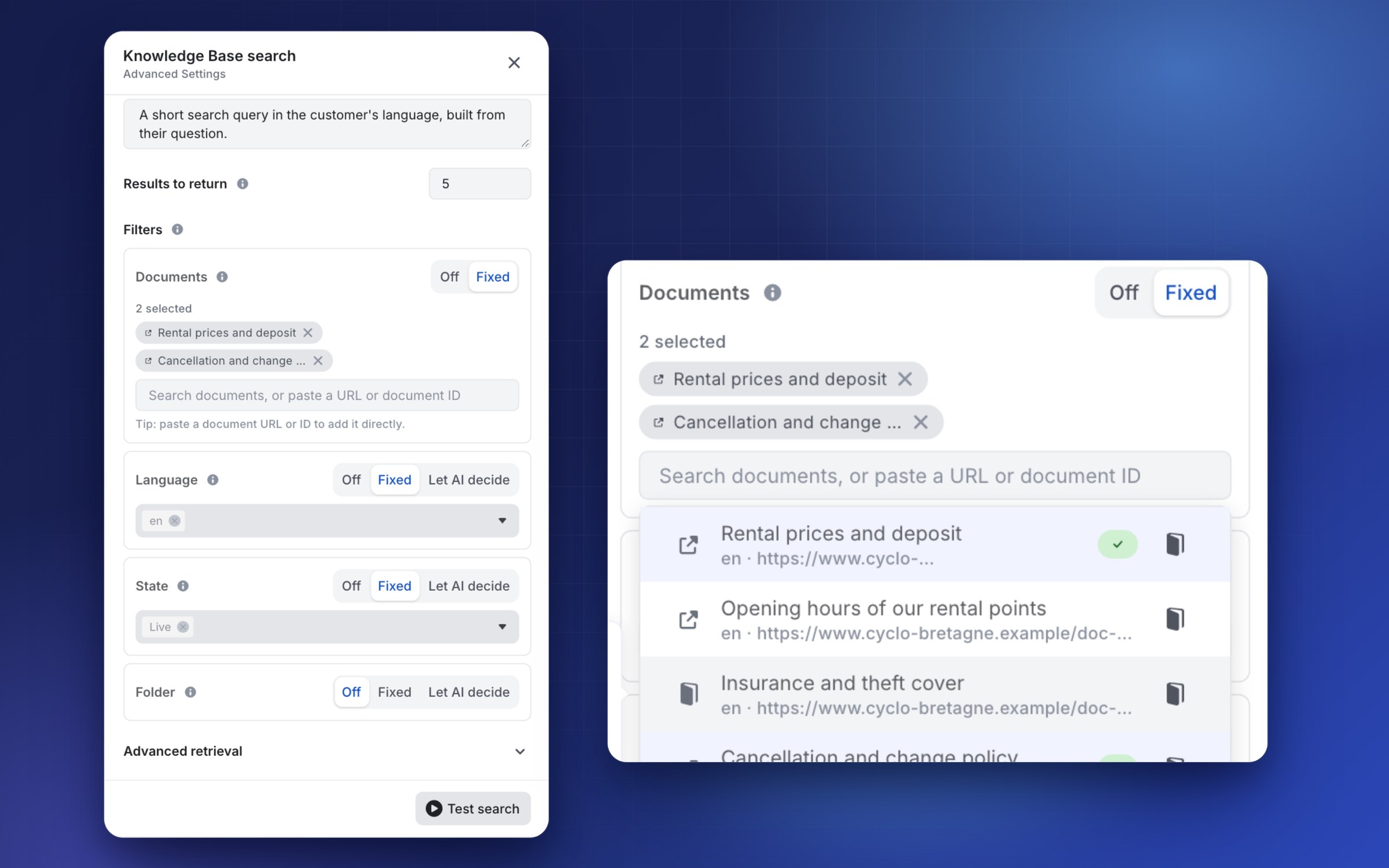
Give the AI a map, not a script. With exit conditions, it decides when the step is over and which way to take. Each exit condition appears as its own branch under the step on the canvas, so the whole journey reads at a glance.
- Describe when to leave: give each exit a name and a description the AI reads to decide
- Collect first, leave after: add the Variables to collect before leaving, such as a booking number or an e-mail, and, if you want, save each one in a variable of your flow
- Always a way out: when no exit applies, the conversation follows the default branch
- Nothing left dangling: you cannot publish while a branch is not connected
Keep every detail the AI picks up
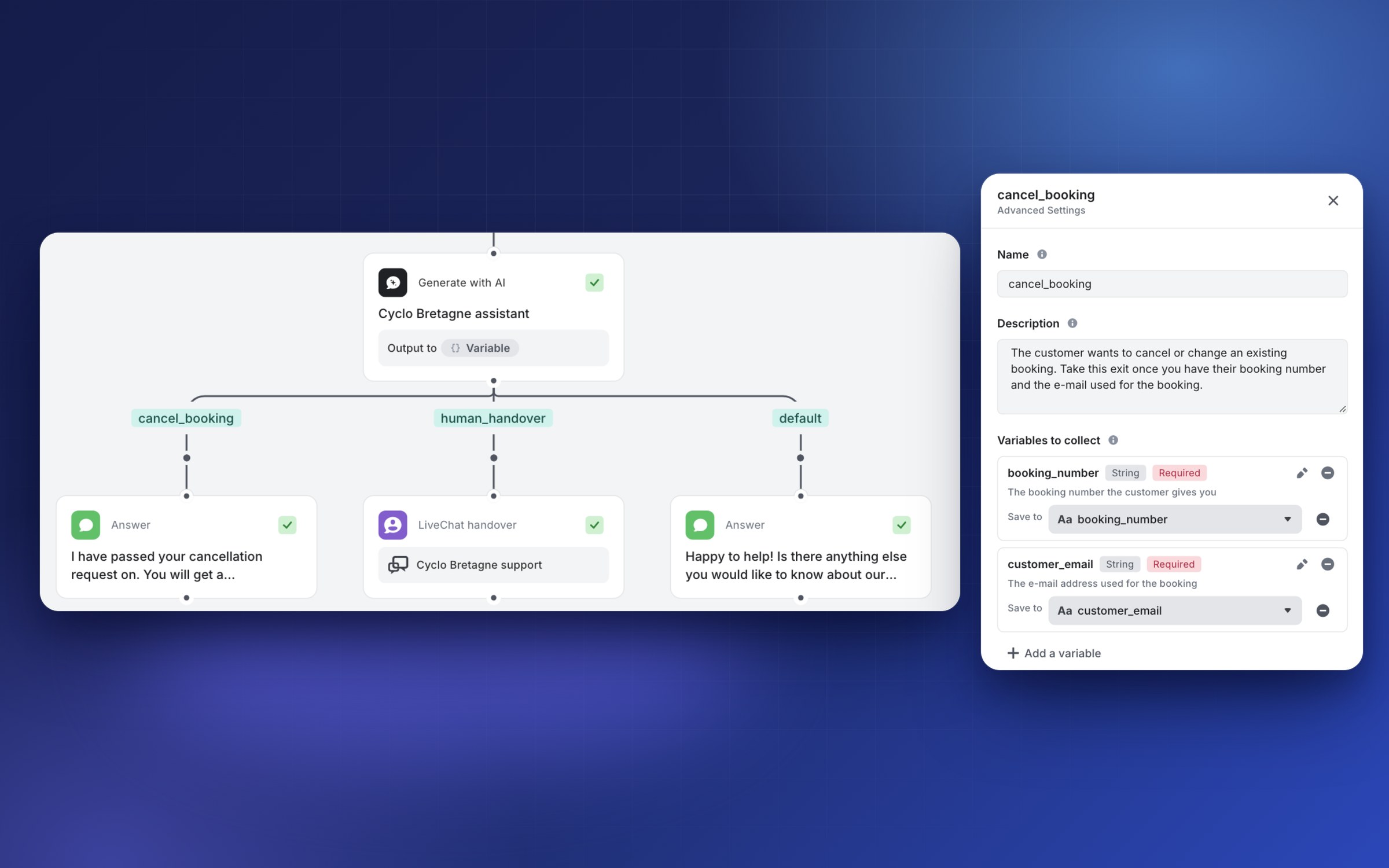
A city, a date, a booking number: the AI hears it once, your flow remembers it. Under a data input tagged From AI, click Save to variable and the value is available in every following step. Tools are also quicker to add, with an Add a tool panel you can search.
An editor that keeps up with you
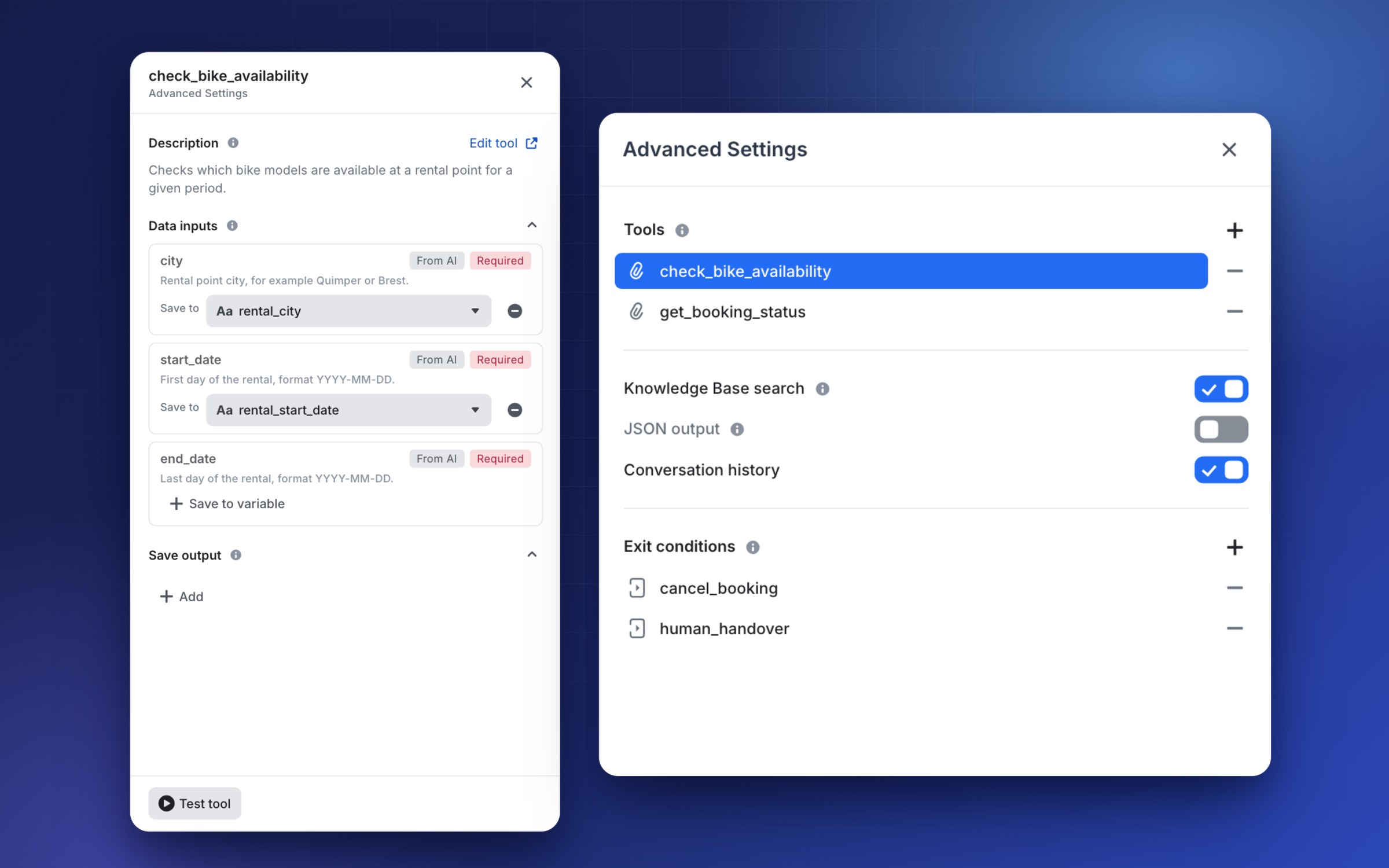
Your changes in the Tools, Knowledge Base search and Exit conditions panels are saved when you close them. If a field has an error, you choose between Keep editing and Discard changes. The prompt editor is also easier to use with a keyboard and a screen reader.
No action required
Your existing Generate with AI steps keep working as they do today: a step that has its knowledge base connected still searches it on every message until you configure Knowledge Base search, and a step without exit condition keeps its single outgoing link. The new settings are in Advanced Parameters, in the prompt editor of the step.
For a complete walkthrough, read our guides on Tools, Knowledge Base search and Exit conditions.