

Use cases: status filter and archiving, and the Handover tag
This update brings two things: a status filter and archiving in the use cases list, and a Handover tag to count handovers to an agent made outside Live Chat Handover.
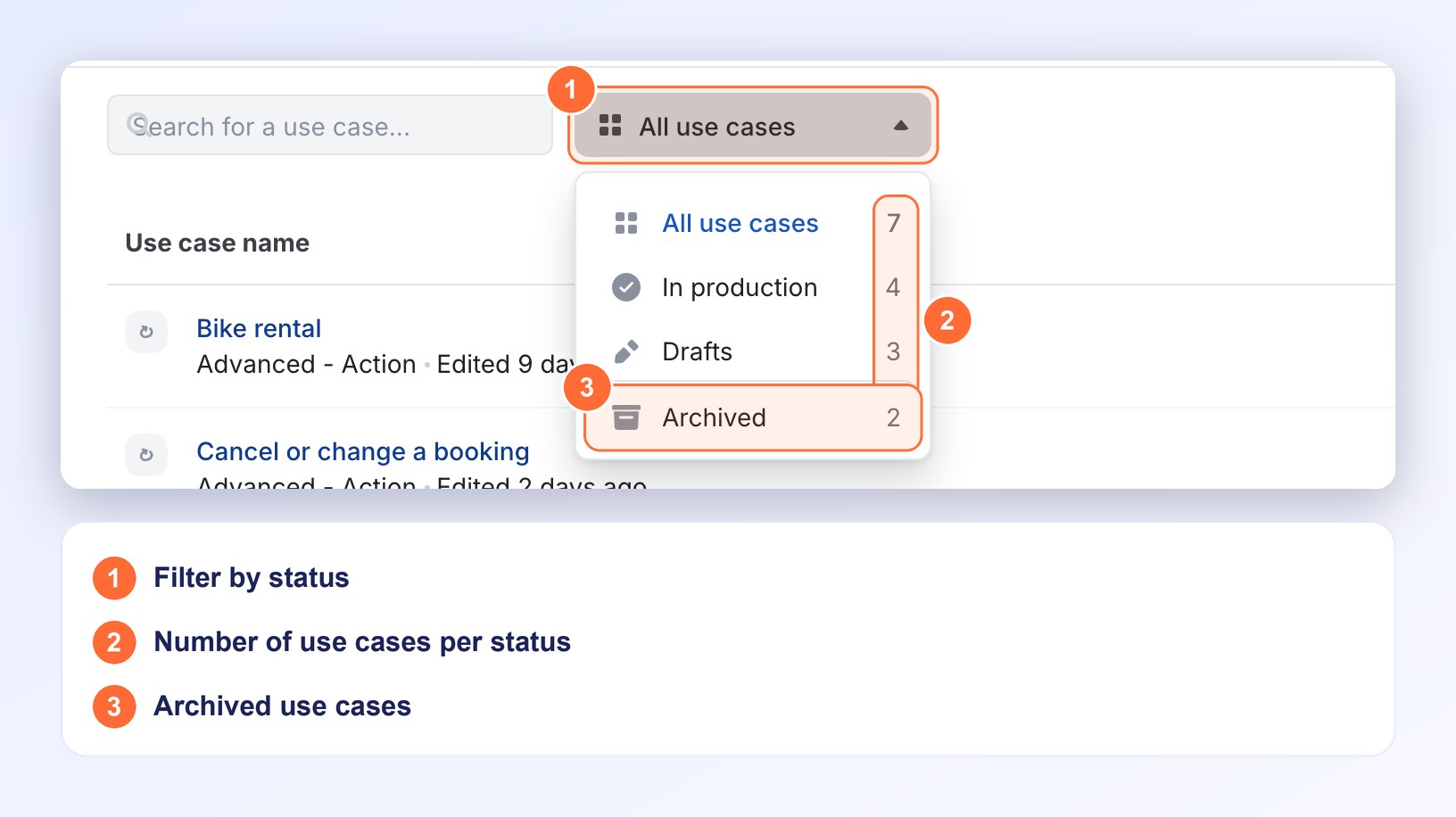
A filter to find your use cases by status
Before, finding the use cases in production or your drafts meant scrolling the whole list. Now a filter next to the search bar sorts the list by status.
- All use cases: all your use cases, except archived ones
- In production: published use cases. In the Advanced Builder, this filter is called Online
- Drafts: unpublished use cases. In the Advanced Builder, it is called Offline
- Archived: archived use cases
- The number of use cases with each status is shown next to its name when it isn't zero
- A clear message when no use case matches the filter or your search
Archive a use case without losing it
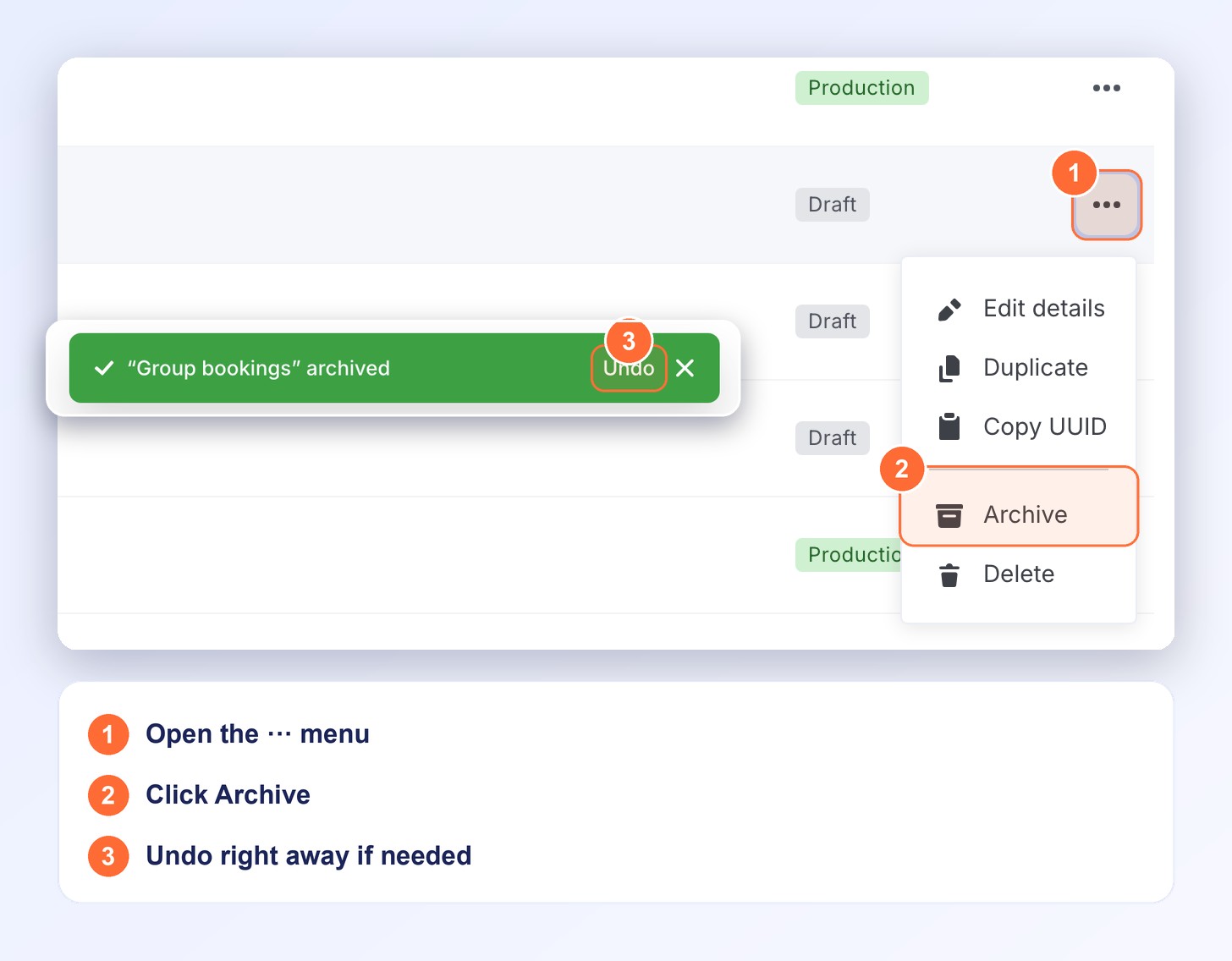
Before, the only way to tidy away a use case you no longer needed was to delete it, and deleting is permanent. Now you can archive it, then restore it whenever you want.
- Archive: in the ⋯ menu of the row. The use case must be out of production: if Archive is greyed out with the hint Unpublish first (Flow Builder) or Set offline first (Advanced Builder), unpublish it or set it offline first
- Undo: a message confirms the archiving and lets you undo it right away
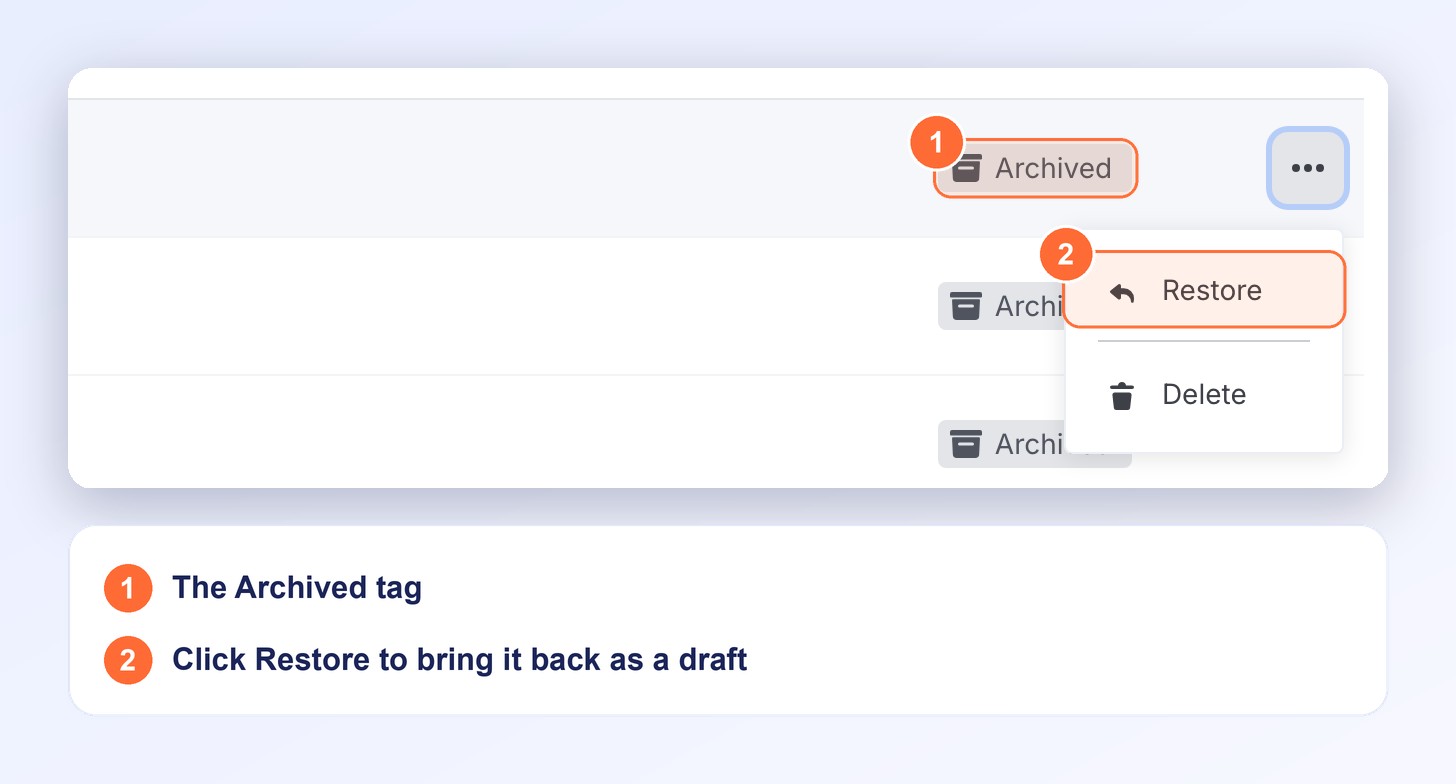
- An Archived tag appears on the use case, which leaves All use cases and shows up under the Archived filter
- Restore: in the ⋯ menu of an archived use case. It comes back out of production, ready to be published again
- No publishing by mistake: an archived use case can't be published or set online until you restore it (otherwise you get an error)
- Delete is still available, including for an archived use case
Flag a step as a handover to an agent
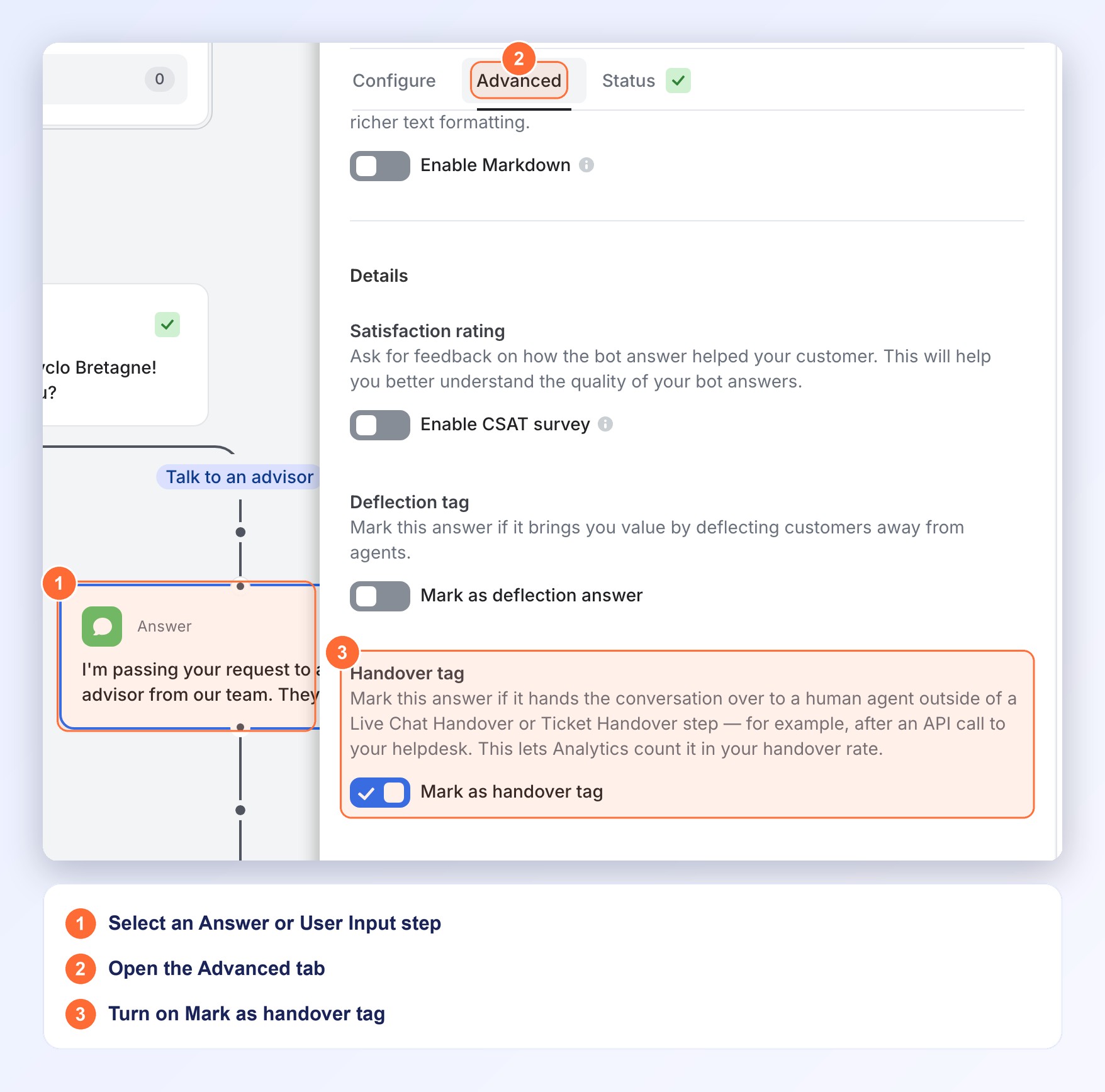
Before, a handover done any other way than with a handover step, for example after an API call to your helpdesk, didn't show up in your handover rate. Now you can flag it yourself.
- Where to find it: in the Advanced tab of an Answer or User Input step, in the Handover tag section, turn on Mark as handover tag
- What is counted: when the step runs, Analytics records a handover and adds it to your handover rate. In this rate, a conversation is counted only once, even if it goes through several handover types
- Deflection and handover are exclusive: on an Answer step, turning one on turns the other off
- Off by default: your existing use cases don't change, and neither do past conversations
No action required
The filter and archiving are available in the use cases list, in the Flow Builder and in the Advanced Builder. The Handover tag is off by default and applies from the next time you publish the use case.
For a complete walkthrough, check out the Use Cases and Answers documentation.