

AI Tools use your bot's variables — and a redesigned trace
This release lets your AI tools send your bot's variables to your APIs, so the values that matter reach your systems exactly as they are. It also redesigns the trace, so you can understand why your bot answered the way it did without reading raw JSON.
Use your bot's variables in AI tools
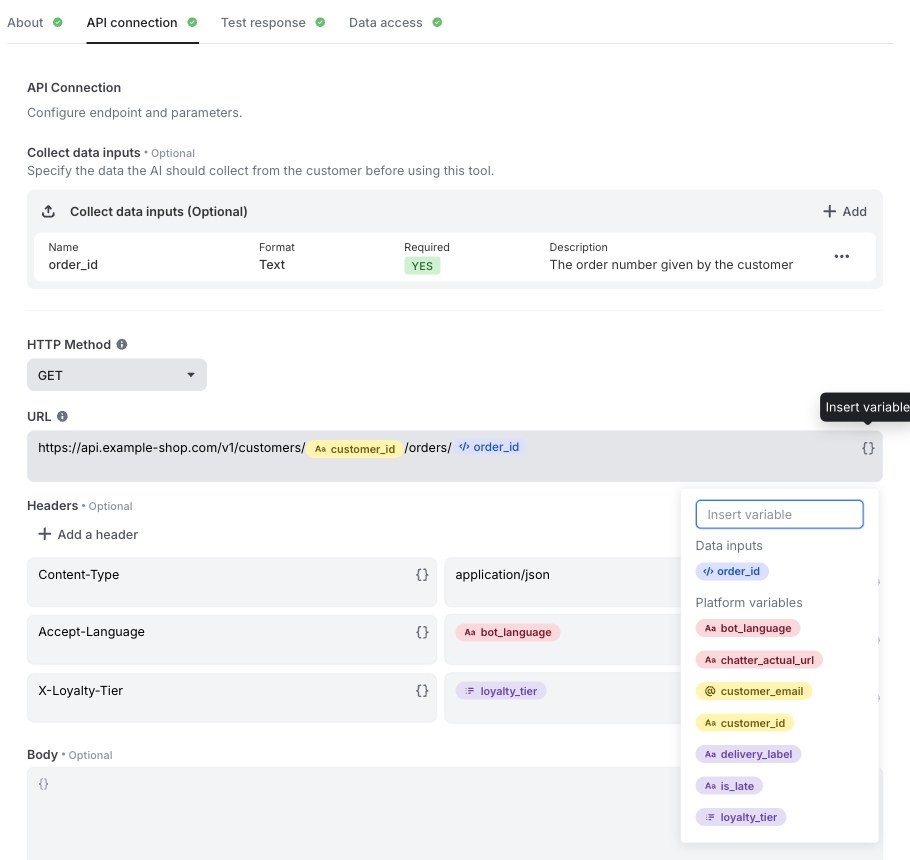
Your AI tools can now send your bot's variables to your APIs. In the API connection step of an AI tool, open the variable picker in the URL, a header or the body. Next to the data inputs the AI collects, a new Platform variables group lists your custom, user channel and system variables. When the tool runs, each one is replaced by its value in the current conversation.
- Values the AI cannot change: the AI does not choose these values, so a customer ID sent by your website, the conversation language or a customer tier set earlier in the flow reaches your API exactly as it is
- Everywhere in the request: use them in the URL, the headers, the body, and in the configuration of your authentication tokens
- Easy to spot: each variable appears as a colored badge, with one color per category
- Testable: the Test response step asks for a test value for each platform variable the tool uses
The trace shows what each tool call received: the values the AI filled from the conversation, and the ones the platform resolved.
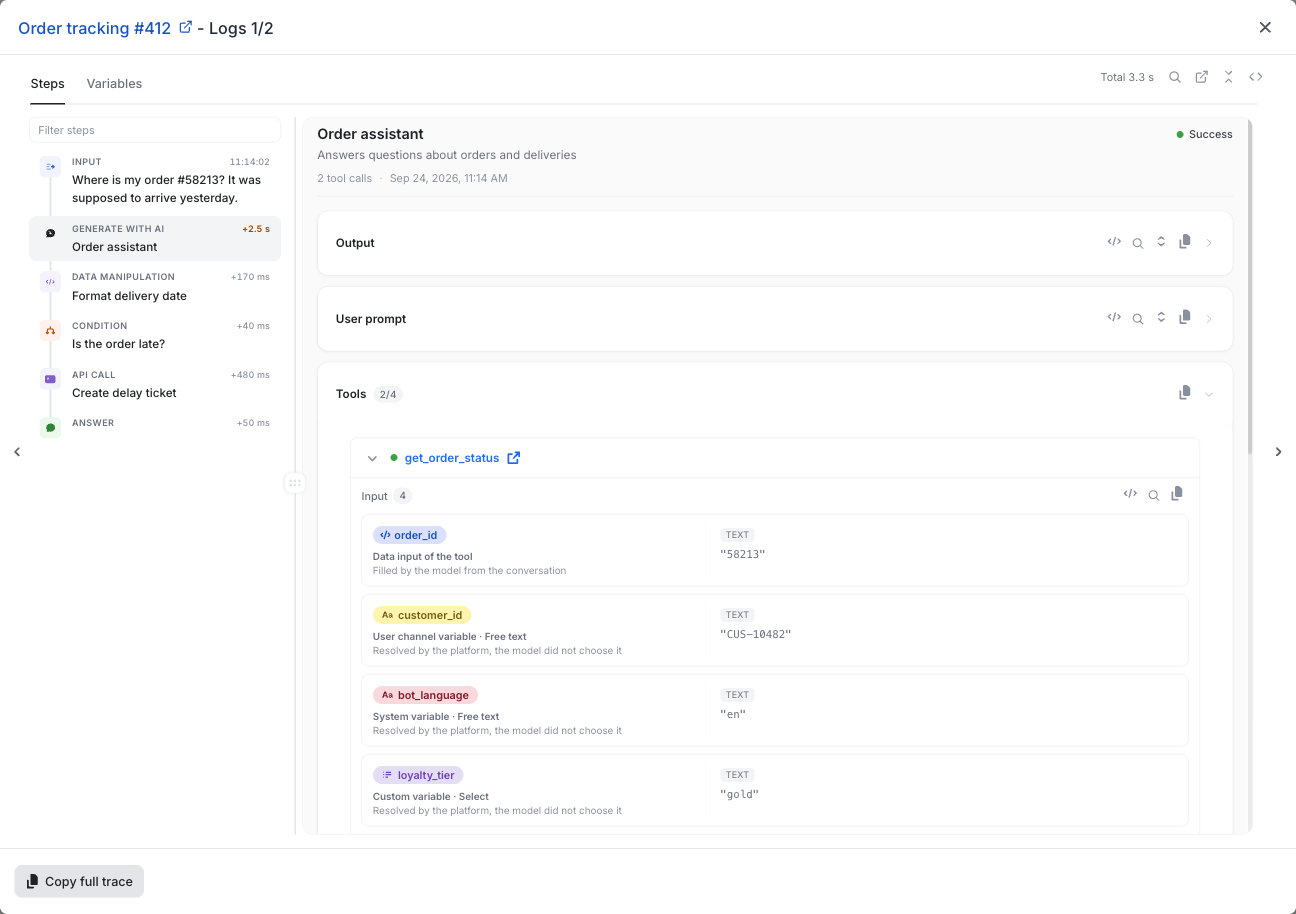
A formatted view for every step of the trace
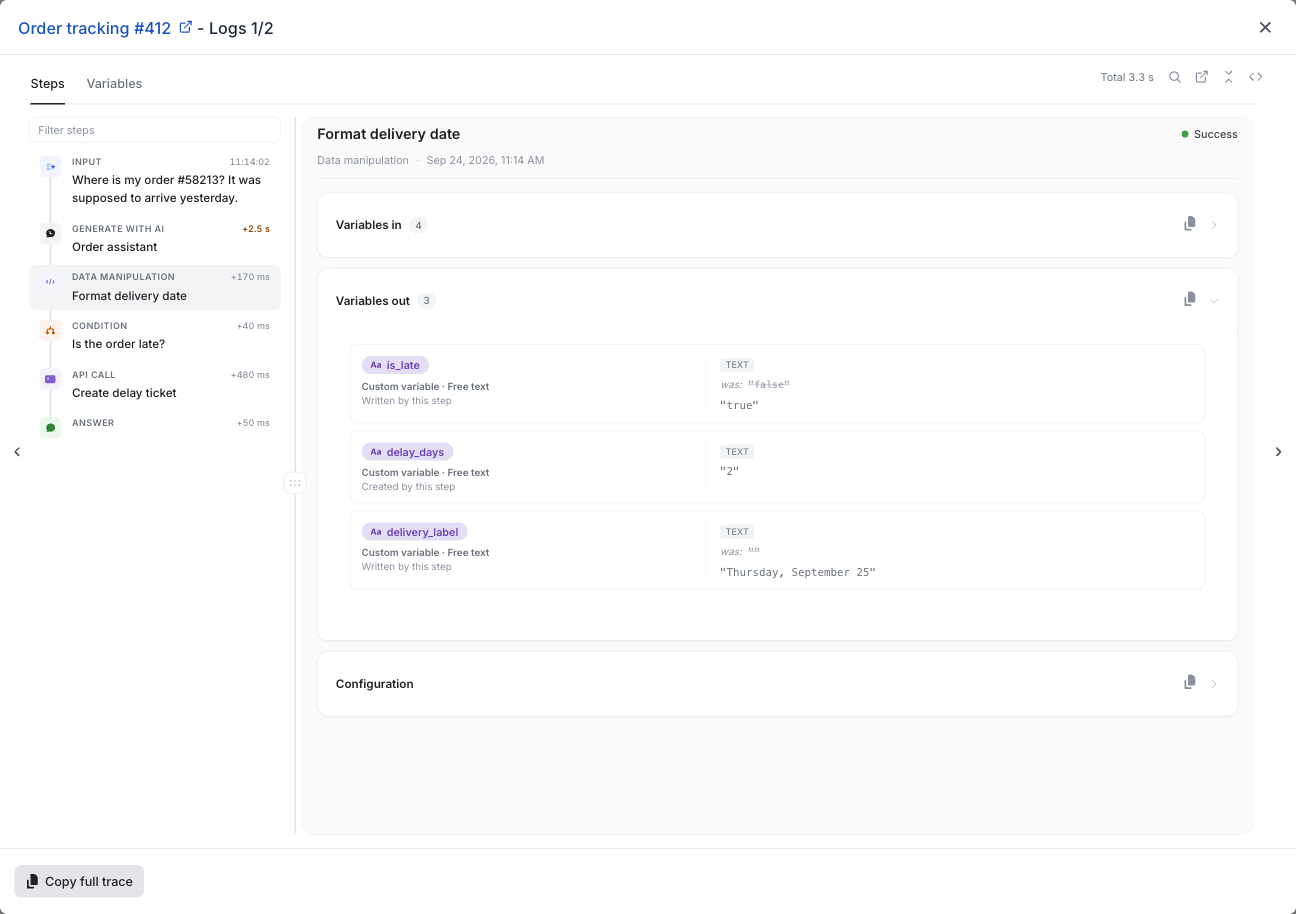
Each step now shows what matters, in plain language. When you open a step, the trace displays a formatted view built for that type of step. The raw JSON is still available through the View raw JSON button in the top-right corner.
- User input: the message the visitor typed, the channel, the page they were on, their time on site and their device
- Generate with AI: the output, the user prompt, the tools the model called with their input and response, the system prompt, the context sent to the model and the configuration
- Louis AI: the answer, the documents Louis cited, its reasoning, the question as Louis rewrote it, the knowledge it was given and the guidelines it followed
- Condition: the path the bot took and why, with each condition written in plain language next to the actual value of the variable
- API call: the request sent, the response received and the variables saved from it, with a Copy as cURL button
- Data manipulation: the variables that came in and the variables that came out, with a warning when a declared variable was not set
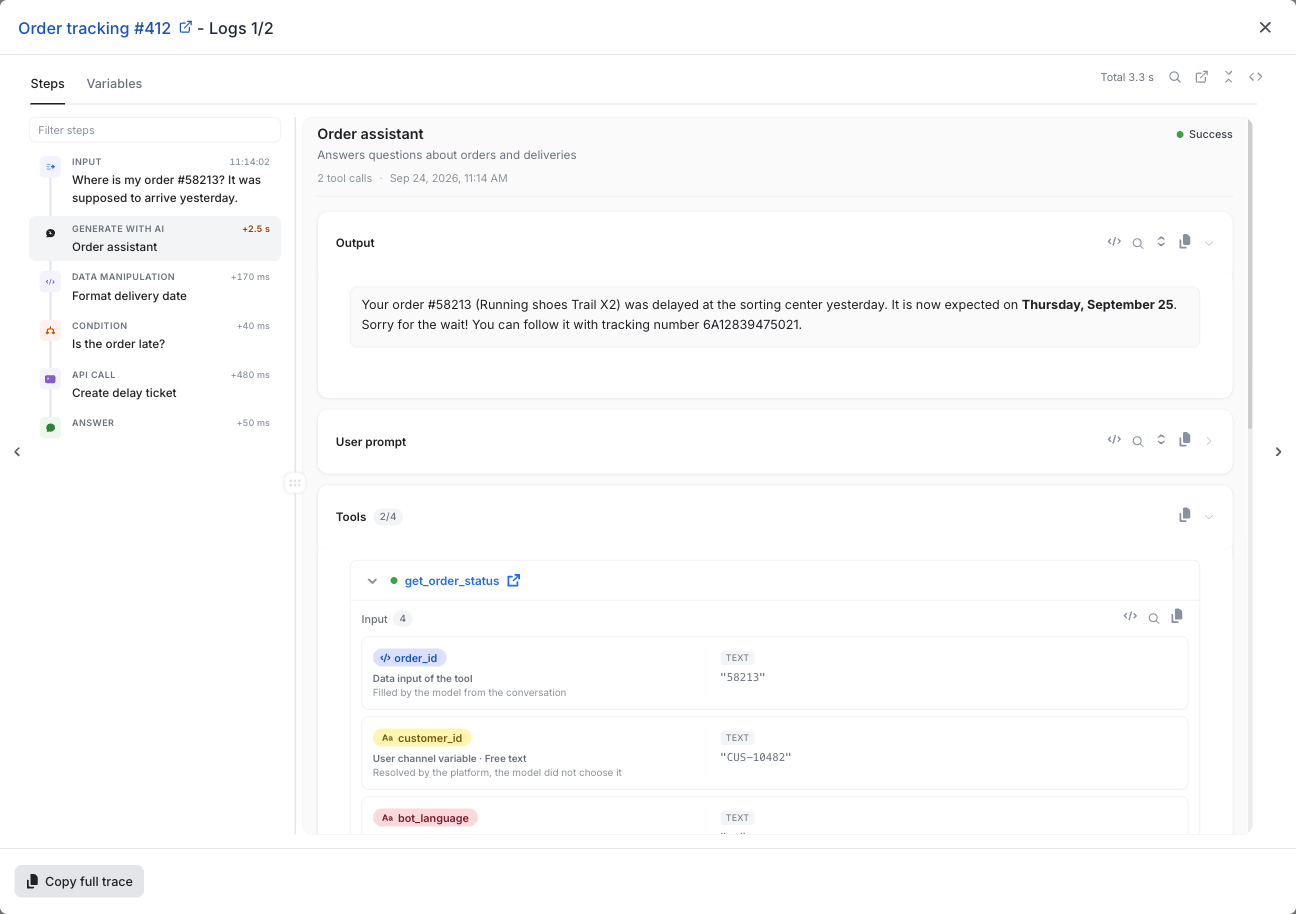
Find the problem faster
The trace now takes you straight to what went wrong. Failed steps are flagged in the list, and an error view explains what happened and what the visitor received.
- Errors filter: show only the steps that failed in one click
- The failing step: when the bot fails, a banner names the step that caused it and takes you to it
- Step durations: see how long each step took and the total time of the run, with the slowest steps highlighted
- Search: find a word in the current step, or inside any long text such as a prompt or an API response
- Step icons: each step uses the same icon as in the Bot Builder, so you recognize it at a glance
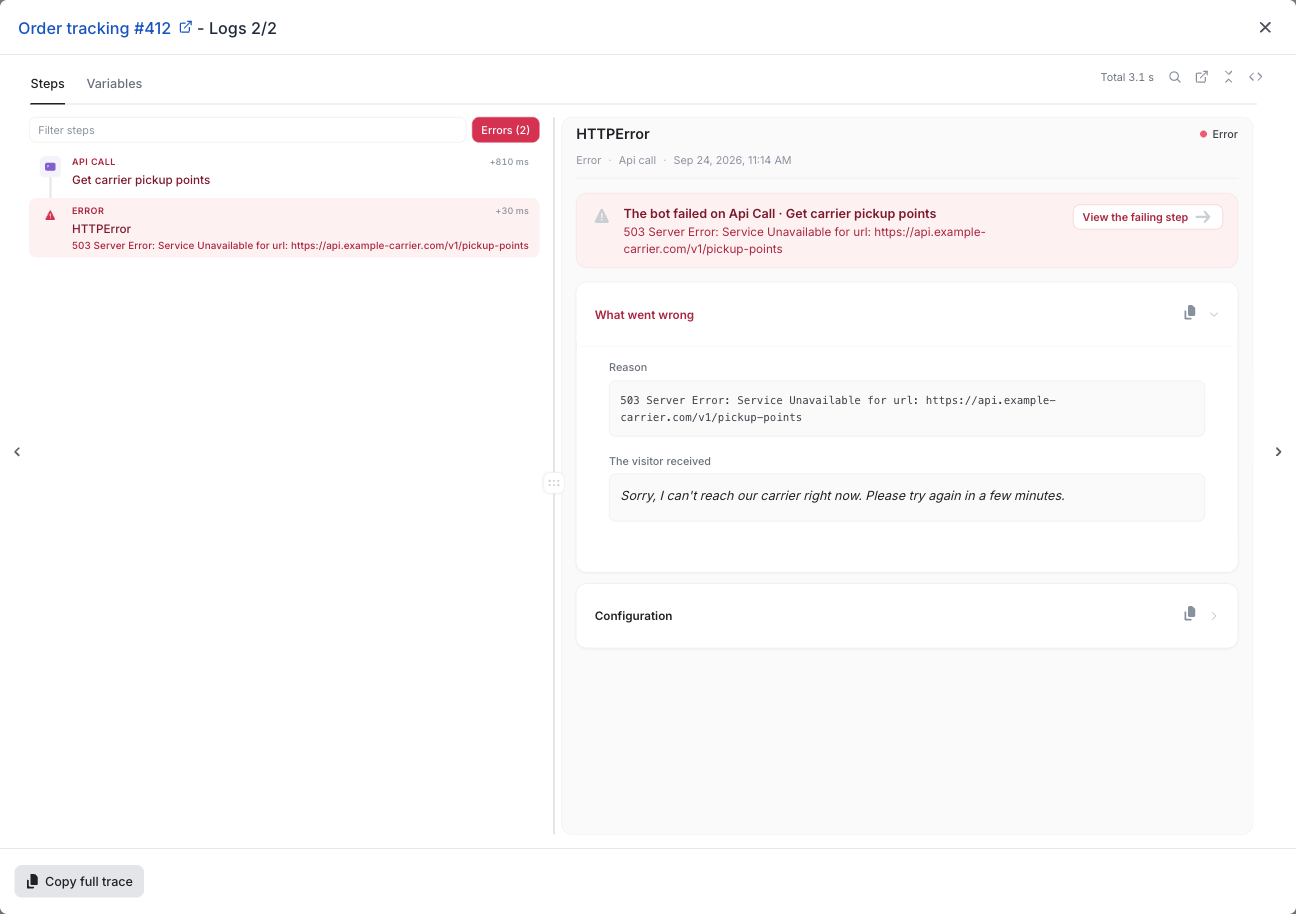
Follow your variables
See where every value comes from and what each step changed. The variables of a step show their value, their type and their origin: filled by the model, extracted from an API response, written from the visitor's answer or set by the platform. When a step changes a variable, the previous value is shown next to the new one.
- Links to the configuration: open the AI tool, the knowledge base document or the step in the Bot Builder in a new tab, directly from the trace
Share a trace with an AI assistant
Copy the whole trace in one click. The Copy full trace button copies the complete trace, organized and commented section by section, so you can paste it into an AI assistant and ask it to explain an answer or find a bug. Each section and field also has its own copy button.
No action required
Both features are available now for all bots. Open Integrate > AI Tools to add platform variables to your tools. Open the trace as before: in the Bot Builder, click Test, open the Inspector and click Access logs, or click Trace on any conversation in Conversations.
For more details, check out the AI Tools documentation and the Trace in Flow Builder documentation.