

Louis AI Guidance — Personalize Your Rules With Variables
This release lets you insert variables into Louis AI guidance rules, so Louis adapts his answers to what your bot already knows about each user. It also gives you more control over the look of your widget's chat bubble.
Insert variables into your guidance rules
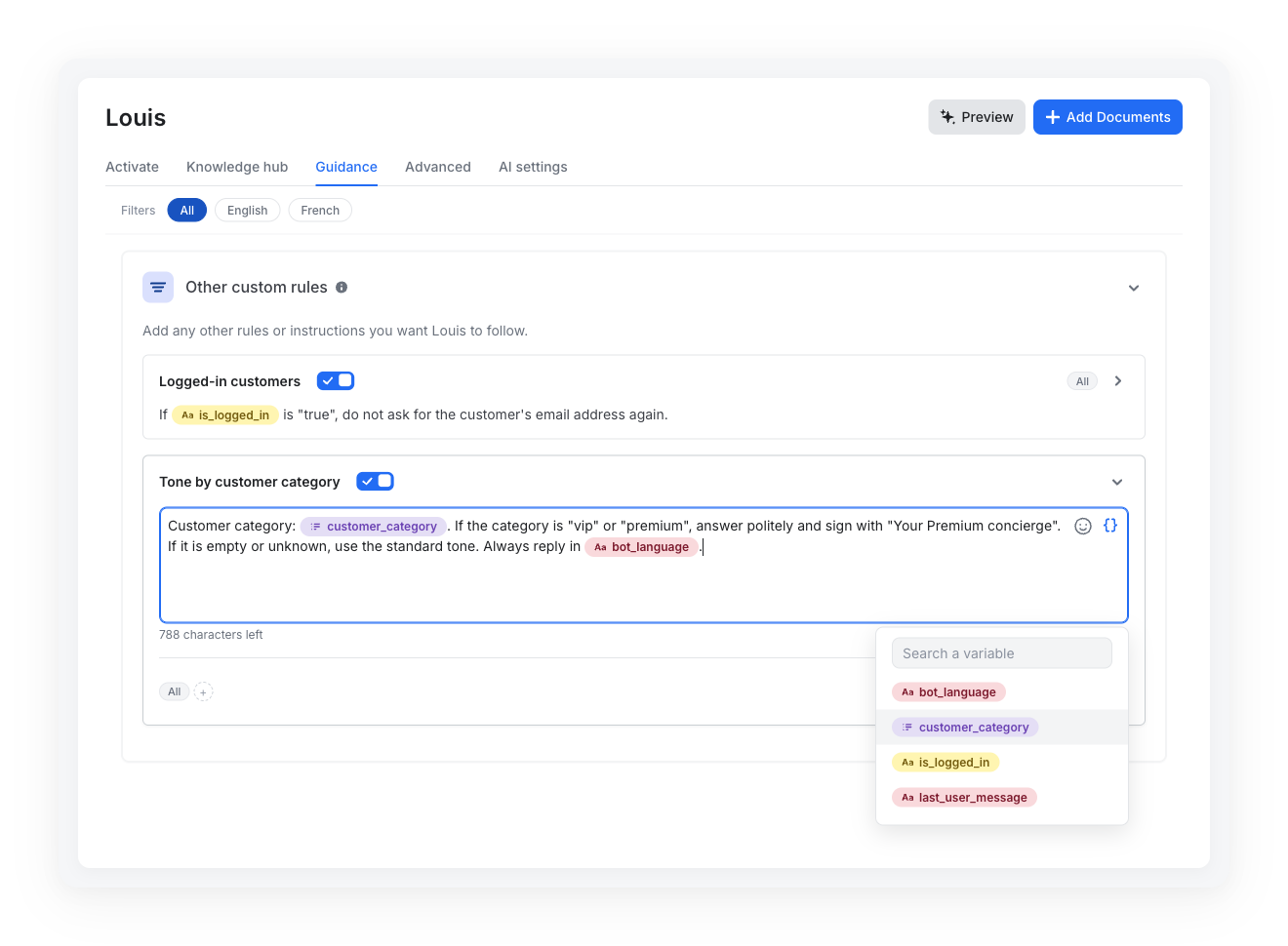
Your guidance rules can now use your bot's variables. In the Guidance tab of Louis, click the variable icon in any rule to insert a custom, user channel or system variable. When Louis answers, each variable is replaced with its value in the current conversation.
- Every rule section: available in Conversation Style, Follow-ups questions, Mastering your knowledge and Other custom rules
- All variable categories: custom, user channel and system variables, with a search to find the right one
- Personalized answers: adapt the tone to a customer category set by a Data Manipulation step, or to a login status sent by your website
- Safe when empty: a variable with no value is simply left empty, and the rest of the rule still applies
Customize your chat bubble
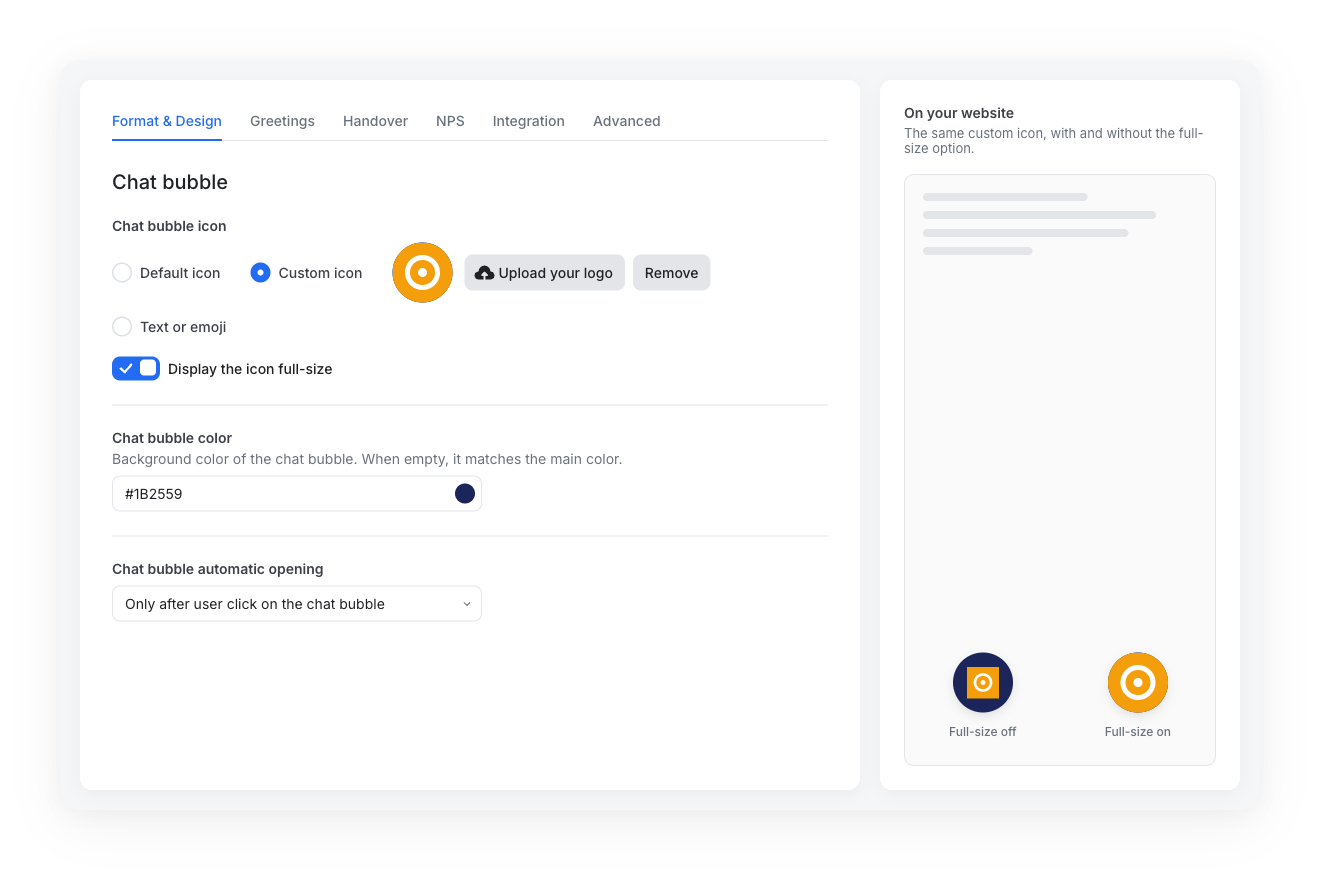
Make your widget's chat bubble match your brand. Two new settings are available in the Chat bubble section of the Format & Design tab:
- Display the icon full-size: your custom icon fills the whole bubble and is cropped to a circle, which is ideal for round logos or logos with their own background
- Chat bubble color: choose a background color for the bubble, independently of your main color. Leave it empty to keep the main color
Nothing changes for existing widgets: the full-size option is off by default, and the bubble keeps your main color until you pick another one.
Small improvements & fixes
- Generate with AI: long prompts can be scrolled again when the prompt editor is expanded
No action required
Both features are available now for all bots. Open Louis > Guidance to add variables to your rules, and the Format & Design tab of your widget to customize the chat bubble.
For details, check out the Variables documentation and the Configure Your Widget documentation.