

Securing user channel variables
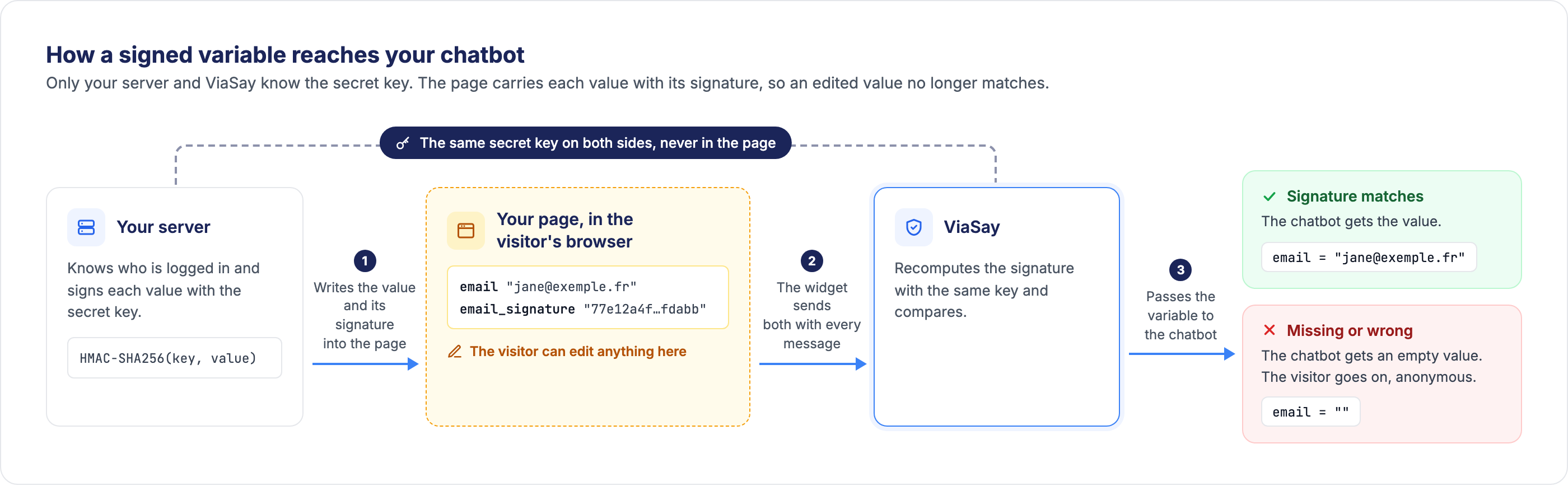
Your website fills the user channel variables that the widget sends to your chatbot: an email, a customer ID, an order number. Because they are written into the page, a visitor can change them in their browser before they reach the chatbot. Nothing in [email protected] tells a genuine value from an edited one.
When your chatbot relies on these variables to identify the visitor or to call your APIs on their behalf, you can require a signature on the variables of your choice. Your server computes the signature from the value and a secret key shared with ViaSay, and your page sends it next to the value. ViaSay checks it on every message: a value that does not match never reaches your chatbot.
Where to find it
Signatures are available on widget channels. Open Integrate → Channels, select your widget, then the Security tab. The tab is visible to users with the Manager or Platform Administrator role.
When to secure a variable
Secure every variable your chatbot trusts:
- Identity: an email, a customer ID or a phone number used to recognise the visitor.
- API parameters: an ID passed to an API call to fetch orders, bookings or account details.
- Handover: an email or a phone number used to find the customer's account when the conversation goes to an agent.
A variable that only personalises the conversation, such as the page category or the product being viewed, does not need a signature: an edited value only changes what the visitor sees.
What your page sends
Each secured variable travels with an extra attribute carrying the same name followed by _signature. Here the page sends a signed email:
<script>
  var widget = document.createElement("destygo-webchat");
  widget.setAttribute('token', "<your channel token>");
  widget.setAttribute('email', "[email protected]");
  widget.setAttribute('email_signature', "77e12a4f8d86c8feae63e2cfcd8290876fbfc8c3884ef5dc946831a4f68fdabb");
  document.body.appendChild(widget);
</script>
The signature is the HMAC-SHA256 of the value, computed with the shared secret key and written in lowercase hexadecimal. The _signature attributes are only used for the check: they never reach your chatbot, your analytics or your conversation logs.
Your page keeps sending the variables exactly as before. The only addition is one _signature line per secured variable.
Compute the signature on your server
Your server already knows who is logged in: it computes the signature when it generates the page, with the key you save in the Security tab.
const crypto = require('crypto');

// The key saved in the Security tab, read from your server's configuration.
const SECRET = process.env.VIASAY_SIGNATURE_SECRET;

function sign(value) {
  return crypto.createHmac('sha256', SECRET).update(value, 'utf8').digest('hex');
}

sign('[email protected]'); // 77e12a4f8d86c8feae63e2cfcd8290876fbfc8c3884ef5dc946831a4f68fdabb
import hashlib
import hmac
import os

# The key saved in the Security tab, read from your server's configuration.
SECRET = os.environ["VIASAY_SIGNATURE_SECRET"]

def sign(value: str) -> str:
    return hmac.new(SECRET.encode("utf-8"), value.encode("utf-8"), hashlib.sha256).hexdigest()

sign("[email protected]")  # 77e12a4f8d86c8feae63e2cfcd8290876fbfc8c3884ef5dc946831a4f68fdabb
<?php
// The key saved in the Security tab, read from your server's configuration.
$secret = getenv('VIASAY_SIGNATURE_SECRET');

function sign(string $value, string $secret): string {
    return hash_hmac('sha256', $value, $secret);
}

sign('[email protected]', $secret); // 77e12a4f8d86c8feae63e2cfcd8290876fbfc8c3884ef5dc946831a4f68fdabb
import java.nio.charset.StandardCharsets;
import java.util.HexFormat;
import javax.crypto.Mac;
import javax.crypto.spec.SecretKeySpec;

public final class ViaSaySignature {
    // The key saved in the Security tab, read from your server's configuration.
    private static final String SECRET = System.getenv("VIASAY_SIGNATURE_SECRET");

    // sign("[email protected]") returns 77e12a4f8d86c8feae63e2cfcd8290876fbfc8c3884ef5dc946831a4f68fdabb
    public static String sign(String value) throws Exception {
        Mac mac = Mac.getInstance("HmacSHA256");
        mac.init(new SecretKeySpec(SECRET.getBytes(StandardCharsets.UTF_8), "HmacSHA256"));
        return HexFormat.of().formatHex(mac.doFinal(value.getBytes(StandardCharsets.UTF_8)));
    }
}
To check your implementation, use this test pair. Your code must produce exactly the expected signature:
| Secret key | Value | Expected signature |
|---|---|---|
exemple-de-secret-a-ne-pas-utiliser | [email protected] | 77e12a4f8d86c8feae63e2cfcd8290876fbfc8c3884ef5dc946831a4f68fdabb |
Four rules
- Compute the signature on your server, never in the browser. A key written in your page's JavaScript can be read by anyone, and then protects nothing.
- Sign exactly the string you send, including case and spaces:
[email protected]and[email protected]have different signatures. Sign the raw value, before any HTML or JavaScript escaping.- Use the key as a plain string. Don't decode it from hexadecimal or Base64, even when it looks like hexadecimal: a generated key is used character by character, as text.
- Use a random key of at least 32 characters, dedicated to this integration. The Generate button creates one for you.
Set it up in the Security tab
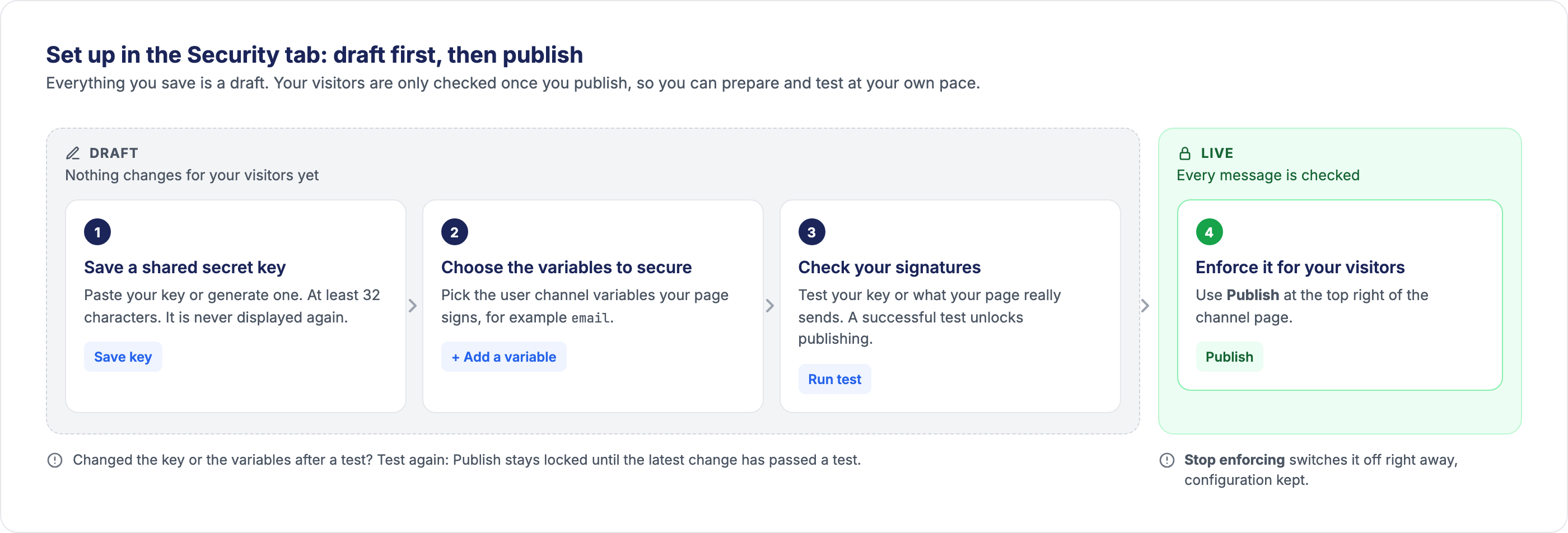
The Security tab walks you through four steps. Everything you save in steps 1 to 3 is a draft: your visitors are only checked once you publish, so you can prepare and test at your own pace.
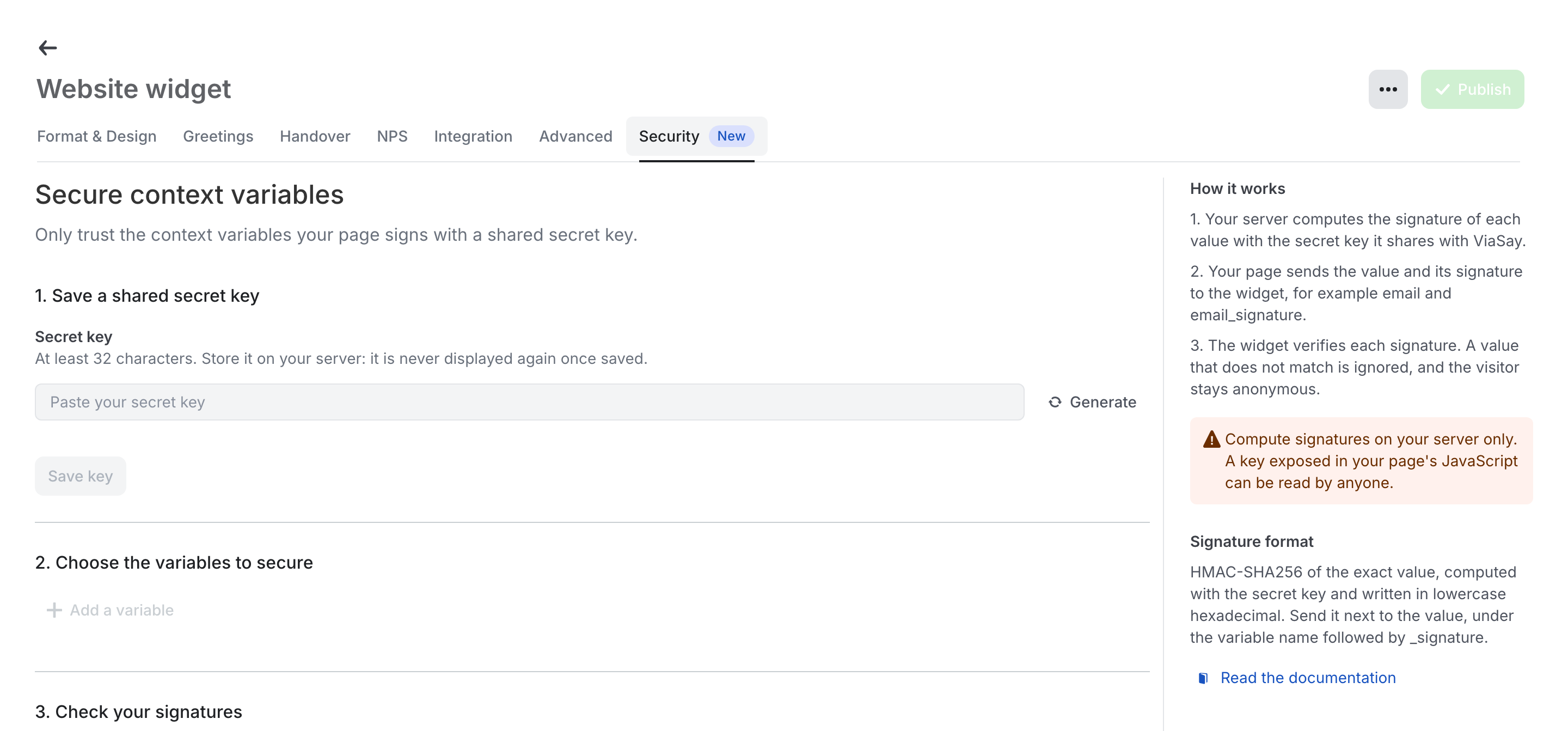
The Security tab of a widget channel, with the guide on the right.
Step 1: Save a shared secret key
Paste the key your server will use, or click Generate to create a random one. A generated key is displayed in clear with a copy button: copy it to your server now, because it is never displayed again once saved. Then click Save key.
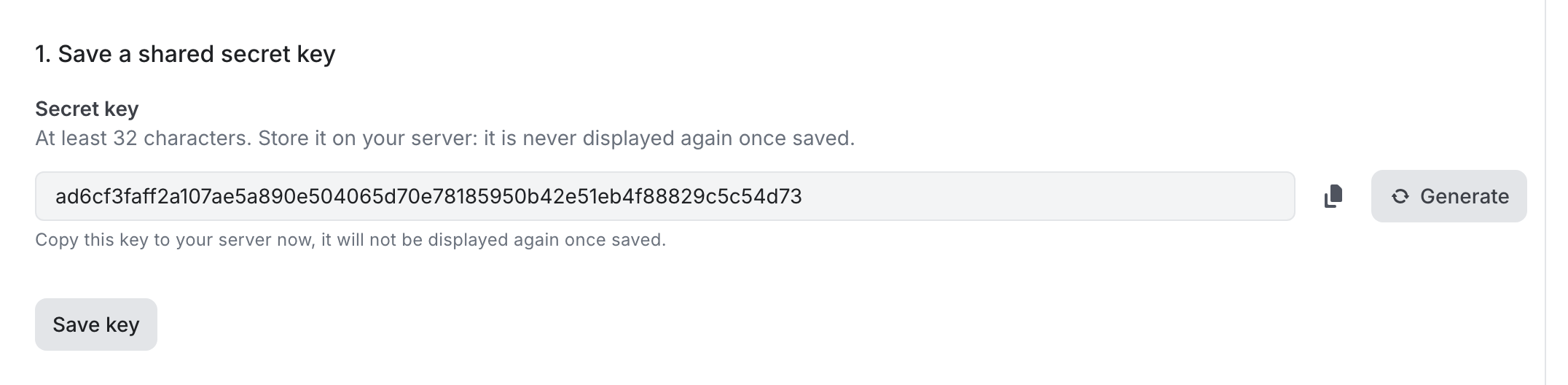
A generated key, ready to be copied to your server before saving.
The key is stored encrypted and never displayed again: the tab only shows that a key exists. A newly saved key shows as New key, waiting for publication: it only applies when you publish.
Step 2: Choose the variables to secure
Click Add a variable and pick the variables your page signs. Only user channel variables are listed: if the one you need does not exist yet, create it first. Your choices are saved as you go.
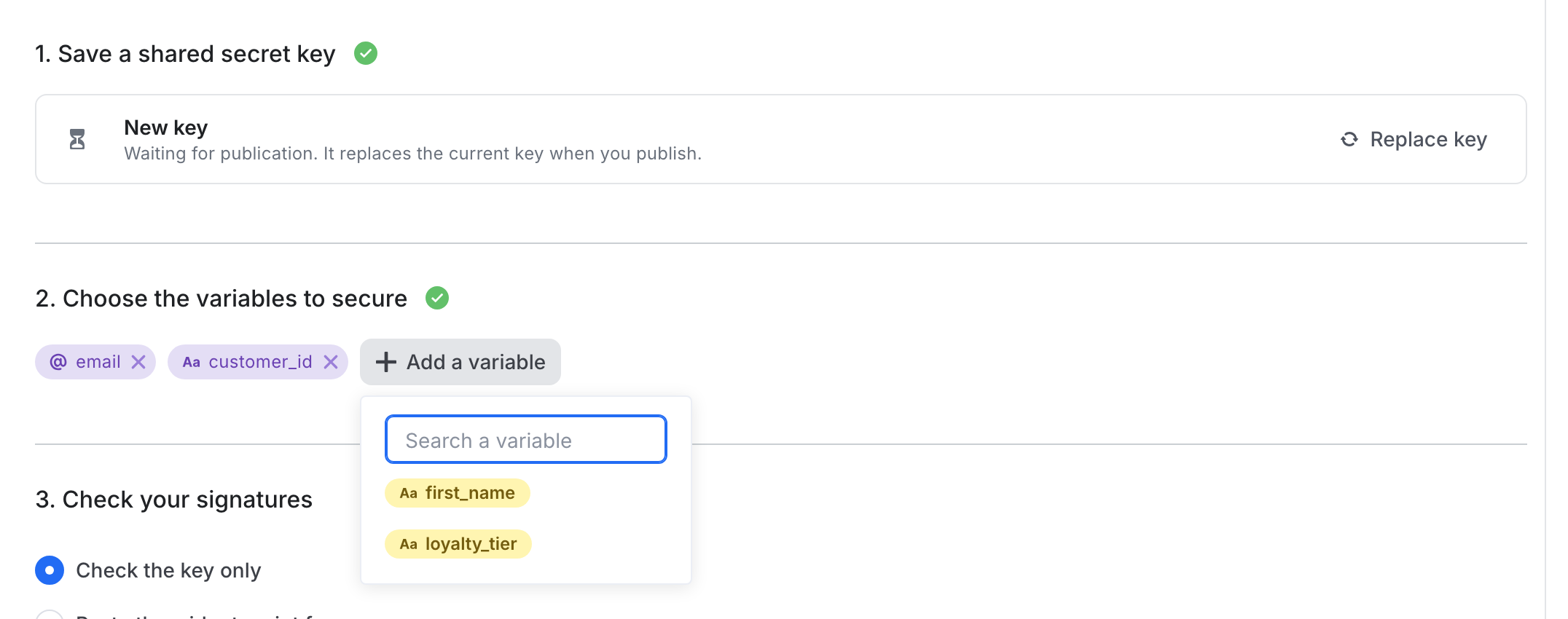
email and customer_id are secured. The other user channel variables stay available in the list.
A few rules apply to the variable names you secure:
- Up to 50 variables per widget.
- A name cannot end with
_signature: secureemail, and your page sendsemail_signature. - Names reserved by the widget, such as
tokenorid, cannot be secured.
Step 3: Check your signatures
Before publishing, check that what your server produces matches what ViaSay expects. Three ways to test, from the quickest to the most complete:
| Test | When to use it | What you enter |
|---|---|---|
| Check the key only | Your server code is not ready yet. | The key your server will use. A sample value is signed in your browser and checked against the saved key. The key itself is never sent. |
| Paste the widget script from your page | Your server already signs. This is the most complete test. | Open a page of your site where a visitor is logged in, copy the widget script your server generated, and paste it as is. |
| Enter values and signatures | You want to test a few values by hand. | For each secured variable, a value and the signature your server computed for it. |
Click Run test. The result tells you, variable by variable, what ViaSay would conclude on a real message.
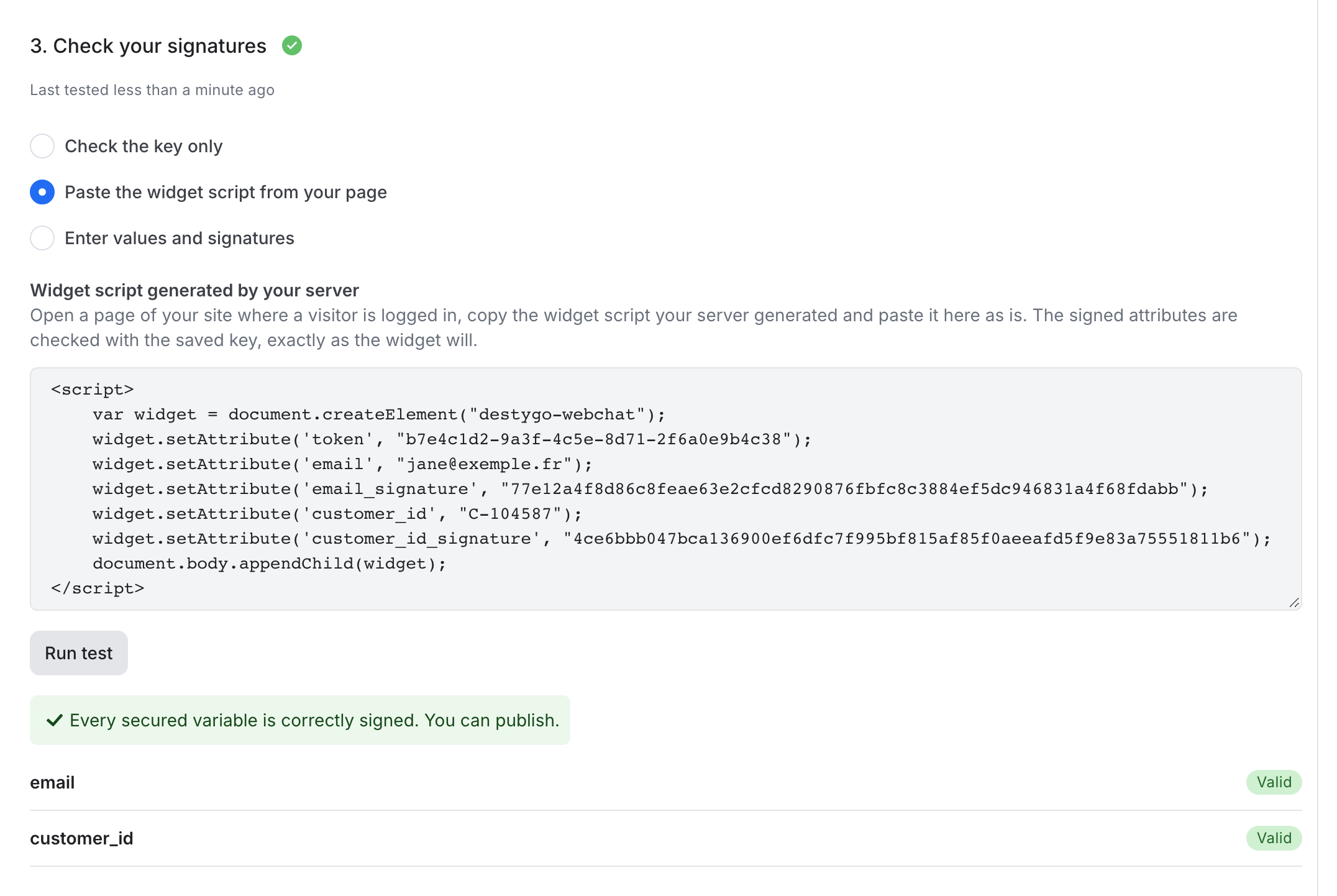
The widget script of a logged-in page, pasted as is: every secured variable is correctly signed.
When a variable fails, the result says why and what to fix:
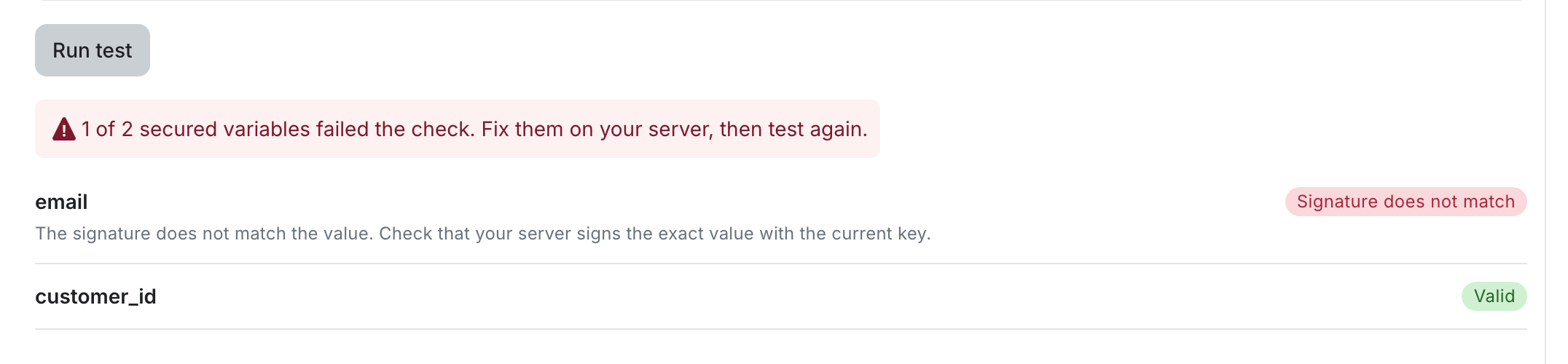
The email was changed after signing, so its signature no longer matches.
| Result | What it means | What to do |
|---|---|---|
| Valid | The signature matches the value. | Nothing. |
| Variable not sent | The test does not contain this variable. | Check that your page sends it with its signature. |
| Signature missing | The value is there, but not its _signature attribute. | Send the signature next to the value. |
| Signature does not match | The signature was not computed from this exact value with this key. | Check that your server signs the exact value, with the key saved in step 1. |
| Value not accepted | The value is not text. | Check what your page sends for this variable. |
| No key saved | No key is saved for this channel. | Go back to step 1. |
Step 4: Publish
Once the test passes, use Publish at the top right of the channel page. The banner at the top of the tab tells you where you are in the setup.
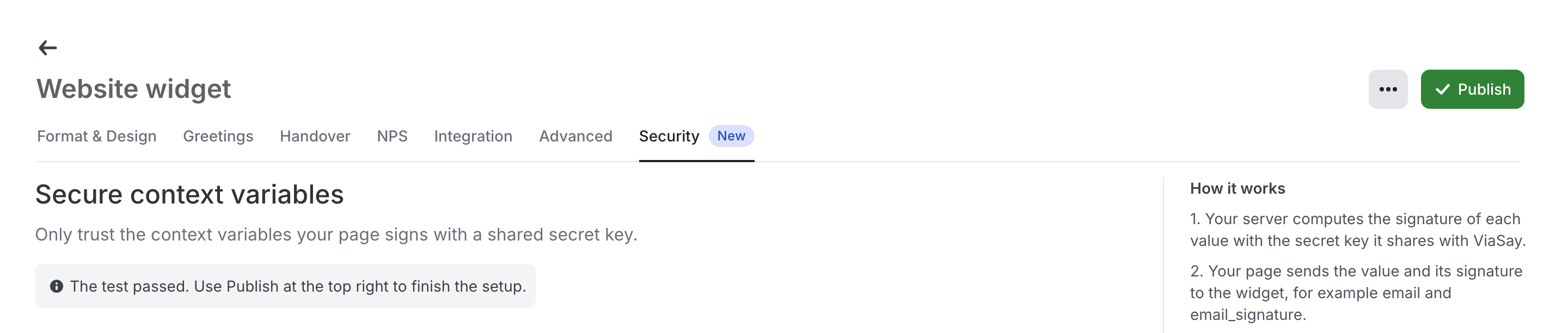
The test passed: Publish, at the top right, applies the configuration.
Publish stays locked until your latest change has passed a test. If you change the key or the variables after a test, run a new one.
After publishing, step 4 shows that signatures are enforced for your visitors, since when, and on which variables:

The protection is live on email and customer_id.
What happens on each message
Once published, every message from the widget is checked, and your chatbot always holds what your page certifies right now:
| Situation | What your chatbot receives | The conversation |
|---|---|---|
| The signature is valid. | The value. | Goes on normally. |
| The signature is missing, wrong, or the value was edited. | An empty value. | Goes on with an anonymous visitor. It is never blocked. |
| The page sends no secured variable: the visitor is not logged in. | An empty value. | Goes on normally: this is not an error. |
| The page stops sending the signed value, for instance after a logout. | An empty value, from the next message. | Goes on: the chatbot forgets the identity it was given. |
Plan for the empty case in your flows
A secured variable can arrive empty at any time. Before using it, for example in an API call, make sure it has a value, and plan another path when it is empty: ask the visitor to log in, or continue without their account.
At handover
When the conversation goes to an agent through Freshchat or ViaFlow, only an email, a phone number or a contact ID that arrived with a valid signature is used to find the customer's account. A value the visitor typed in the chat or edited in the page is never linked to an existing account, so nobody can open someone else's customer record by typing their email.
Change the key
Change the key regularly, or right away if it may have been exposed. The previous key stays accepted after you publish, so your servers can switch to the new key without interrupting your visitors.
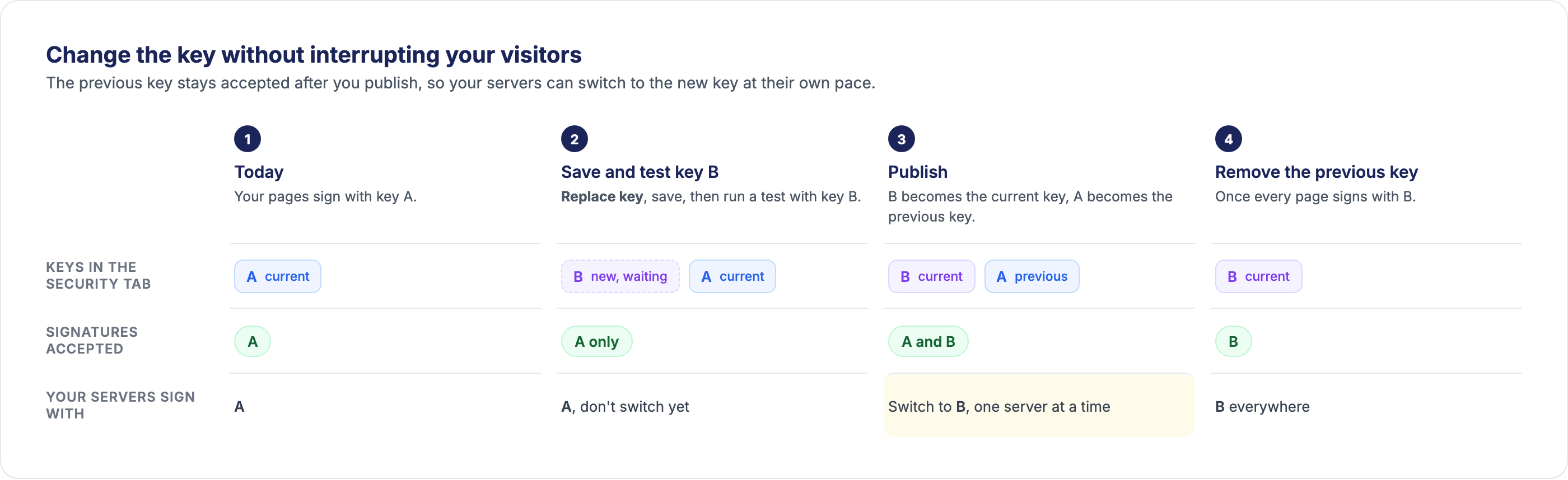
- Click Replace key, paste or generate the new key, and save it. It shows as New key, waiting for publication. Your visitors are still checked with the current key.
- Run a test with the new key in step 3.
- Publish. The new key becomes the current key, and the old one becomes the previous key: both are accepted.
- Update your servers to sign with the new key.
- Once every page signs with the new key, click Remove next to the previous key.
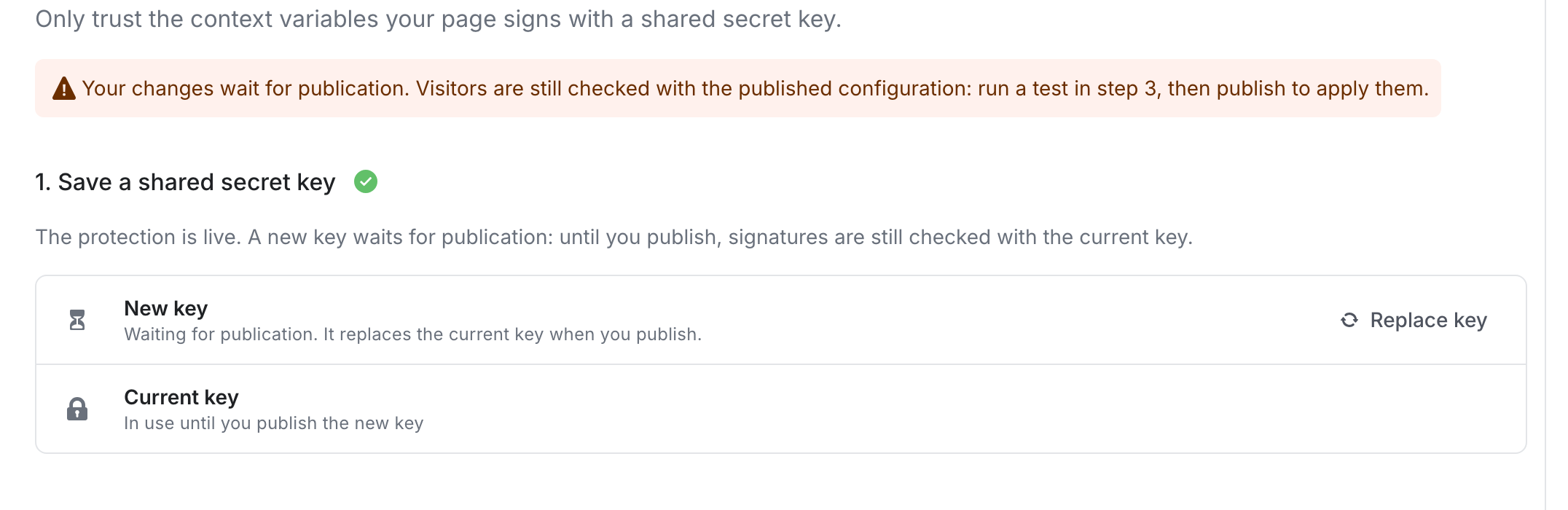
A new key waits for publication. Until you publish, signatures are checked with the current key.

After publishing, the previous key is still accepted until you remove it.
Switch your servers after publishing, not before
Until you publish, only the current key is accepted: a page signed with the new key would make its visitors anonymous. If the old key was exposed, publish right away and remove the previous key as soon as your servers use the new one.
Change the secured variables
You can add or remove secured variables at any time. As long as you have not published, the change is a draft: your visitors are still checked with the published variables. Run a test, then publish to apply it.
Stop enforcing signatures
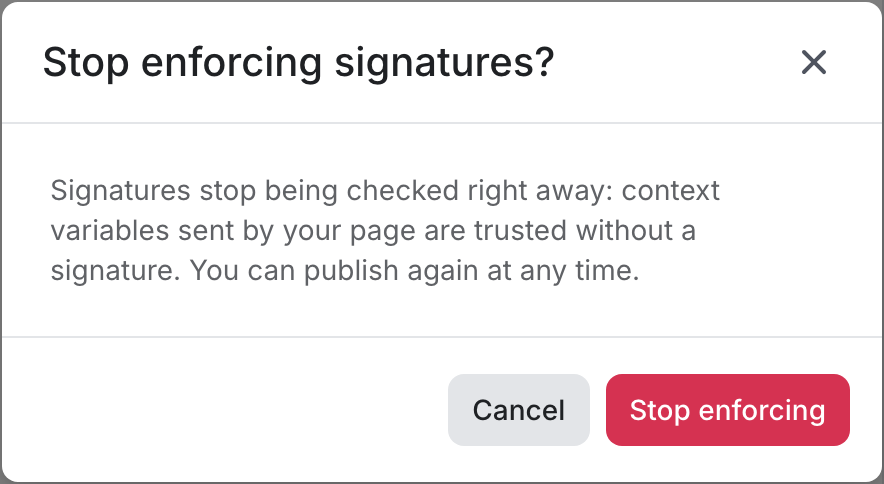
Click Stop enforcing in step 4. Signatures stop being checked right away, and the variables sent by your page are trusted again without a signature. Your key and your variables are kept: you can publish again at any time without entering anything again.
Troubleshooting
A logged-in visitor is treated as anonymous. Check that every page that loads the widget for a logged-in visitor sends the signed values. A page that loads the widget without them makes the visitor anonymous from the next message.
The test says "Signature does not match". Compare with the test pair above: if your code does not produce 77e12a4f…68fdabb, the signing code is at fault. Otherwise, check that your server uses the key saved in step 1, and that it signs the value exactly as the page sends it.
Publish is greyed out. Your latest change has not passed a test yet. Run a test in step 3.
Don't cache pages that contain a signature. A signature proves who the value belongs to: a cached page served to another visitor would hand them the identity of the first one.