

AI Tools — Connect your AI assistant to external APIs
This release introduces AI Tools, a new feature that lets you create custom tool definitions and connect them to your AI-powered Specialist prompts — enabling your assistant to call external APIs during conversations.
Create and manage AI tool definitions
Give your AI assistant the ability to take action. A new AI Tools section is now available under the Connect menu, with a full-featured wizard to create, edit, and manage tool definitions.
The wizard guides you through five steps:
- About: name your tool and describe what it does — the AI uses this to decide when to call it
- API Connection: configure the endpoint URL, HTTP method, headers, and request body — with support for template variables
- Data Inputs: define the parameters your tool expects, with support for required (
${variable}) and optional (?{variable}) syntax - Test Response: execute the tool in real-time and inspect the raw JSON response before going live
- Data Access: control which fields from the API response are exposed to the AI, with include/exclude filter modes
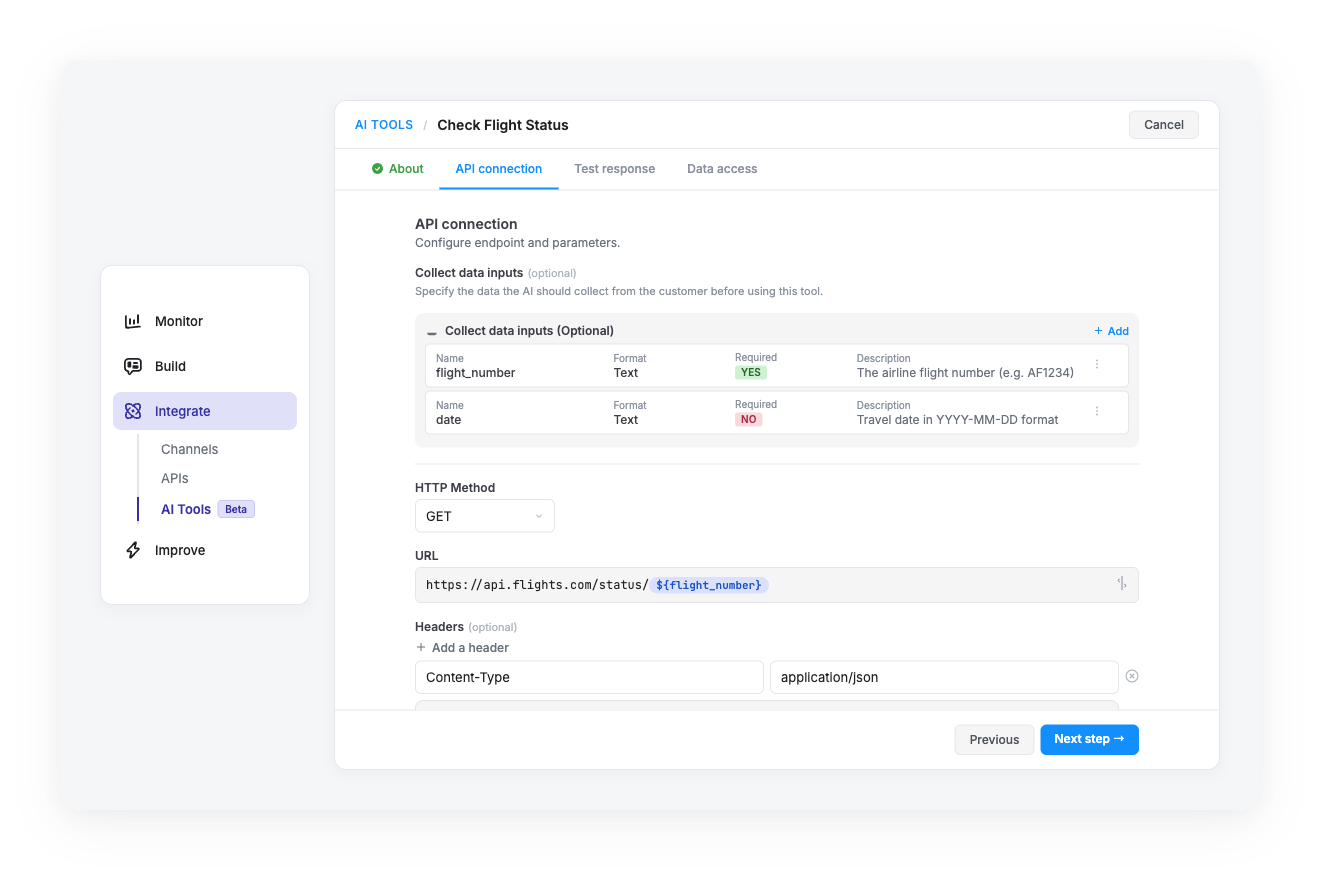
Additional capabilities:
- HTTP authentication tokens: configure bearer or custom token-based authentication for your API connections
- Search and filtering: quickly find tools by name, and filter by type (API or Token)
- Bulk actions: synchronize or delete multiple tool definitions at once
- Default sorting: tools are sorted by last updated date for easier management
Connect tools to Specialist prompts
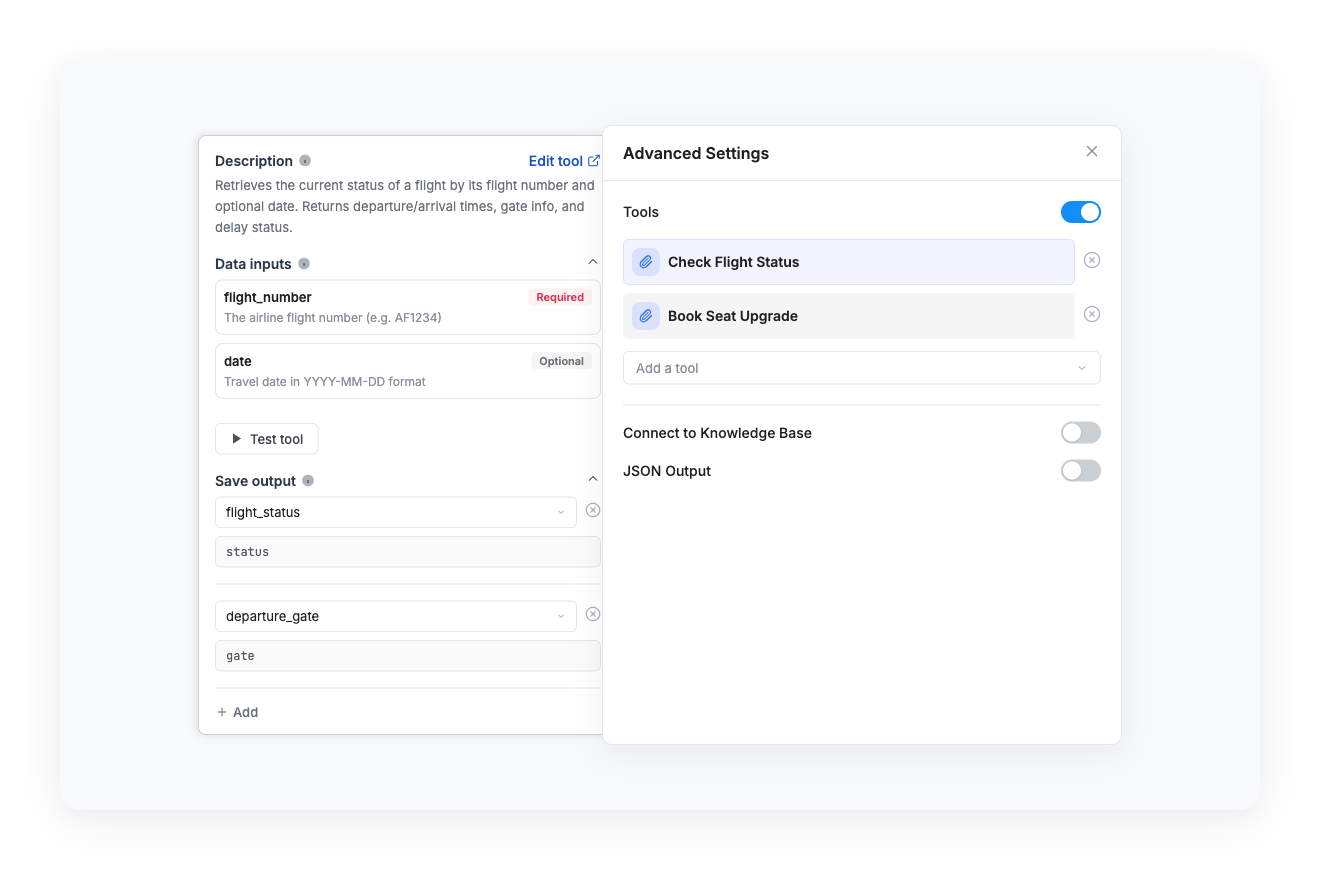
Your AI assistant can now call tools during a conversation. In the Flow Builder, a new "Tools" toggle in the Advanced Settings of the Gen AI Step lets you browse and attach available tool definitions to any Specialist prompt.
- Tool selection: browse available tools and attach them to a prompt — Token-type tools are automatically excluded from the list
- Tool detail panel: click on any attached tool to view its description, input parameters, and configure output mappings
- Output mapping: map fields from the tool's JSON response to conversation variables using JMESPath queries
- Direct editing: jump straight to the tool definition page from the detail panel to make changes
Test tools before going live
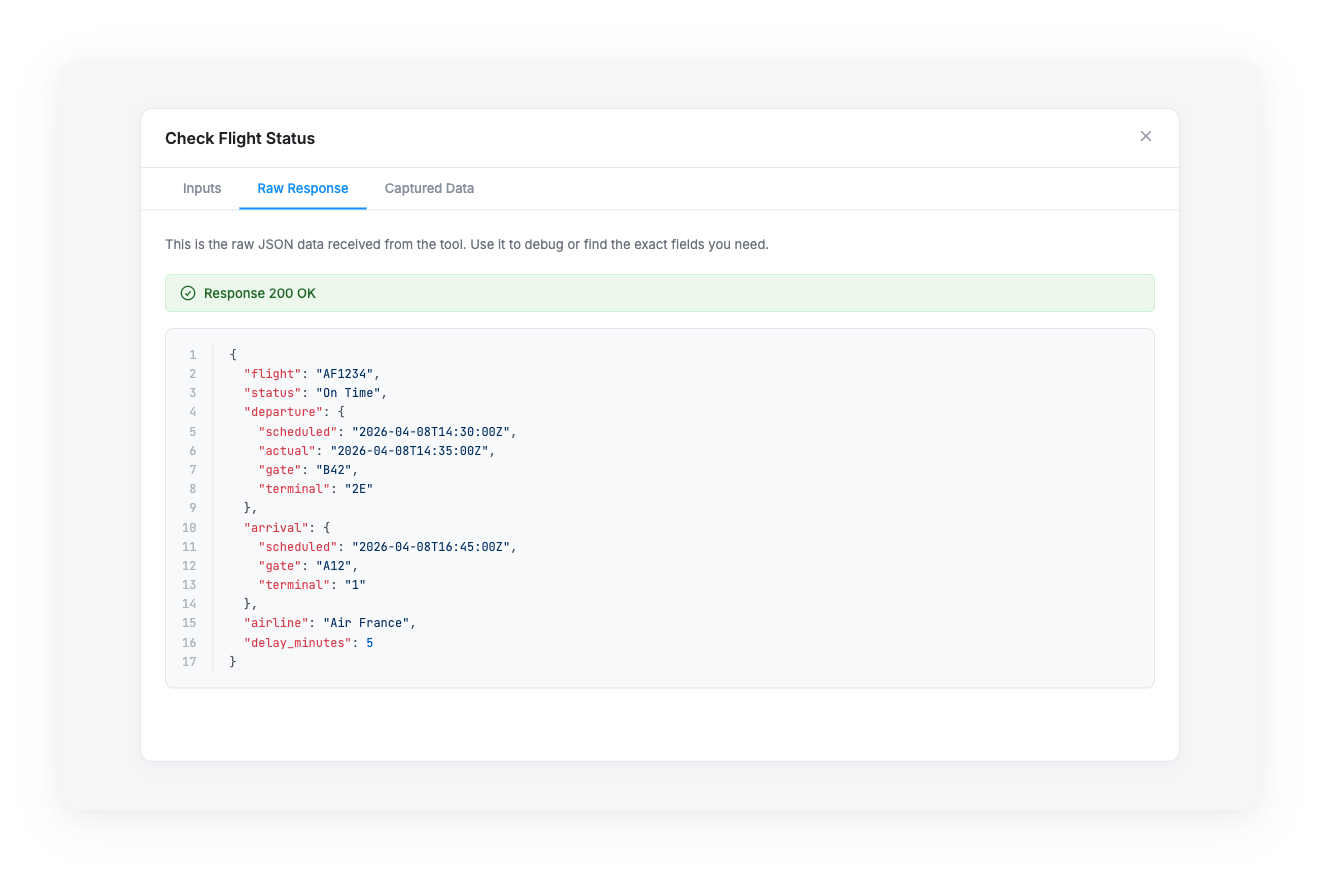
No more guessing — validate your tools before deploying. A built-in test modal lets you execute any tool with sample input values and see the response in real-time.
- Enter sample values: fill in test data for each input parameter
- Execute in real-time: run the tool against the actual backend endpoint
- View raw response: inspect the full JSON output to verify correctness
- Validate mappings: confirm your output mappings extract the right data before going live
No action required
AI Tools is available today for all clients with AI Specialist enabled. The feature is accessible from the Connect > AI Tools section in the sidebar.
For a complete walkthrough, check out the AI Tools documentation.