

Instagram Direct Messages & a redesigned AI preview
Instagram Direct Messages & a redesigned AI preview
This release brings your chatbot to a brand-new channel and reimagines how you test your AI assistant. You can now connect an Instagram Direct Messages account from Connect, and the AI preview moves from a modal into a full-height side panel with a new Explain view that tells you how each answer was built.
Reach your customers on Instagram Direct Messages
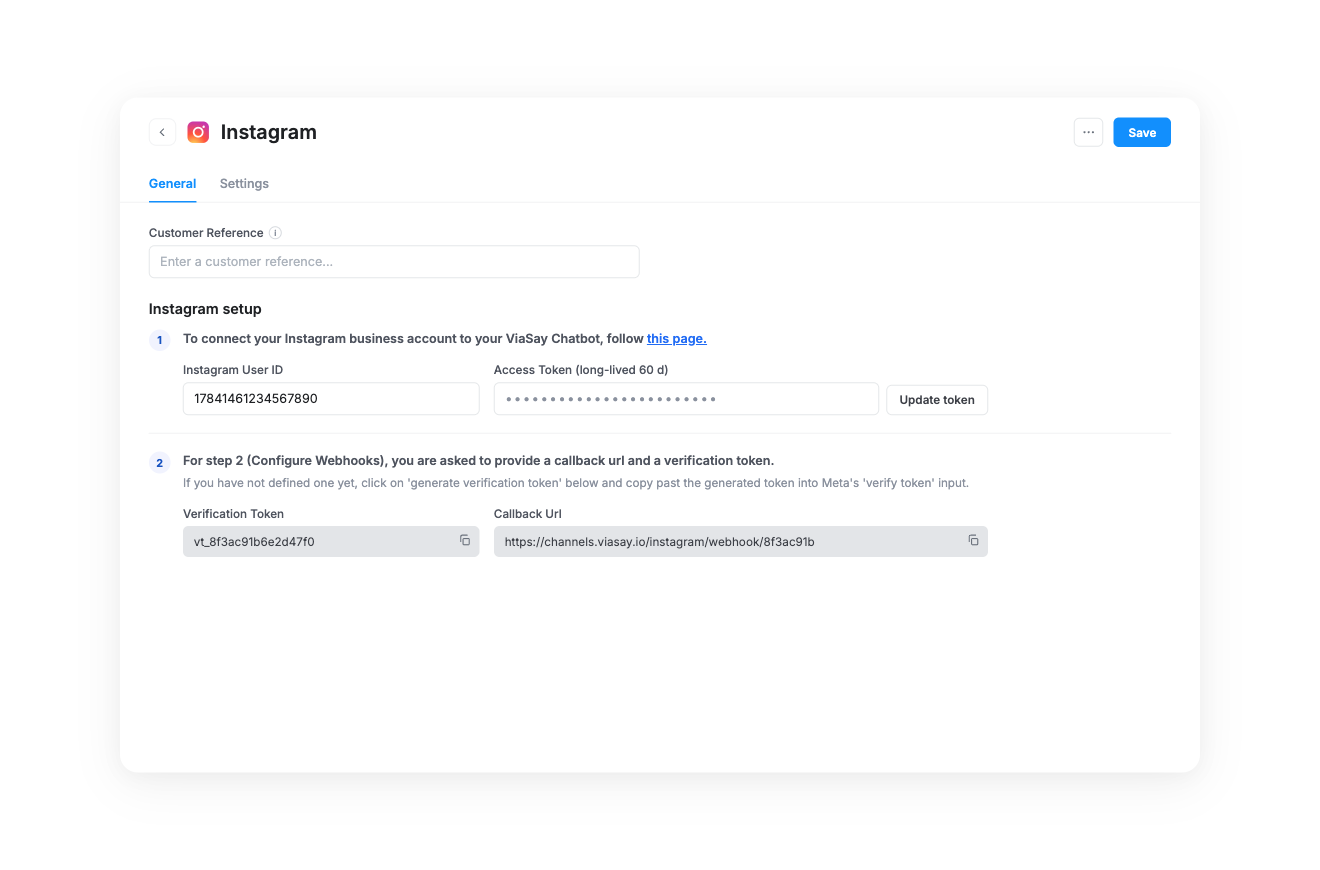
You can now create and configure an Instagram Direct Messages channel, right from Connect. Link your Instagram business account to your ViaSay chatbot and start answering direct messages automatically — the setup is guided step by step.
- Guided setup: enter your Instagram User ID and a long-lived Access Token (60 days), with a direct link to Meta's Instagram API documentation to generate them.
- Webhook connection: copy your Callback URL and Verification Token in one click to paste them into Meta's webhook configuration.
- Clear error messages: if the account can't be saved, you get a readable explanation instead of a raw error — for example when a token has expired, is invalid, or doesn't belong to the Instagram account you entered.
- Referral routing: in the Settings tab, redirect every user who arrives through an Instagram referral to a specific bot action.
Test your AI responses in a dedicated side panel
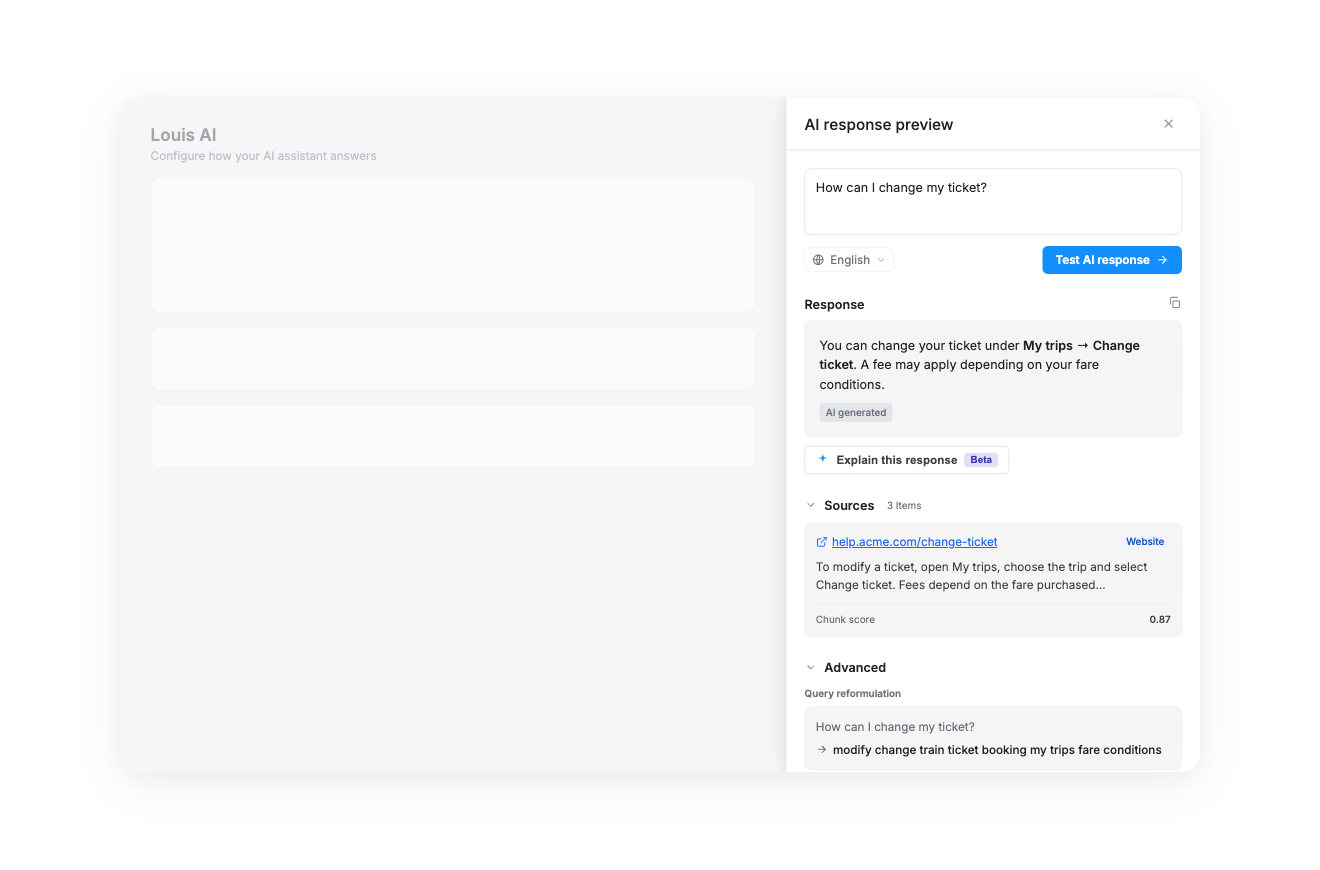
The AI preview leaves the modal and becomes a full-height side panel stack. It sits next to your work instead of covering it, so you can iterate on your assistant's answers without losing context.
- Redesigned query controls: type a question, run a test, and reuse your last query in a click.
- Response and sources at a glance: the assistant's answer and the sources it relied on are laid out in a clean, readable card.
- Advanced debug section: expand Advanced to inspect the active guidelines, the reasoning trace, and how your query was reformulated.
Understand every answer with Explain
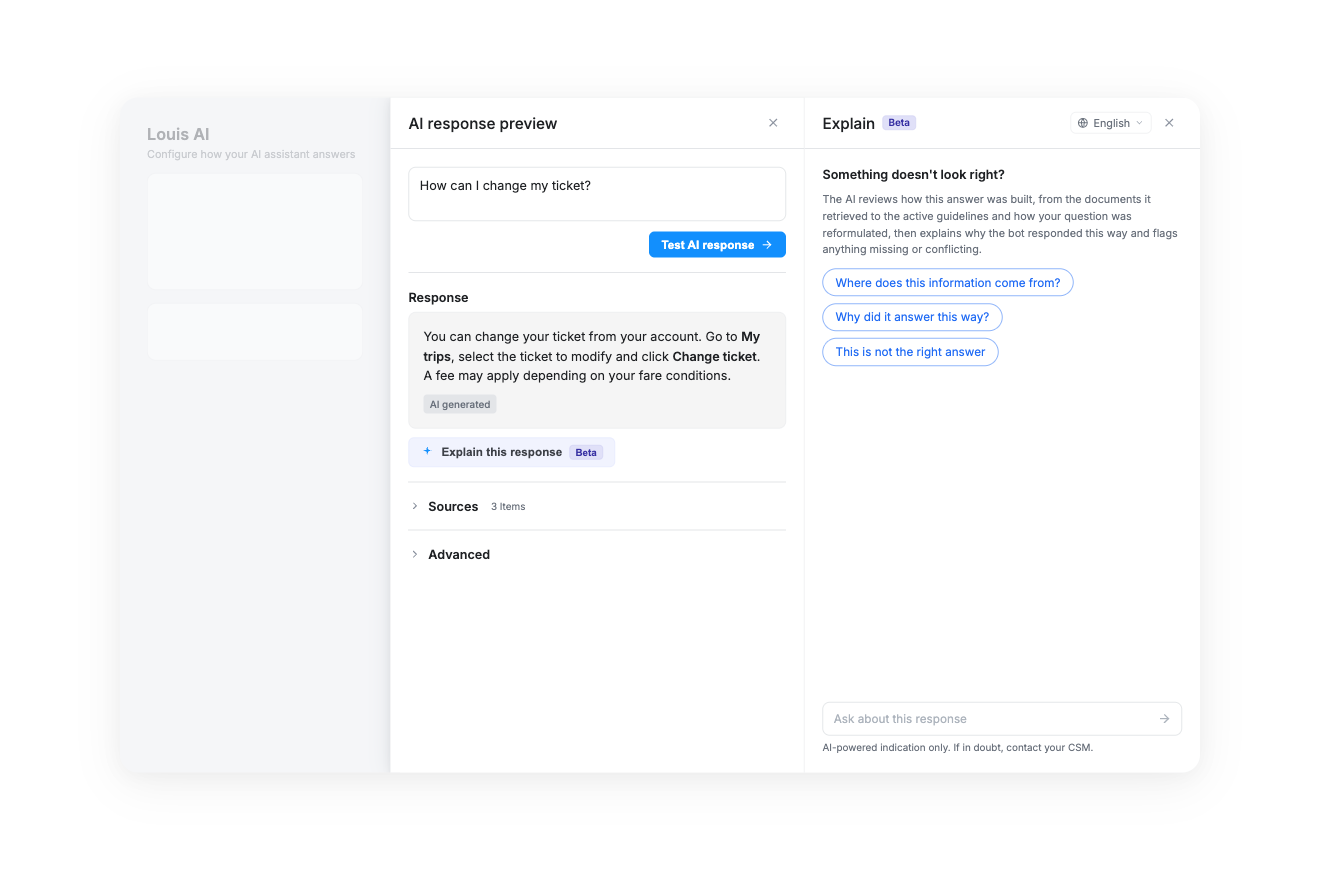
A new Explain panel breaks down how the assistant built its answer. When something doesn't look right, open Explain this response and the AI reviews the documents it retrieved, the active guidelines, and how your question was reformulated — then explains why the bot responded this way and flags anything missing or conflicting, in the language you selected.
- Ask in plain language: type your own question, or start from a suggestion like "Where does this information come from?", "Why did it answer this way?", or "This is not the right answer".
- See the reasoning: reveal or hide the full reasoning behind each explanation.
- Kept honest: every explanation carries a clear reminder that it's an AI-powered indication only — if in doubt, reach out to your CSM.
No action required
Both features are available now. You'll find Instagram when adding a new channel under Connect › Channels, and the redesigned AI preview opens from your assistant in Build.