

CSAT for AI Agents, Skip Control & Traceability Improvements
This release focuses on giving you more control over the end-user experience with CSAT surveys on User Input steps, a new skip toggle, and better traceability for Louis AI across the platform.
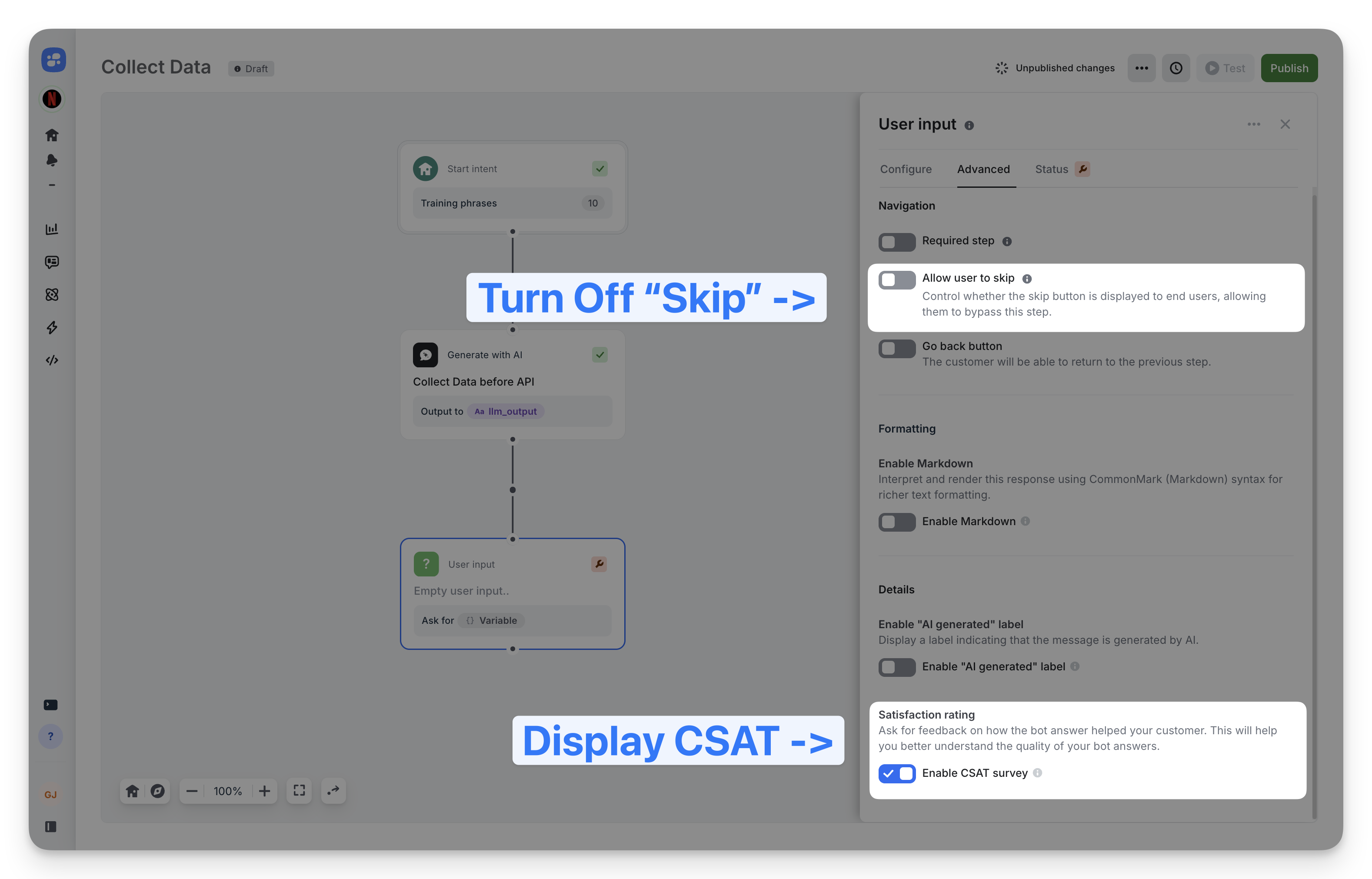
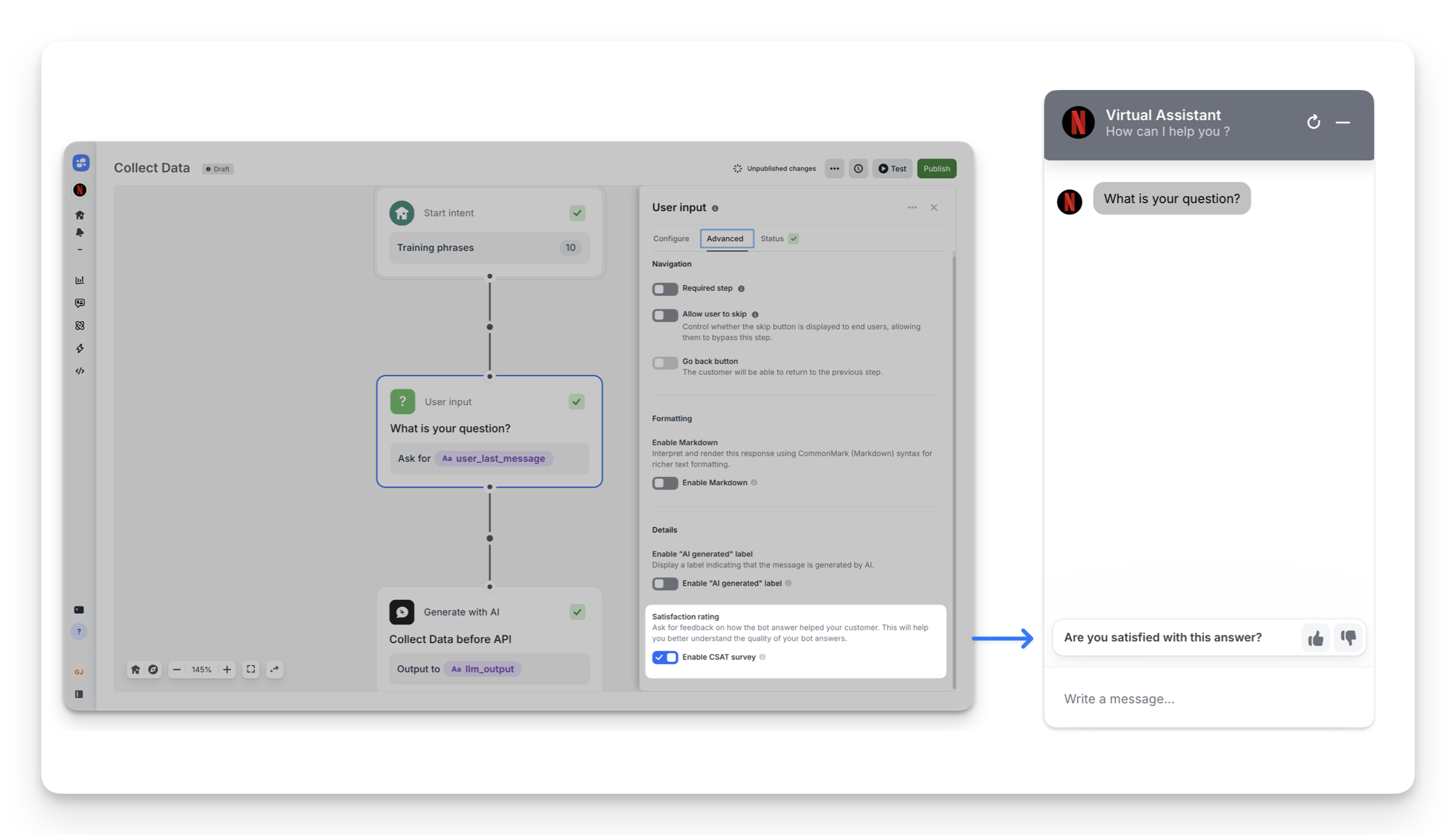
CSAT Survey on User Input
You can now enable CSAT satisfaction surveys directly on User Input steps. Previously, CSAT could only be triggered after Answer steps — which meant AI agents built around User Input had no way to collect user feedback.
With this update, a new "Enable CSAT survey" toggle is available in the Advanced tab of any User Input step, under the Details section. When enabled, the satisfaction rating prompt appears as soon as the User Input message is displayed, exactly like it does for Answer steps.
- Enable per User Input: toggle ON to collect feedback, OFF by default
- Same format as existing CSAT (rating + optional comment)
- CSAT responses appear in your analytics, tagged with the use case and source User Input
- Multiple User Inputs with CSAT enabled will each trigger their own survey independently
This is especially useful for AI agent flows where User Input is the primary interaction step — you can now measure satisfaction where it matters most.
Allow User to Skip (User Input)
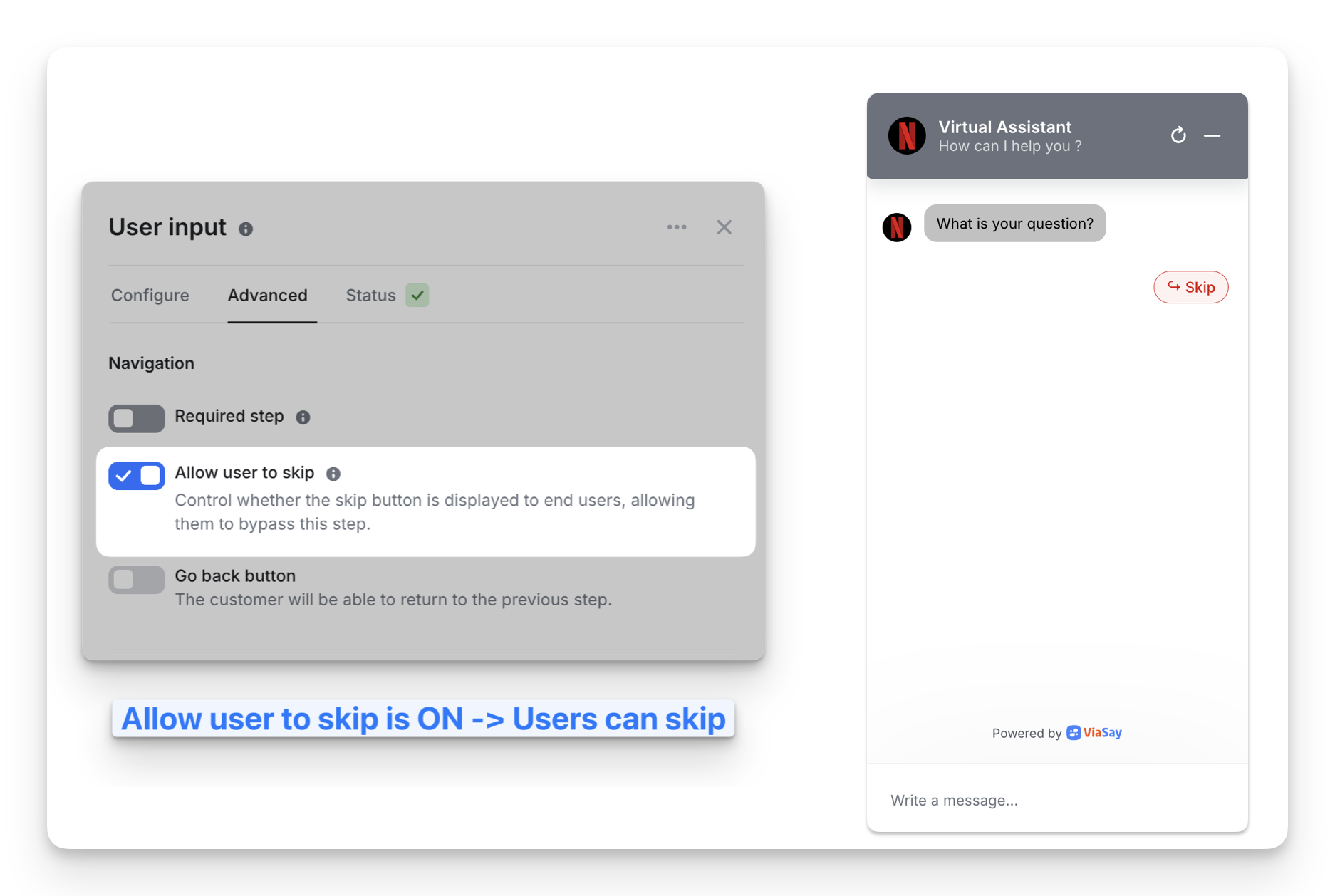
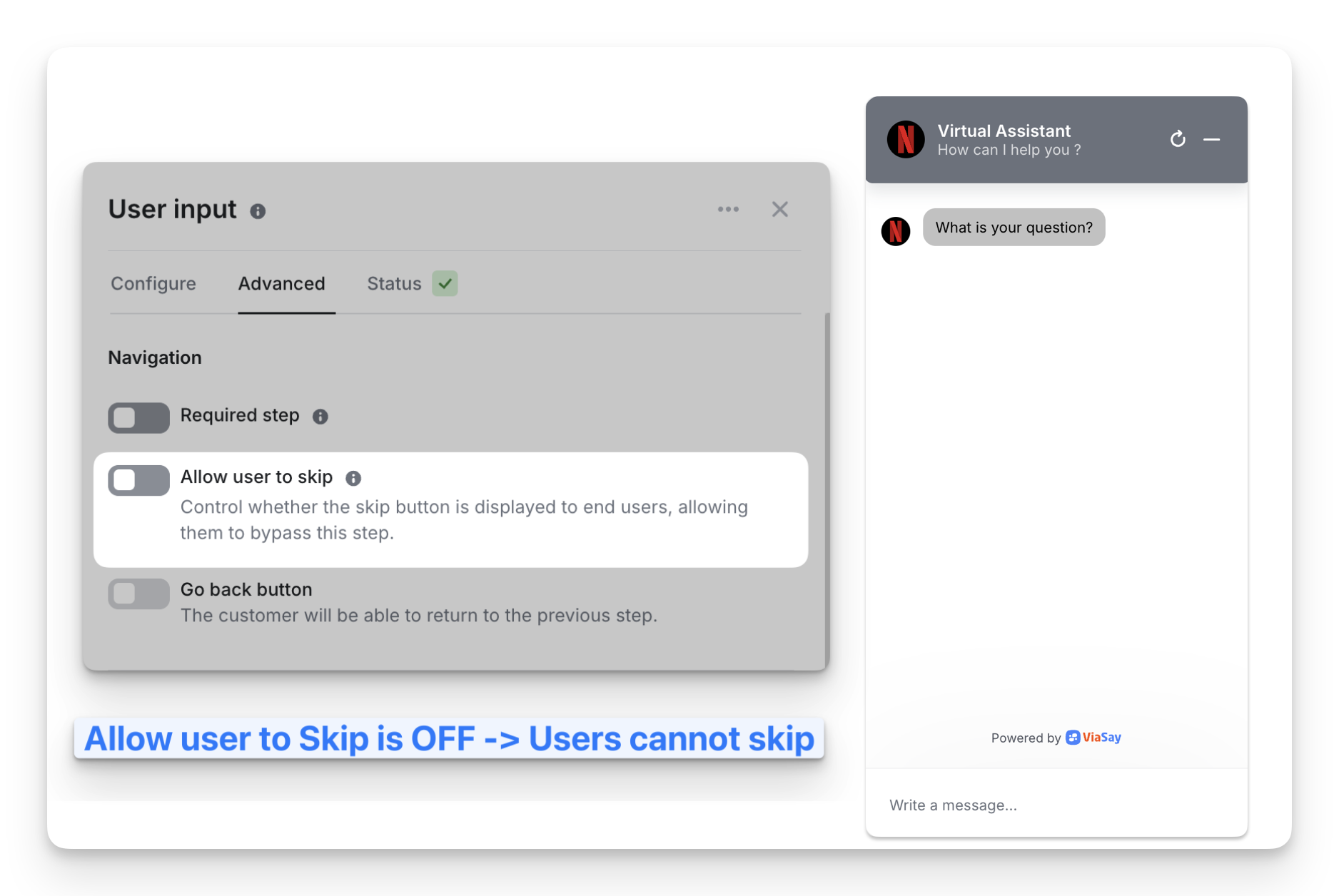
A new toggle lets you control whether the "Skip" button is displayed on User Input steps. With the rise of AI agents, User Input steps are increasingly used to keep users in a conversational flow driven by the LLM. In this context, the "Skip" button was causing confusion and accidental exits.
The new "Allow user to skip" toggle is located in the Advanced tab under Navigation. It only appears when Required step is OFF.
- ON (default): The skip button is displayed — same behavior as before, fully backward-compatible
- OFF: The skip button is hidden — the user must respond or be redirected by the LLM
When disabling skip, make sure your flow has an exit condition so users are not blocked.
All existing User Input steps keep their current behavior (toggle defaults to ON). No migration required.
Louis AI Trace in Conversations
Louis AI execution traces are now visible directly from conversations in Monitor. Previously, when reviewing a conversation in Monitor > Conversations, there was no way to see how Louis AI processed and answered. You can now access the full trace to understand exactly why the bot responded the way it did.
Louis AI Label in Flow Builder
The Louis AI label now appears correctly on "Go to Use Case" steps in Flow Builder. Previously, when using a Go To Louis AI action, the step did not display the Louis AI label, making it hard to identify which steps were routed to Louis AI. This is now fixed — the label is visible directly on the step.